
The CDS tab displays a patient’s inclusion in a Clinical Decision Support and the status of the CDS. From this tab, a user can add a custom CDS, change, or override a patient’s current CDS.
Permissions
To add, change, or override a patient’s Clinical Decision Support at the chart level, a user must have Can enable CDS Interventions selected in their user profile.
View a Patient’s Clinical Decision Support
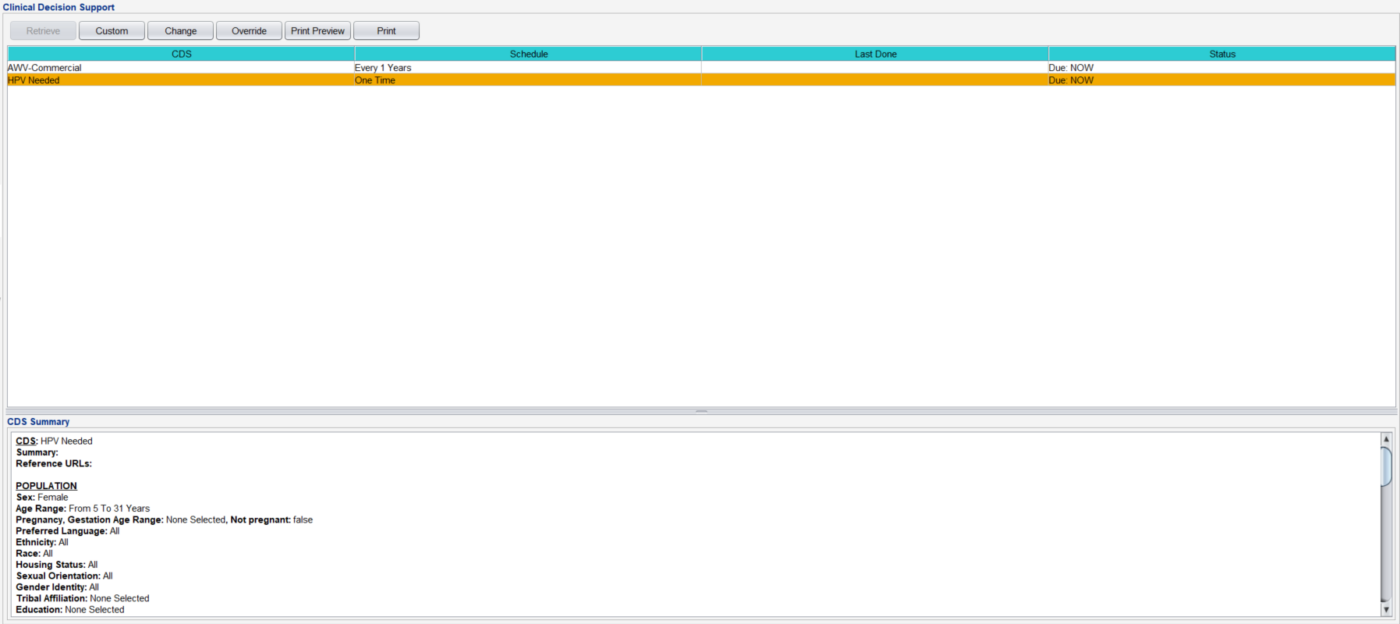
To view a Patient’s Clinical Decision Supports, go to Chart > CDS and click Retrieve.
The following information displays for all Clinical Decision Supports that apply to the patient:
- CDS: the name of the CDS
- Schedule: the Timing interval of the CDS
- Last Done: the date the Intervention required to satisfy the CDS was last performed
- Status: the due date of the CDS
Click on a CDS to view its criteria in the CDS Summary section.
Add a Patient-Specific Clinical Decision Support
A CDS can be added to a patient if there is a reason the patient should be included in CDS but does not fall into the defined population criteria (e.g., patient is considered high-risk or has a family history of disease).
- Go to Chart > CDS
- Click Custom
- Click Select CDS
- Select a Clinical Decision Support from the list and click OK
Type the rationale for adding the CDS in the Reason field
- Optional: from the Population tab, adjust the Age Range or Gestation Age Range to ensure the patient’s age and gestation age (if applicable) fall within the range
- Optional: from the Timing tab, adjust the interval for how often the CDS intervention must be performed
- Click Add
The text “Chart Specific done on [date and time] by [user], Reason [reason provided]” will be added to the display in the CDS Summary when the CDS is selected.

Change a Patient’s Clinical Decision Support
- Go to Chart > CDS
- Click Retrieve
- Select a Clinical Decision Support and click Change
- Type the rationale for changing the CDS in the Reason field
- Update any of the following criteria:
- Age Range, Gestation Age Range, or Preferred Language, from the Population tab
- Intervention interval from the Timing tab
- Click Save
The text “Chart Specific done on [date and time] by [user], Reason [reason provided]” will be added to the display in the CDS Summary when the guideline is selected.
Override a Patient’s Clinical Decision Support
- Go to Chart > CDS
- Click Retrieve
- Select a Clinical Decision Support and click Override
- Type a Reason for overriding the Clinical Decision Support
- Specify the amount of time the CDS will be suppressed by typing a number in the For: field and selecting a unit of time (Days, Months, Years)
- Click OK

The text “Override done on [date and time] by [user] for [time], Reason [reason provided]” will be added to the display in the CDS Summary when the CDS is selected.