The Insurance tab records and displays responsible party and insurance plan information for a patient. A patient can have up to three insurance plans in their chart.
Add a Responsible Party
The responsible party is the patient by default. The steps below are to designate a person other than the patient as the responsible party.
- Go to Chart > Pt. Info > Insurance
- Click Update
- Select No for the question Is patient the responsible party?
- Populate the following fields: Relationship to Patient, Last Name and First name, Address, Zip Code, City, and State
- Select the Same As Patient checkbox if the contact’s address is the same as the patient’s
- Populate the remaining fields if the information is available
- Click Save or click the Primary Insurance tab to add an insurance plan
Add an Insurance Plan
- Go to Chart > Pt. Info > Insurance
- Click Update
- Select the insurance tab of the plan to be added
- Select Yes for the question Does patient have (primary/secondary/tertiary) insurance?
- Type the Insurance Name or Plan Type
- Populate the remaining insurance fields if the information is available
- If the patient is not the subscriber, click No for the question Is patient the subscriber?
- Populate the following fields: Relationship to Patient, Subscriber Last Name and First name, and SSN
- Populate the remaining subscriber fields if the information is available
- Click Save
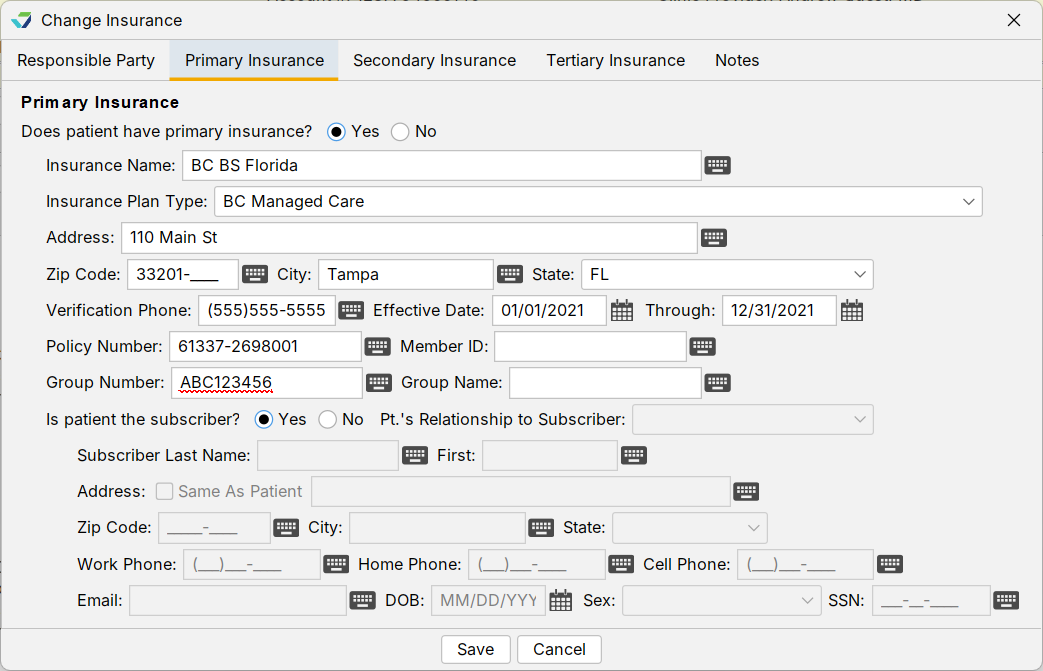
The Primary Insurance plan name will display in patient header.

Update an Insurance Plan
- Go to Chart > Pt. Info > Insurance
- Click Update
- Select the insurance tab of the plan to be updated
- Add or update the necessary information
- Click Save
Remove an Insurance Plan
- Go to Chart > Pt. Info > Insurance
- Click Update
- Select the insurance tab of the plan to be removed
- Select No for the question Does patient have (primary/secondary/tertiary) insurance?
- Click Save
Notes Tab
Notes is a free text field. Type any related information in this field and click Save
Historic Button
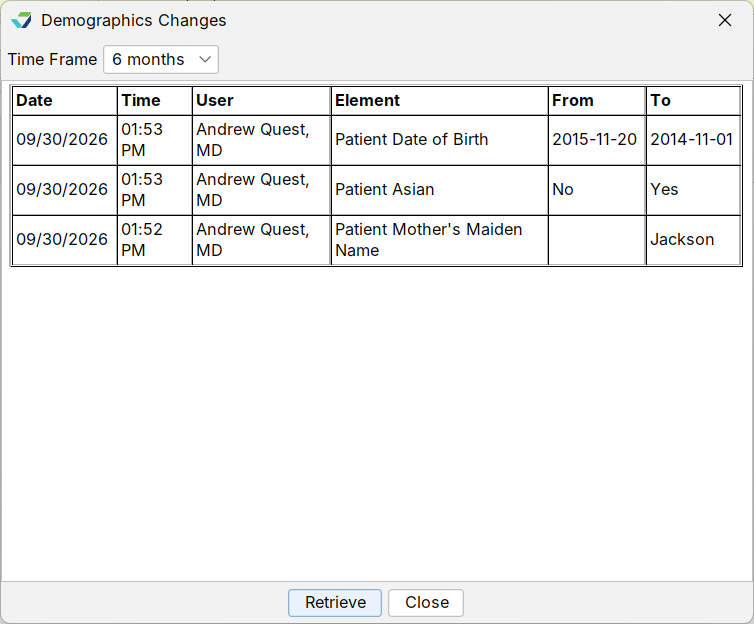
The Historic button displays an audit trail of user activity in the Demographics subtabs. To view changes made to patient demographics:
- Click Historic from the subtab
- Select a Time Frame for the changes
- Click Retrieve
The results display the Date and Time the change was made, the User who made the change, the data Element that was changed, the original value of the element (From), and what the element was changed To.