
Patient Reminders is used to create and send communications to patients based on Health Maintenance Disease Management Reminder List Report criteria. Patient reminders can be created as a letter or patient portal message or documented as a phone reminder.
Patient Reminders: Letters
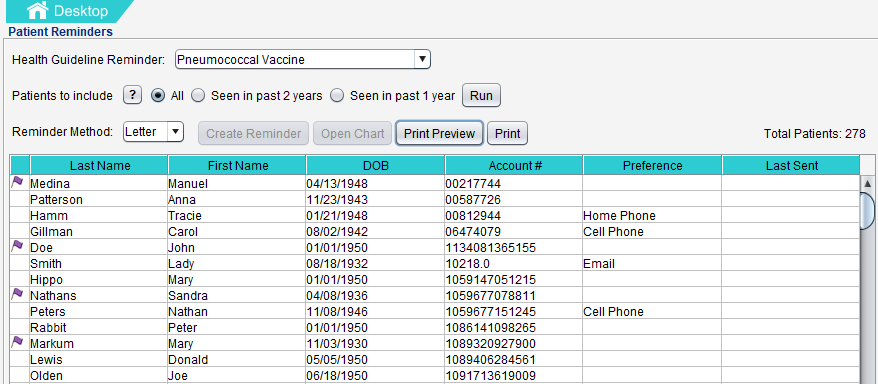
The Letter reminder method creates reminder letters for individual patients based on an existing Letter Template.
Create a Patient Reminder List for Letters
- Select a Health Guideline Reminder
- Select Patients to Include
- Select Letter as the Reminder Method
- Click Run
Create a Patient Reminder Letter
- Select a patient from the list
- Click Create Reminder or double-click the patient data row
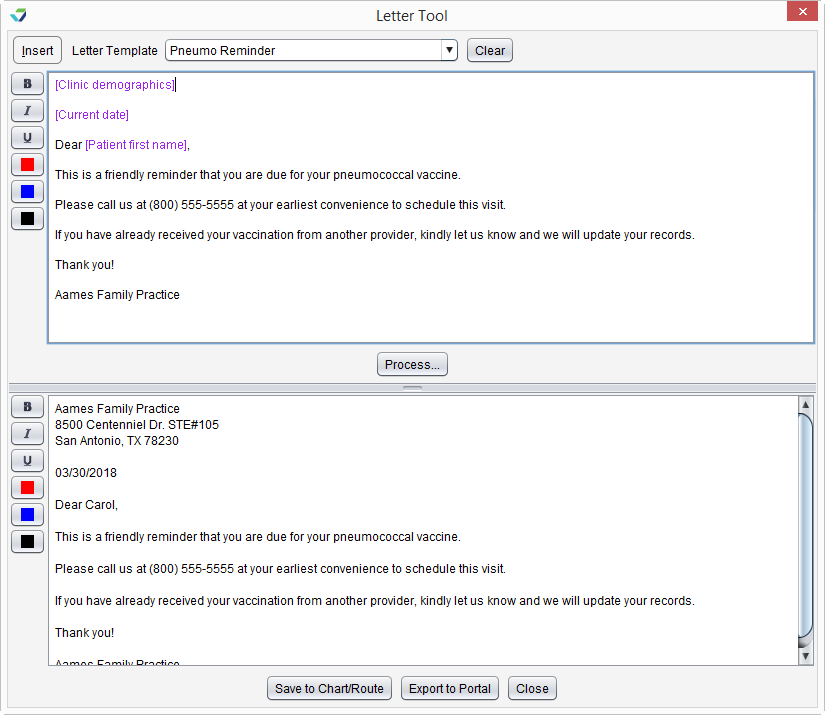
- From the Letter Tool, select the Letter Template that will be used to create the reminder
- Click Process to create the letter
Send a Patient Reminder Letter
Patient reminder letters can be printed for mailing or sent to the patient’s portal account for patients already enrolled in the portal.
Print a Patient Reminder Letter
- From the Letter Tool, click Save to Chart/Route
- Name the letter and click OK
- Click OK on the confirmation window
- The letter will display to be printed
Send a Patient Reminder Letter to the Portal
- Click Export to Portal
- Populate the Subject and message body fields
- Select a message favorite from the Subject selection list or click Custom and type a subject and message
- Click OK
Letter reminders are stored to the patient chart in the Past Encounters tab.
Patient Reminders: Phone
The Phone reminder method is used to document patient reminders completed over the telephone.
Create a Patient Reminder List for Phone
- Select a Health Guideline Reminder
- Select Patients to Include
- Select Phone as the Reminder Method
- Click Run
Create a Phone Patient Reminder
- Select a patient from the list
- Click Create Reminder or double-click the patient data row
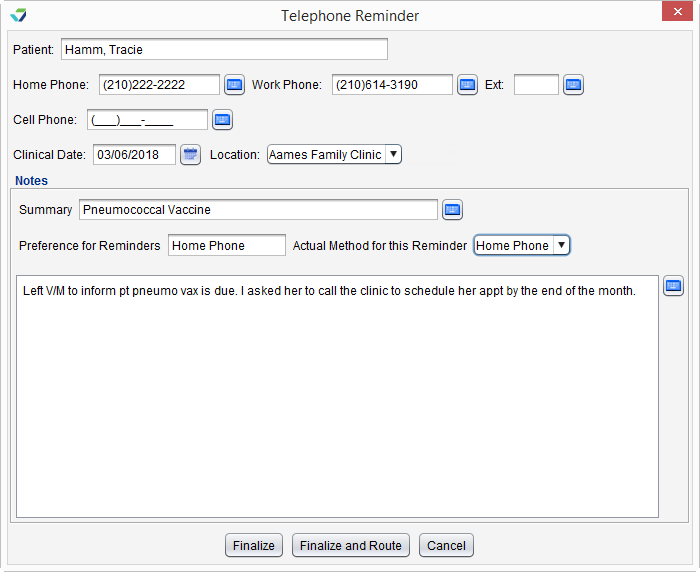
- From the Telephone Reminder window, select the Actual Method for this Reminder
- Preference for Reminders is populated based on patient demographics and cannot be edited
- Type a description of the patient reminder in the free text field
- Optional: Update the following fields if necessary:
- Clinical Date: the date of the phone reminder, defaults to the current date
- Location: displays the user’s default location but can be changed if more than one location is available
- Summary: defaults to the name of the Health Guideline Reminder selected
- Home Phone, Work Phone, and Cell Phone are populated based on patient demographics. Changes made to these fields do not affect the patient demographics.
- Click Finalize to save the reminder or Finalize and Route to save the reminder and route it to another user
Phone reminders are stored to the patient chart in the Past Encounters tab.
Patient Reminders: Patient Portal
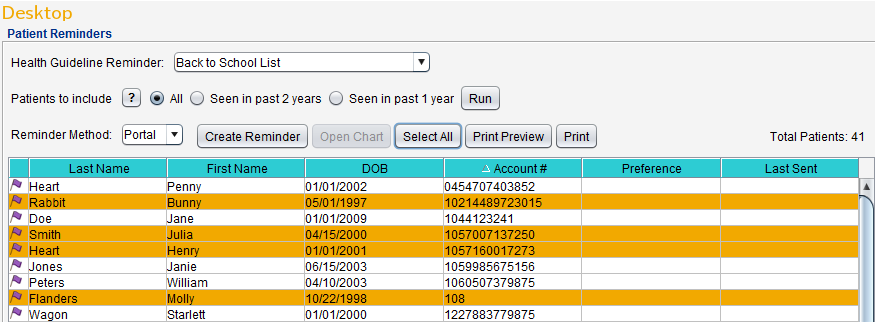
The Portal reminder method is used to create and send reminders through the patient portal. Reminders can be sent to individual patients or to multiple patients simultaneously.
Create a Patient Reminder List for Portal
- Select a Health Guideline Reminder
- Select Patients to Include
- Select Portal as the Reminder Method
- For the Portal reminder method, only patients enrolled in the patient portal will display in the list
- Click Run
Create an Individual Patient Portal Reminder
- Select a patient from the list
- Click Create Reminder or double-click the patient data row
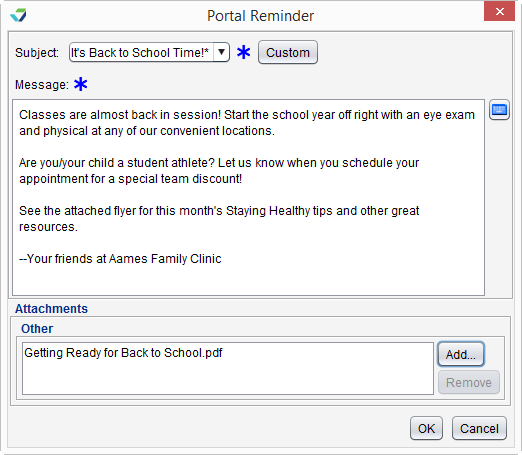
- Populate the Subject and Message body fields
- Select a message favorite from the Subject selection list or click Custom and type a subject and message
- Optional: click Add to include an attachment with the message
- Click OK to create the portal reminder, then click OK to acknowledge the message has been submitted for processing
- The user who created the reminder will receive a notice in the Messages inbox when the reminder has been processed and sent
Create a Patient Portal Reminder for Multiple Patients
- Click Select All to select all patients in the list or hold down the CTRL key and select individual patient names
- Click Create Reminder or double-click the patient data row
- Populate the Subject and Message body fields
- Select a message favorite from the Subject selection list or click Custom and type a subject and message
- Optional: click Add to include an attachment with the message
- Click OK to create the portal reminder, then click OK to acknowledge the message has been submitted for processing
- The user who created the reminder will receive a notice in the Messages inbox when the reminder has been processed and sent
Portal reminders are stored to the patient chart in the Past Encounters tab.
Note
Sending a patient reminder based on a Health Guideline does not satisfy the patient’s Health Guideline intervention requirement