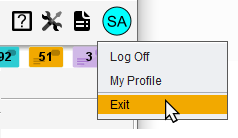
The User Menu contains personalization features for the user profile and log out options.
My Profile
The My Profile tool enable users to customize their menu icon, update their Sevocity password, and change their Desktop theme.
Click the menu icon to customize and select a background color, text color and style, border option, and initials to display.

Click Change Password to update the current Sevocity login password. Enter the Original Password, the New Password, and then Confirm the new password. Click Save to save the new password. Passwords must meet the minimum requirements set the by the Security Administrator.
Click Change Theme to update the Desktop to the New or Traditional layout. Click Save to save the selection.
Logging Out of Sevocity
- To log off of Sevocity, select the User Menu icon (
 ) and click Log Off
- ‘Log Off’ logs the user out of Sevocity and returns the user to the login screen
- To exit Sevocity, select the User Menu icon () and click Exit
- ‘Exit’ logs the user out of Sevocity and closes the application