
| Measure: For at least one unique patient seen by the MIPS EC during the performance period, a secure message was sent using the electronic messaging function of CEHRT to the patient (or the patient-authorized representative), or in response to a secure message sent by the patient (or the patient-authorized representative). | |
| Denominator | The number of unique patients seen by the MIPS eligible clinician during the performance period. |
| Numerator | The number of patients in the denominator for whom a secure electronic message is sent to the patient (or patient-authorized representative) or in response to a secure message sent by the patient (or patient-authorized representative), during the performance period. |
Denominator
To be included in the denominator:
- Patient must be seen by the EC during the performance period
Numerator
To be included in the numerator:
- EC must send a message to the patient or patient-authorized representative using the patient portal during the performance period
OR
- EC must reply to a message received in the Patient Portal Inbox from the patient or patient-authorized representative during the performance period
Messages can be sent using the patient portal from the following areas:
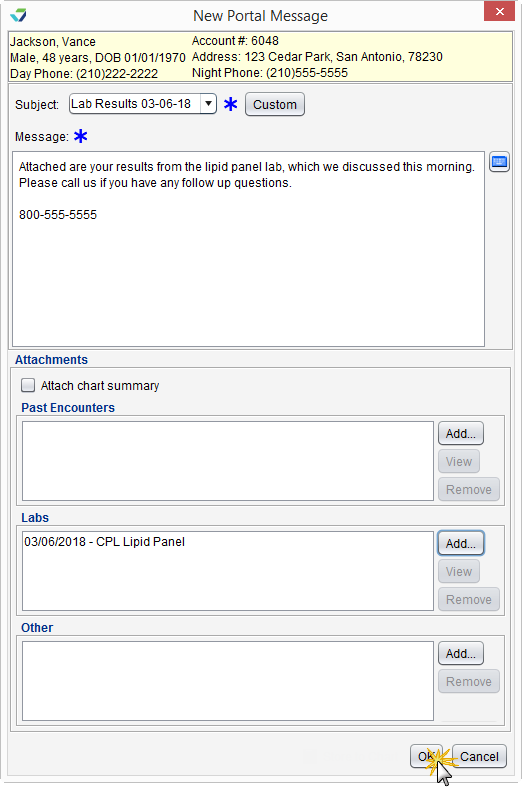
Create a New Portal Message
- Click New from the Patient Portal Inbox
- Enter patient search criteria and click Search
- Select the patient and click OK
- Populate the Subject and message body fields
- Select a message favorite from the Subject selection list or click Custom and type a subject and message
- Optional: add any of the following attachments to the message:
- Select the Attach chart summary checkbox to include the patient’s chart summary
- Click Add in the Past Encounters section to attach one or more past encounters
- Click Add in the Labs section to attach one or more lab results
- Click Add in the Other section to add one or more PDF attachments
- Click OK to send
Send a Portal Message from Chart Tools
- Go to Chart > Chart Tools > Send Portal Message
- Populate the Subject and message body fields
- Select a message favorite from the Subject selection list or click Custom and type a subject and message
- Optional: the following attachments can be included with the message:
- Select the Attach chart summary checkbox to include the patient’s chart summary
- Click Add in the Past Encounters section to add one or more past encounters
- Click Add in the Labs section to add one or more lab results
- Click Add in the Other section to add one or more PDF attachments
- Click OK to send the message
Send a Visit Plan to the Portal from an Encounter
- From the Coding tab and click Done
- Select the Finalize checkbox
- Select the Export Plan to Patient Portal checkbox
- Click Finalize
- Encounter must be finalized by EC

Reply to a Portal Message
- Select the message from the Patient Portal Inbox and click Reply
- Populate the message body
- Optional: add any of the following attachments to the message:
- Select the Attach chart summary checkbox to include the patient’s chart summary
- Click Add in the Past Encounters section to attach one or more past encounters
- Click Add in the Labs section to attach one or more lab results
- Click Add in the Other section to add one or more PDF attachments
- Click OK to send
 To send a message from the Patient Reminders tab, select Portal as the reminder method when creating a patient reminder. Patient reminder message must be sent by the EC to count toward the numerator.
Additional Information
- Patients seen more than once during the performance period will only count once toward the measure.
- For ECs reporting as a group, a patient seen by more than one EC in the group will only count once toward the measure.