
Security Administrators are the only users who can reset a Sevocity login password for another clinic user.
Reset a User Password
- Go to Tools > Security Administration > Reset User Password
- Select the user whose password needs to be reset
- Click OK
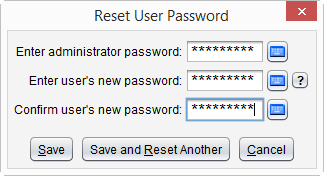
- The Security Administrator must type their Sevocity password in the Enter administrator password field
- Type a temporary password in the Enter user’s new password field
- Password must adhere to the minimum requirements created in Security Settings
- Password is case sensitive
- Re-type the temporary password in the Confirm user’s new password field
- Click Save or click Save and Reset to reset another user’s password
Note
When the user logs in to Sevocity with the temporary password, they will be required to create a new, secure password