
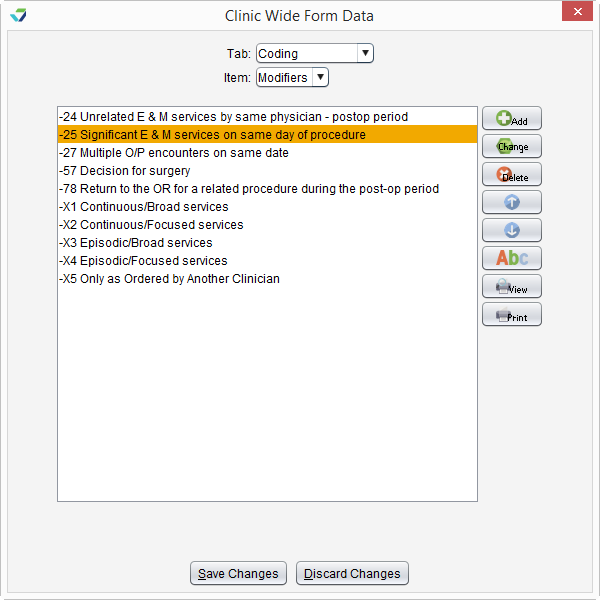
From the Clinic Wide Form Data Coding tab, a Clinic Administrator can create and manage the list of E/M code Modifiers available in the encounter Coding tab.
Sevocity Best Practice
Review the modifier list at least once a year or as coding updates are published. Delete phased out modifier codes and add any new codes that will be used by the clinic.
Add a Modifier
- Go to Tools > Preferences > CLINIC > Clinic Wide Form Data
- Click Begin Edit
- Select Coding from the Tab list
- The Item list will default to Modifiers
Click Add

- Type the modifier code in the Modifier field
Type a description of the modifier in the Description field

- Click Add to add the modifier to the list or click Add Another to continue adding modifiers
- Click Save Changes to save any changes and exit the Clinic Wide Form Data tool
Update a Modifier
- Go to Tools > Preferences > CLINIC > Clinic Wide Form Data
- Click Begin Edit
- Select Coding from the Tab list
- The Item list will default to Modifiers
- Select a modifier from the list
- Click Change
- Edit the text in the Modifier and Description fields as needed
- Click Save
- Click Save Changes to save any changes and exit the Clinic Wide Form Data tool
Tasks Associated with the Modifier List
Delete a Modifier
 Select an item and click Delete, then click Yes to confirm decision to delete
Organize the Modifier List

Select an item and click the Up arrow to move the item up one place in the list
Select an item and click the Down arrow to move the item down one place in the list
Click Abc to sort the entire list in ascending alphabetical order (A-Z)
Other Actions

Click View to generate the item list in a PDF
Click Print to print the item list