The Medications tab is used to reconcile a patient’s current medications and prescribe new medications. Prescribed medications display in the encounter and, after the encounter is finalized, display in the Medications and Assessments tab in the patient chart.
Encounter Types
Medications is available in the following encounter types: Exam, Multi-System, Procedure, Reconciliation, Telephone, and Urgent Care.
Configuration
Users and providers who need to add or update patient medications, allergies, or pharmacy information must be set up to access the medication and allergy module (Rcopia).
Providers who need to prescribe controlled substances electronically must have an EPCS Gold account.
Please submit the EPCS Enrollment form to begin enrollment for an EPCS Gold account.
Reconcile Current Medications
Review the patient’s current medications
After verifying the medication list is accurate, select the Medication Reconciliation Performed checkbox
If a medication reconciliation cannot be performed because of an urgent medical situation, select the Medication Reconciliation Not Performed Due to Urgent Medical Situation checkbox
Prescribing Medications
Medications can only be prescribed for the current date. Users who attempt to prescribe a medication in an encounter set to a future date will be presented with a message alerting them to this restriction.
Prescribe a Medication
Go to Encounter > Medications
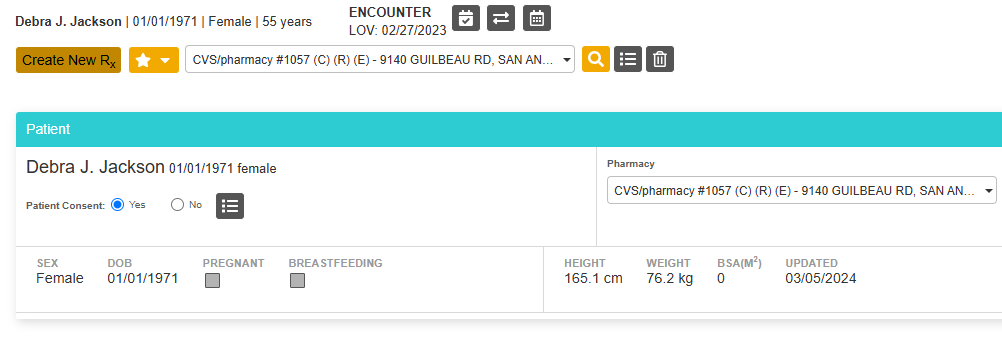
Click Manage/Prescribe Meds to launch Rcopia
Click the New Rx button
Begin typing a medication name in the Search for a drug field and select the medication from the suggested results listor Type a medication name in the Search for a drug field and click the Search icon (). Then click the medication name from the results list
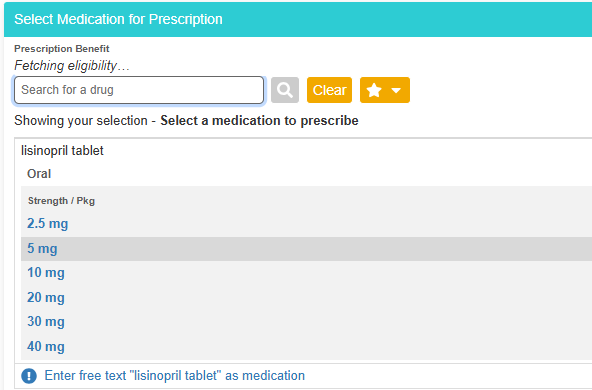
Click the correct dose for the medication
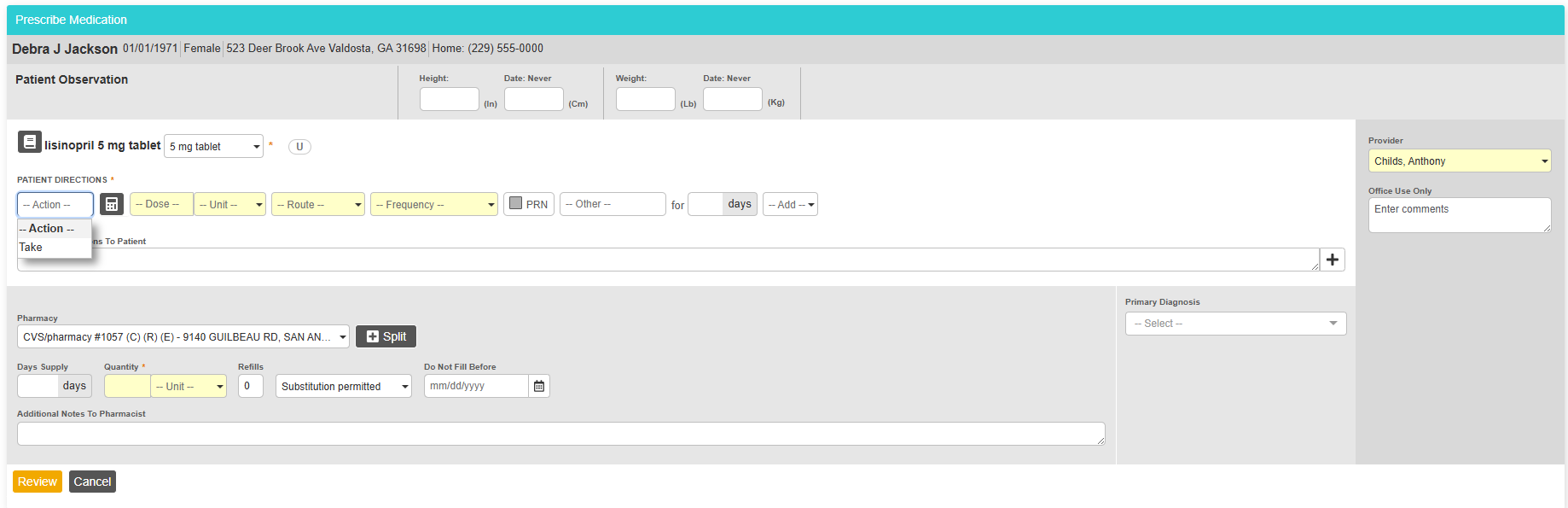
Complete the remaining prescription information
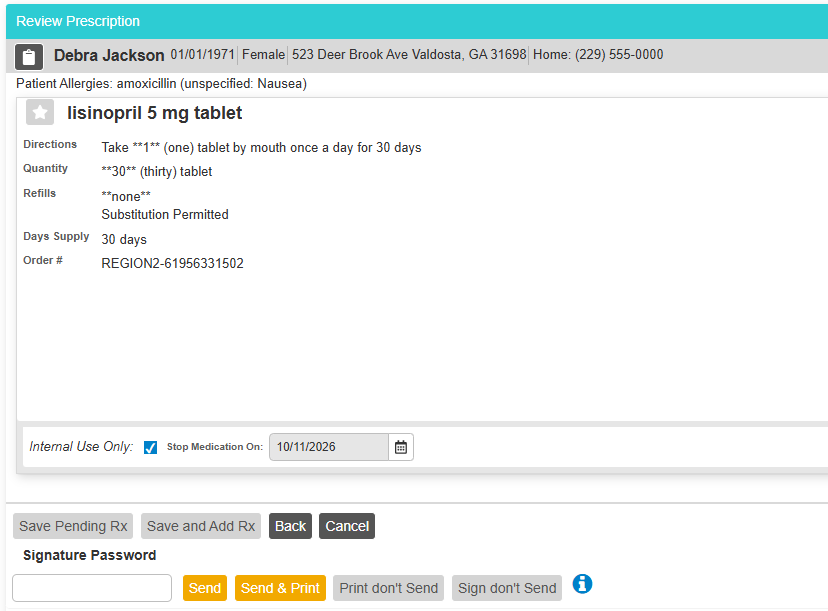
Click Review to review the prescription information
Optional: click the Add to Favorites icon () and click Save to save the current prescription to the prescription Favorites list
To create another prescription, click Save and Add Rx and repeat the previous steps to create more prescriptions
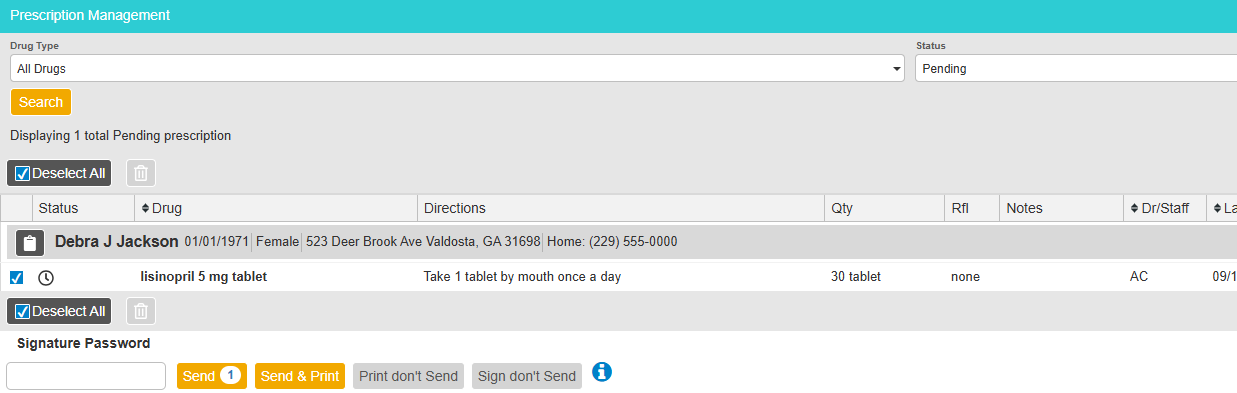
The prescription will be added to the Prescription Management section as a pending prescription until it is sent
or
Type the Signature Password (if required) and click one the following options to complete the prescription:
Send: electronically transmits the prescription to the pharmacy
Send & Print: electronically transmits the prescription to the pharmacy and generates a printed copy
Print don’t Send: prints the prescription but does not transmit it electronically
Sign don’t Send: signs the prescription but does not transmit it electronically
Click Return to Sevocity
Prescribe a Favorite Medication
Go to Encounter > Medications
Click Manage/Prescribe Meds to launch Rcopia
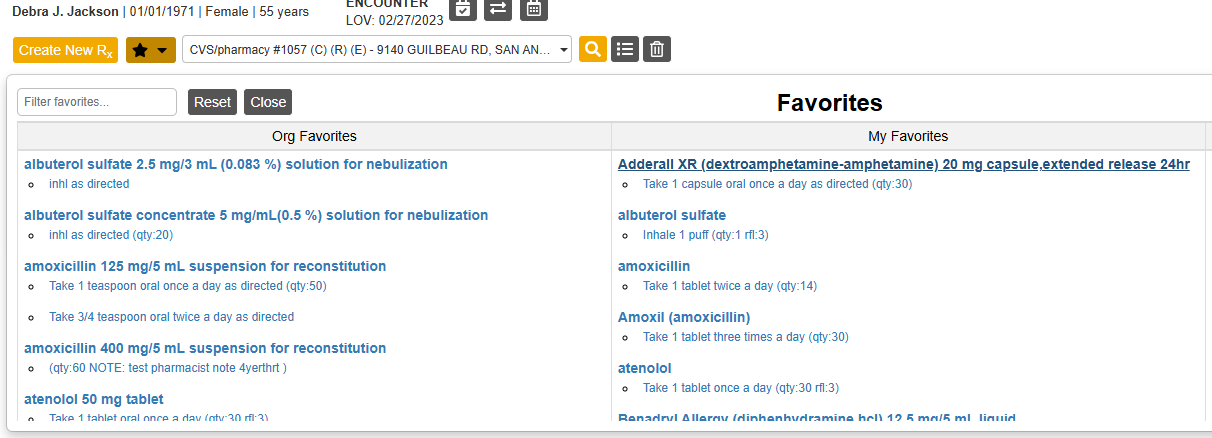
From the Patient Summary header, click the Prescription Favorites icon ()
Click on a prescription from the Favorites list. The prescription will be added to the Prescription Management section as a pending prescription until it is sent
Optional: create more prescriptions as needed
From the Prescription Management section, type the Signature Password (if required) and click one the following options to completethe prescription:
Send: electronically transmits the prescription to the pharmacySend & Print: electronically transmits the prescription to the pharmacy and generates a printed copyPrint don’t Send: prints the prescription but does not transmit it electronicallySign don’t Send: signs the prescription but does not transmit it electronically
Click Return to Sevocity
Electronic Prescription of Controlled Substances (EPCS)
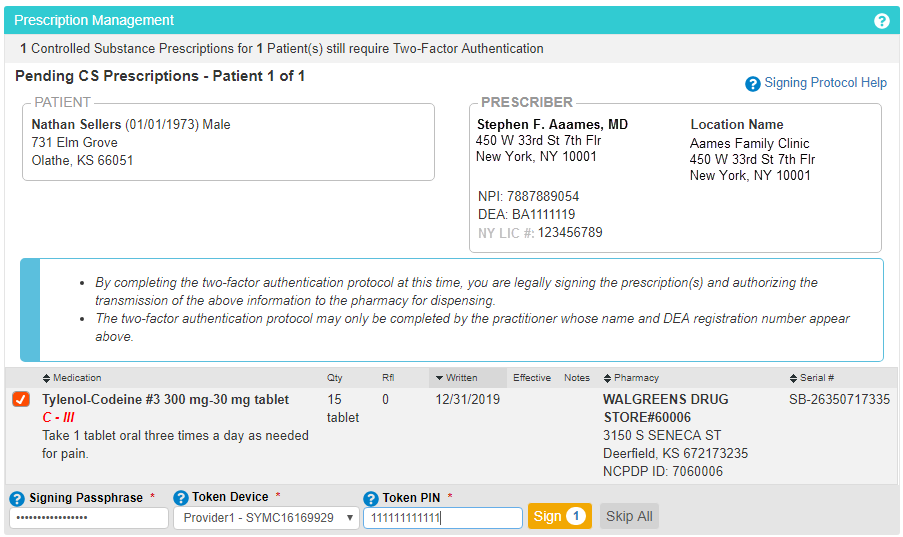
Providers prescribing controlled substances electronically are required to enter a Signing Passphrase and Token PIN for transmission authorization.
This information is requested after entering the Signature Password and clicking Send or Send and Print.
Pending Prescriptions
If a prescription is created in Rcopia but is not completed (i.e., neither sent, signed, nor printed), the prescription is considered pending. If a patient has a pending prescription that was created in the current encounter, a blue flag () displays next to the tab name and the prescription information is added to the provider’s Rx Pending queue, accessible from within Rcopia and from the Prescription Status links.
An encounter cannot be finalized if the patient has pending prescriptions created in that encounter.
Note
Pending prescriptions created in a different open encounter or created in the patient chart will not display in the current open encounter and do not prevent the current open encounter from being finalized.
Sevocity Best Practice
Review the Rx Pending queue for any pending prescriptions that may be relevant to the patient’s current open encounter.
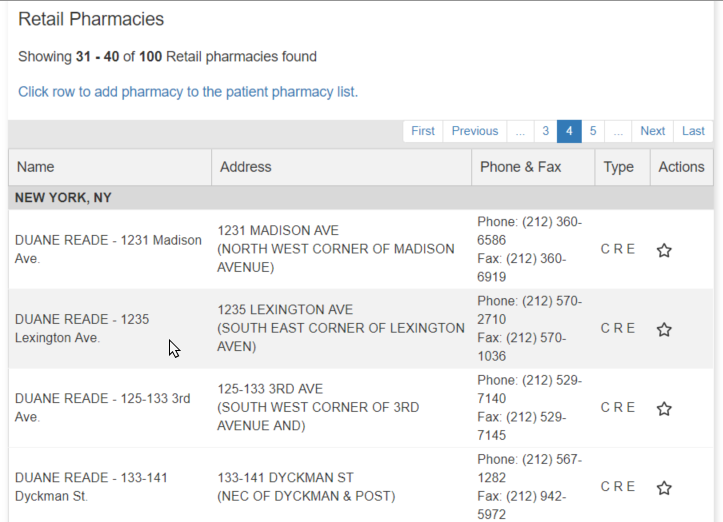
Add a Pharmacy
Go to Encounter > Medications
Click Manage/Prescribe Meds to launch Rcopia
Click the pharmacy Search icon ()
Type the pharmacy information into one or more of the search fields
The State field is pre-populated based on the clinic’s location
Optional: refine the search by selecting a filter for pharmacy List, Pharmacy Type, or Pharmacy Options
Click Search
Click the pharmacy name from the results list to add the pharmacy to the patient’s list
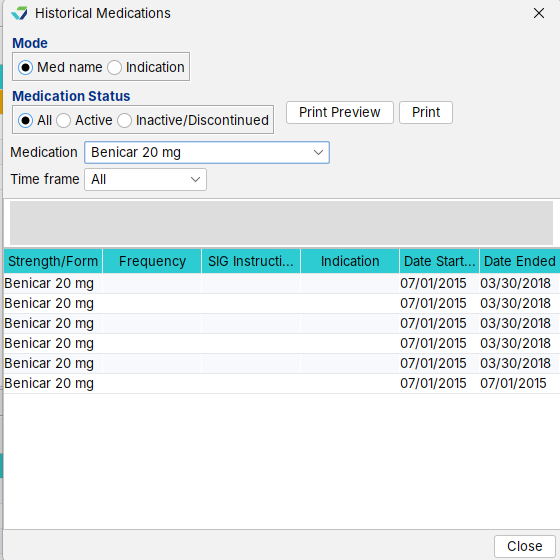
View Historic Medications
Click View Historic
Select a Mode: Med name or Indication
Select a Medication Status: All, Active, or Inactive/Discontinued
Select a Medication
Select a Time Frame for the history
Infobutton
To access patient education, click (Infobutton) next to the medication name. This launches MedlinePlus Connect website resources for the selected medication.


 ). Then click the medication name from the results list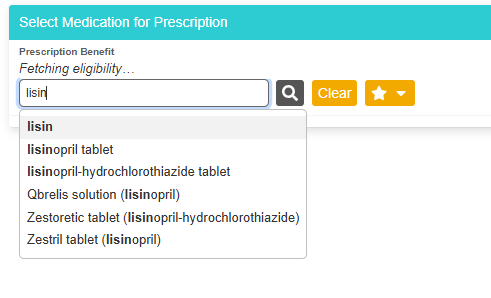

 )
)
 ) displays next to the tab name and the prescription information is added to the provider’s Rx Pending queue, accessible from within Rcopia and from the Prescription Status links.
 )
)
 (Infobutton) next to the medication name. This launches MedlinePlus Connect website resources for the selected medication.