
Section
Encounters
Patient encounters are used to document healthcare visits with the provider and clinical services provided to the patient.
Creating New Encounters
Permissions
Users must have an Access Level of Restricted Chart Entry or Full Chart to create a new encounter. Users with an Access Level of Summary and View-Only can create a Blank Note encounter only.
Create a New Encounter from the Patient List
- From the Desktop, select the appointment and click Start Encounter
- Select the encounter Type
- Optional: select the encounter Location
Click OK
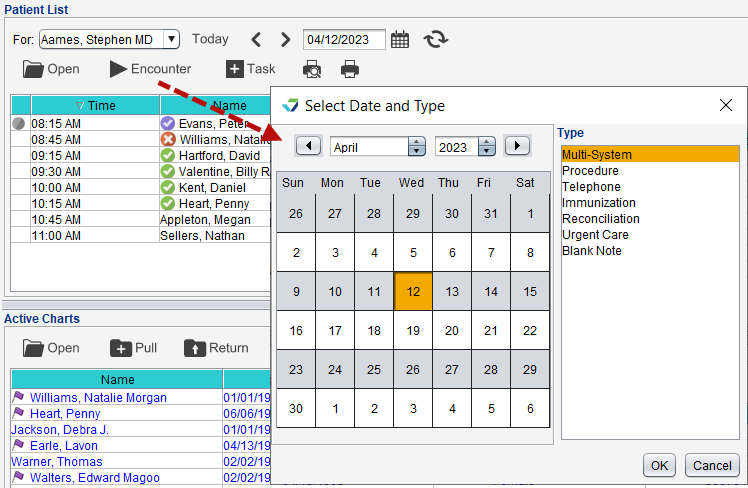
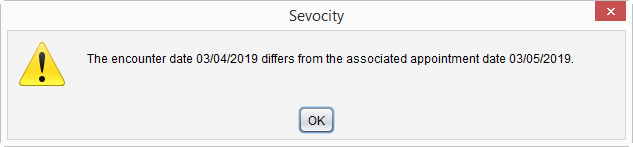
The date and time for encounters created from the Patient List will default to the scheduled appointment date and time. Selecting a different date will prompt a warning on the encounter creation window and each time the encounter is opened.
Create a New Encounter from the Patient Chart
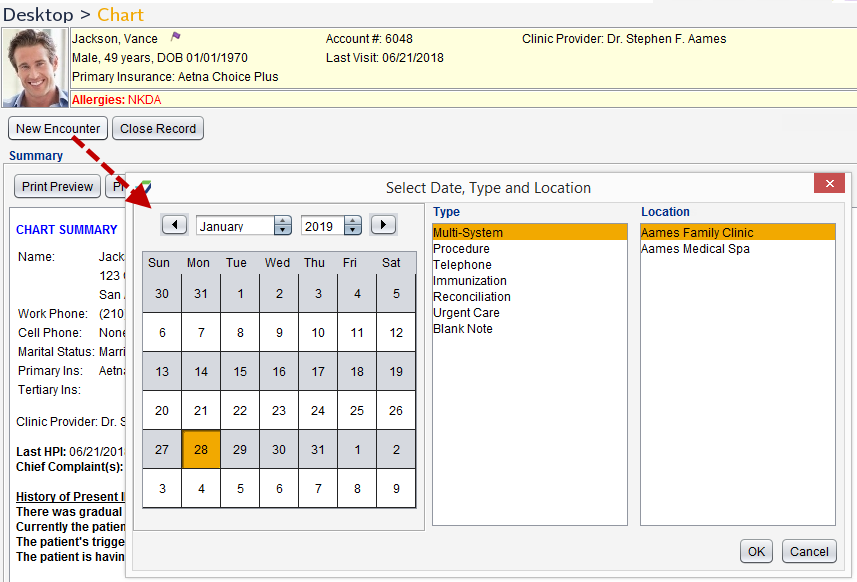
- From the patient Chart, click New Encounter
- Select a date for the encounter or leave defaulted to the current date
- The encounter date can be set up to 30 days in the future or dated as far back as one year
- Historical, Telephone, Reconciliation, Blank Note, and Confidential Blank Note encounter types cannot be set to a future date
Select the encounter Type
- Optional: select the encounter Location
Click OK
Optional: populate the encounter Appt Time
Creating Multiple Open Encounters
Users have the ability to create new encounters for patients with existing open encounters. There is no limit to the number of simultaneous open encounters a patient can have, as long as they are one of the following encounter types: Multi-System, Exam, Procedure, Telephone, Immunization, Urgent Care, Reconciliation, or Blank Note.
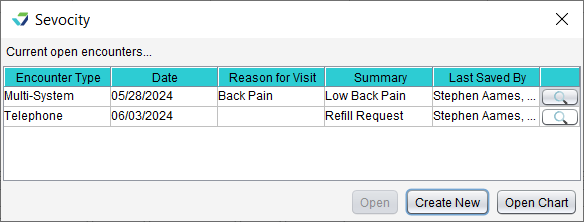
To create an encounter for a patient with one or more open encounters:
- From the Active Charts list, select the patient and click Open or double-click the patient data row
Click Create New from the Current open encounters window
- Select a date for the encounter or leave defaulted to the current date
- The encounter date can be set up to seven days in the future or dated as far back as one year
- Telephone, Reconciliation, and Blank Note encounter types cannot be set to a future date
Select the encounter Type
- Optional: select the encounter Location
- Click OK
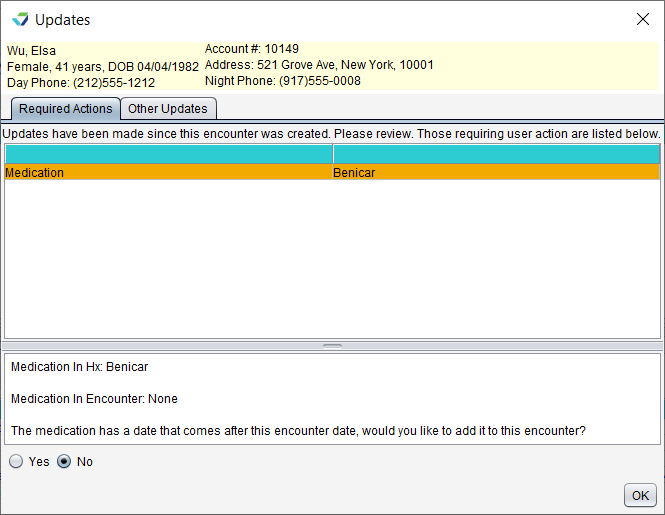
- Optional: review the Updates window, if displayed, and click OK
- The Updates window will display if there is a difference between the Past History, Medications, Allergies, Assessments, or Orders data from the patient’s last finalized encounter and the current open encounter
The user can select Yes to add the information to the current encounter or No to decline to add the information
Sevocity Best Practice
Before beginning documentation in an encounter, perform an integrity check to verify the following information is correct: Patient Name, Encounter Type, Encounter Date, and Encounter Location
Deleting Encounters
Encounters can be deleted prior to finalization only if no changes have been made to a patient’s medication or allergy information in the medication and allergy module (Rcopia).
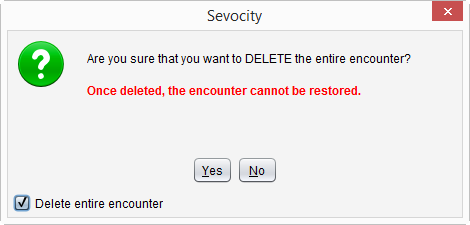
Once deleted, encounters cannot be retrieved or restored
What’s Next?
Articles
-
Sevocity Ambient Listening Powered by Suki
Sevocity has partnered with Suki to bring ambient listening to our clinicians. Providers can utilize Suki to capture the patient-provider conversation during an encounter visit which will then draft clinical documentation. This draft documentation can be reviewed and edited prior to submitting to Sevocity. To register for Ambient Listening (Suki) and watch a short video […]
-
Physical Exam
The Physical Exam (PE) tab captures findings from a provider’s physical examination of the patient. Clinics using 1995 E/M coding guidelines use a multi-system exam Clinics using 1997 E/M coding guidelines can choose between a multi-system exam or a single organ system exam
-
Assessment
The Assessment tab is used to document visit assessments and manage patient problems. A patient’s active problems carry forward to each subsequent visit.
-
Procedure
The Procedure tab is used to document procedure notes and store images related to the procedure. Depending on the encounter type, the Procedure tab displays as its own tab or as a subtab of Orders/Procedures.
-
Review of Systems
The Review of Systems (ROS) tab is used to document patient-reported symptoms related to their reason for visit or chief complaint.
-
Vitals
The Vitals tab captures vital signs documented in the current encounter and displays vitals recorded during a patient’s previous encounters.
-
Allergies and Meds Hx
The Allergies/Meds Hx tab is used to document and reconcile patient drug allergies and current medications. A pharmacy can also be added to the patient profile for prescriptions created during the encounter or at a future date.
-
Medications
The Medications tab is used to reconcile a patient’s current medications and prescribe new medications. Prescribed medications display in the encounter and, after the encounter is finalized, display in the Medications and Assessments tab in the patient chart.
-
Plan
The Plan tab is used to document the patient plan, goals, disposition, and patient instruction or education.
-
Coding
The Coding tab is used to add a billable E/M code to an encounter based on the services provided. Encounters that include the Coding tab require a visit code or a designation of Uncoded for finalization.
-
Carbon Copy
The Carbon Copy tab is used to identify healthcare professionals or healthcare organizations that should receive a copy of the patient’s encounter note. Additional notes about the encounter as well as consultation notes can be documented in this tab. Carbon copy recipients can be selected from a patient’s existing Professional Contacts, from the User or […]
-
Immunizations
The Immunizations tab captures vaccines administered during an encounter and a patient’s historical immunizations. A patient’s immunization information carries forward to each subsequent visit.
-
Pediatric
The Pediatric tab contains evaluation tools and screenings designed to track developmental milestones and identify concerns at every stage of a child’s growth. This tab displays for patients up to 21 years of age.
-
Flowsheets and Labs
The Flowsheets/Labs encounter tab is used to add Custom and Standard flowsheet data and view labs saved to the patient chart. Flowsheets and flowsheet data added to a patient record carry forward to each subsequent visit.
-
Studies
The Studies tab is used to record information on diagnostic studies ordered by the provider.
-
Past History
The Past History tab is used to document a patient’s medical history, social history, and family history of disease. A patient’s past history information carries forward to each subsequent visit.
-
Encounter Types
Patient encounters are comprised of a combination of tabs designed to support a variety of patient care workflows.
-
Orders and Referrals
The Orders/Referrals tab is used to create lab and diagnostic test orders and provider referrals. Depending on the encounter type, the Orders/Referrals tab displays as its own tab or as a subtab of Orders/Procedures. If a patient has pending orders, a green flag displays next to the tab name.
-
Note Display
The Note Display tab displays information documented in the current encounter and the names of the users who created the documentation in a text note format.
-
HPI
The History of Present Illness (HPI) tab captures the patient’s reason for visit and any associated symptoms or conditions. The referring provider for the visit and the patient’s transition of care status are also documented in this tab.