Image/File Import is a tool used to add documents and images to a patient chart. Documents can be imported from a user’s local computer or scanned and stored to the patient chart. Files added to a patient chart can be viewed in the Imported Documents tab of the chart.
Permissions
Users must have an Access Level of Chart Folder,Summary and View-Only, Restricted Chart Entry, or Full Chart to add documents to a patient chart
To sign and add notes to documents, a user must have Can sign selected in their user profile
Configuration
Selection list items for the Add from Favorites List for the Summary field can be customized by the Clinic Administrator by going to Tools > Preferences > CLINIC > Clinic Wide Form Data > Begin Edit and selecting Image Import from the Tab list
Selection items for the Add Note Add From Favorites list and the Route Message Add From Favorites list are customizable at the user and CLINIC level. Go to Tools > Preferences > CLINIC or [user] > Form Data > Begin Edit and select Image/File Import from the Tab list
A default Import folder or directory can be selected in Machine Specific settings
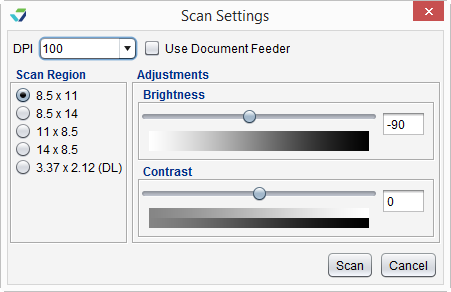
Default Scan Workflow, Direct Scan Source, and Scan to Chart Path can be specified in Machine Specific settings or by clicking the gear icon () on the Scan button
Import a Document from a Local Folder or Directory
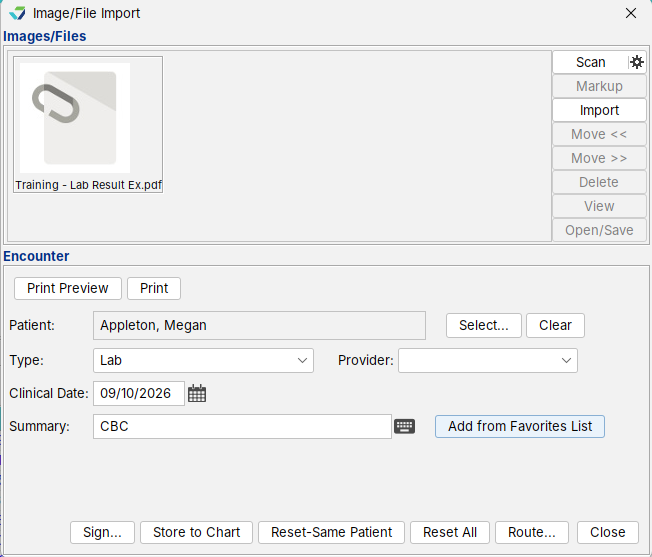
Go to Tools > Image/File Import
Click Import
Locate and select the file from the folder or directory and click Open
Click Select to search for and select a patient
If a patient chart is open when the Image/File Import tool is selected, the patient name will be populated in the Patient field
Populate the following required fields:
Type: select the category of the document being added
Clinical Date: populate the date associated with the document
Summary: type a description of the document or click Add from Favorites and select one or more items from the list
Optional: select a user from the Provider list to associate the user with the document
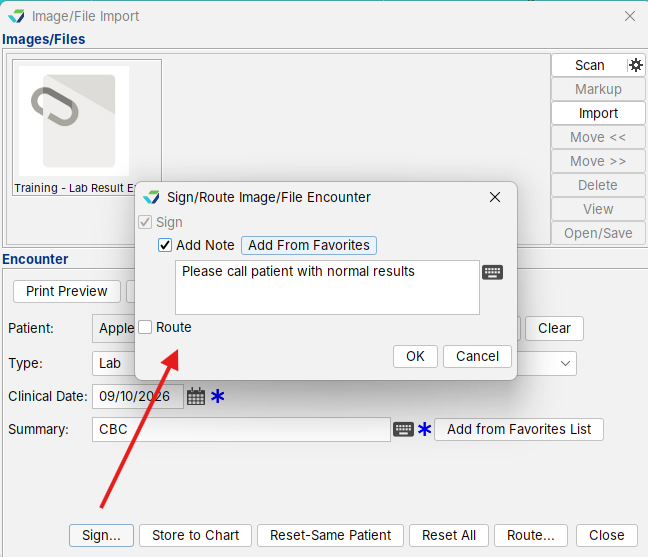
Click Store to Chart or Sign
If signing the document, click OK to sign and save to the patient’s chart
Optional: click Add Note and type a note in the free text field or click Add from Favorites and select one or more items from the list
Click Close to close the Image/File Import window
or
Click Reset – Same Patient then click Import to add another document for the same patient
or
Click Reset All then click Import to add another document for a different patient
Scan a Document
Documents can be scanned directly into Sevocity or to a local folder. The preference for direct or scan to chart is determined by the Default Scan Workflow selection.
Direct Scanning
Go to Tools > Image/File Import
Click Scan
Make any necessary adjustments to the Scan Settings for the image output and click Scan
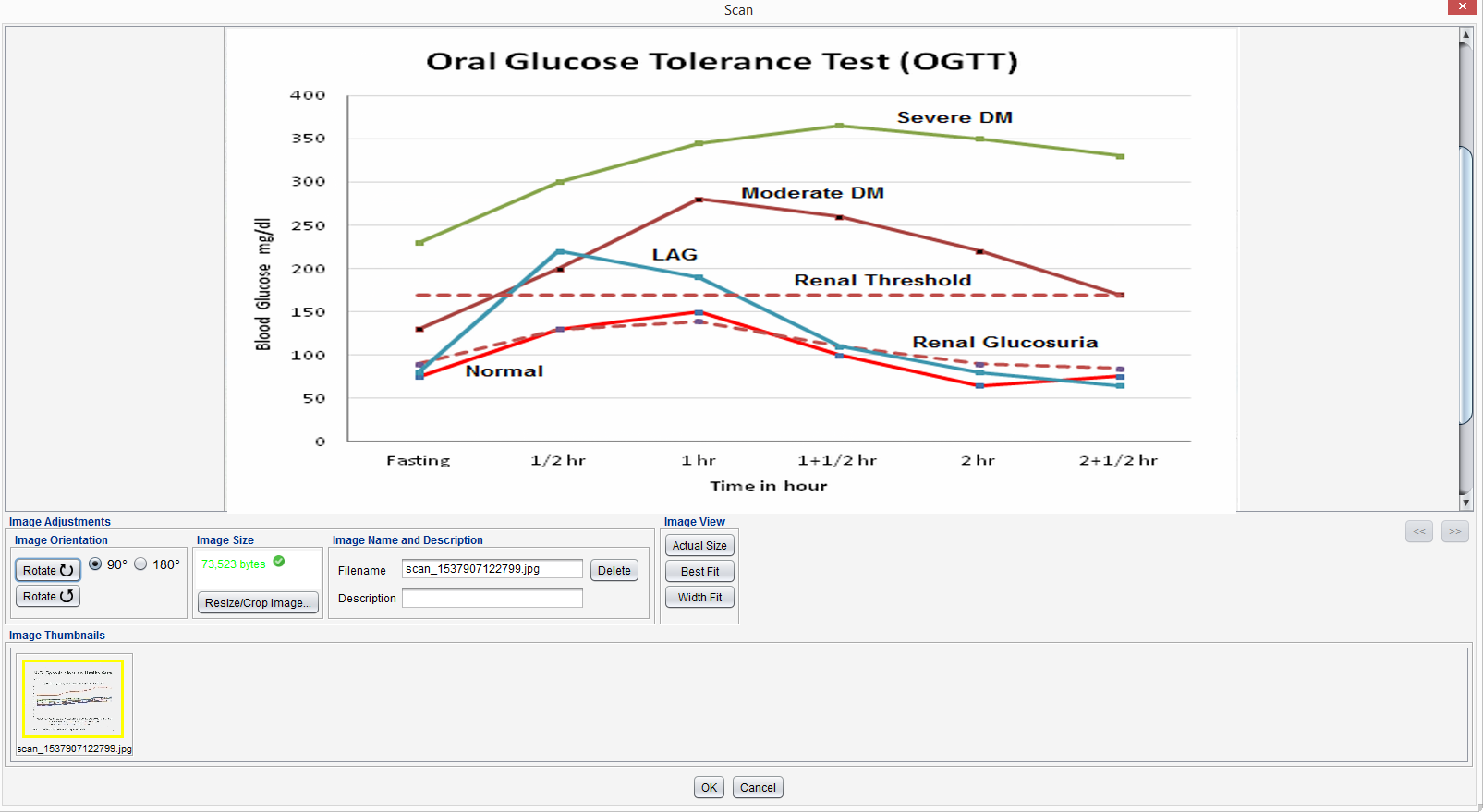
Make any necessary adjustments to the scanned image and click OK
Click Select to search for and select a patient
If a patient chart is open when the Image/File Import tool is selected, the patient name will be populated in the Patient field
Populate the following required fields:
Type: select the category of the document being added
Clinical Date: populate the date associated with the document
Summary: type a description of the document or click Add from Favorites and select one or more items from the list
Optional: select a user from the Provider list to associate the user with the document
Click Store to Chart or Sign
If signing the document, click OK to sign and save to the patient’s chart
Optional: click Add Note and type a note in the free text field or click Add from Favorites and select one or more items from the list
Click Close to close the Image/File Import window
or
Click Reset – Same Patient then click Scan to add another document for the same patient
or
Click Reset All then click Scan to add another document for a different patient
Scan to Chart
Go to Tools > Image/File Import
Click Scan
Scan the document into the specified Scan to Chart Path
Make any necessary adjustments to the scanned image and click OK
Populate the following required fields:
Type: select the category of the document being added
Clinical Date: populate the date associated with the document
Summary: type a description of the document or click Add from Favorites and select one or more items from the list
Optional: select a user from the Provider list to associate a user with the document
Click Store to Chart or Sign
If signing the document, click OK to sign and save to the patient’s chart
Optional: click Add Note and type a note in the free text field or click Add from Favorites and select one or more items from the list
Click Close to close the Image/File Import window
or
Click Reset – Same Patient then click Scan to add another document for the same patient
or
Click Reset All then click Scan to add another document for a different patient
Scanned documents not saved to the patient chart will be deleted from the scan to chart path.
Route Imported and Scanned Files
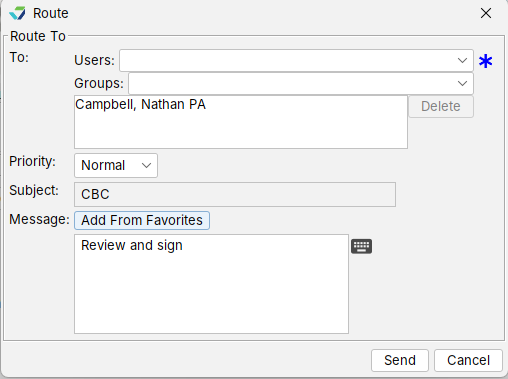
Prior to saving an imported or scanned document to the patient chart, the file can be routed to another user in the clinic for review or to perform tasks related to the document.
From the Image/File import window, click Route
Search for and select a user from the To list
Multiple individual users, multiple groups, or a combination of users and groups can be selected
Select a Priority for the message or leave defaulted to Normal
Type a Message in the free text field or click Add from Favorites and select one or more items from the list
Click Send
The routed file will be sent to the assigned user’s Messages inbox.
Tasks Associated with Imported and Scanned Files
Prior to saving an imported or scanned document to the patient chart, the files can be viewed, changed, and organized.
View an Image or Document
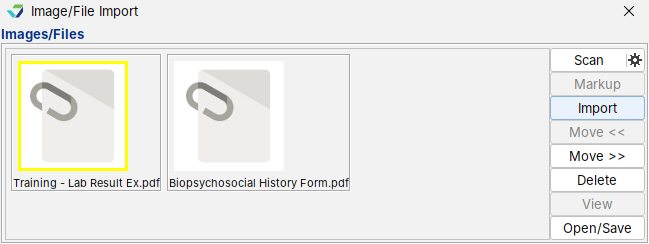
Select a file and click View
Only image file types (e.g., .png, .jpg) can be viewed within Sevocity. Use Open/Save to view other file types
Delete an Image or Document
Select a file and click Delete, then click Yes to confirm the decision to delete
Open or Save an Image or Document
Select a file and click Open/Save. The file will open in the default program for the file type and can be viewed or saved to the local computer or directory
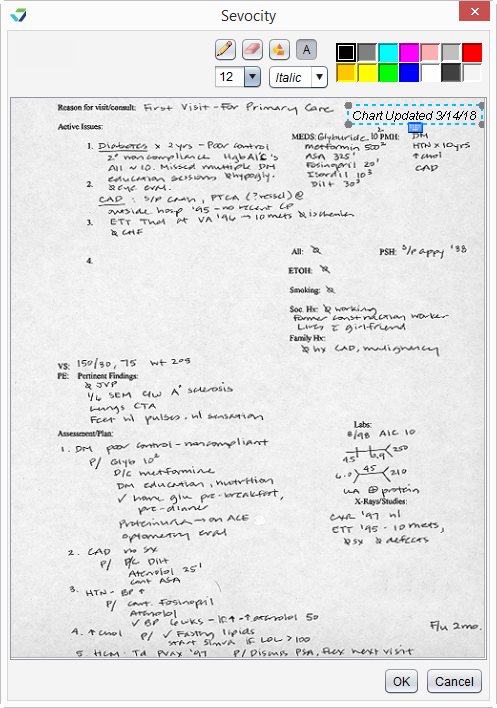
Draw on an Image
Select a file and click
Use the drawing tools to annotate the image:
Pencil: click , select a line width, and select a color from the palette to draw with the pencil tool
Shape: click , select a shape, and select a color from the palette to add shapes to the image
Use the slider to make the shape larger or smaller
Text: click , select a font size, select a font style, and select a color from the palette to add text to the image
Eraser: click and select a line width to erase any pencil lines or shapes on the image
Click OK
The Markup tool can only be used on image file types (e.g., .png, .jpg)
Organize Images and Documents
Select a file and click Move << to move the file one place to the left
Select a file and click Move >> to move the file one place to the right


 Select a file and click View
 Select a file and click Delete, then click Yes to confirm the decision to delete
 Select a file and click Open/Save. The file will open in the default program for the file type and can be viewed or saved to the local computer or directory


 Select a file and click Move << to move the file one place to the left
 Select a file and click Move >> to move the file one place to the right