The Allergies/Meds Hx tab is used to document and reconcile patient drug allergies and current medications. A pharmacy can also be added to the patient profile for prescriptions created during the encounter or at a future date.
Encounter Types
Allergies/Meds Hx is available in the following encounter types: Exam, Multi-System, Historical, Procedure, Reconciliation, Telephone, and Urgent Care.
Configuration
Users who need to add or update patient allergies and medications must be set up to access the medication and allergy module (Rcopia). To obtain access, please complete and submit this form.
Documenting Drug Allergies for a New PatientAdd a Drug Allergy
Go to Encounter > Allergies/Meds Hx
Click Manage Allergies/Med Hx to launch Rcopia
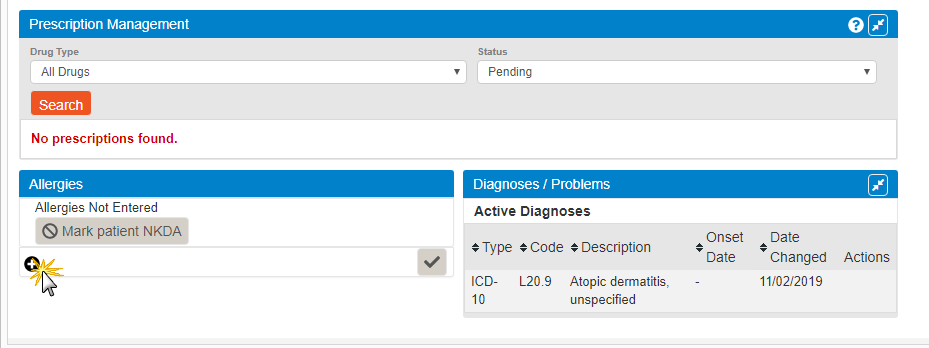
From the Allergies section, click the Add Allergen icon ()
Begin typing a medication allergy in the Allergen field and select the allergy from the suggested results list
or
Type a medication allergy in the Allergen field and click Search. Then click the allergy name from the results
Optional: populate additional information about the allergy
Reaction: type a reaction in the Reaction(s) field and select a reaction from the suggested results list. Repeat to add more reactions, if needed
Severity: select a severity from the list
Onset Date: type the allergy onset date
Click Save
Repeat the previous steps to add more allergies
Click Return to Sevocity or navigate to the Medications section to add current medications for the patient
Warning
If no matches are found for the allergy name, an option displays to enter the allergy as free text. Allergies entered as free text are not detected for drug-allergy interaction alerts and could create a patient safety risk.
Document No Known Allergies for a Patient
Go to Encounter > Allergies/Meds Hx
Click Manage Allergies/Med Hx to launch Rcopia
From the Allergies section, click the Mark patient NKDA button
Click Confirm to set the patient to have no known drug allergies
Click Return to Sevocity or navigate to the Medications section to add current medications for the patient
Documenting Current Medications for a New Patient
Current medications are medications being taken by the patient that were previously prescribed by the clinic but not documented in Sevocity or were prescribed by another provider.
Add a Current Medication
Go to Encounter > Allergies/Meds Hx
Click Manage Allergies/Med Hx to launch Rcopia
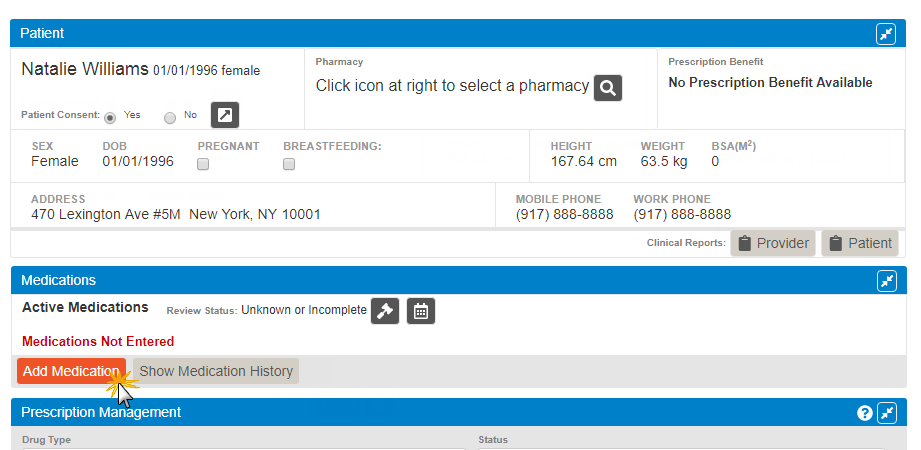
From the Medications section, click the Add Medication button
Begin typing a medication name in the Search for a drug field and select the medication from the suggested results list
or
Type a medication name in the Search for a drug field and click the Search icon (). Then click the medication name from the results list
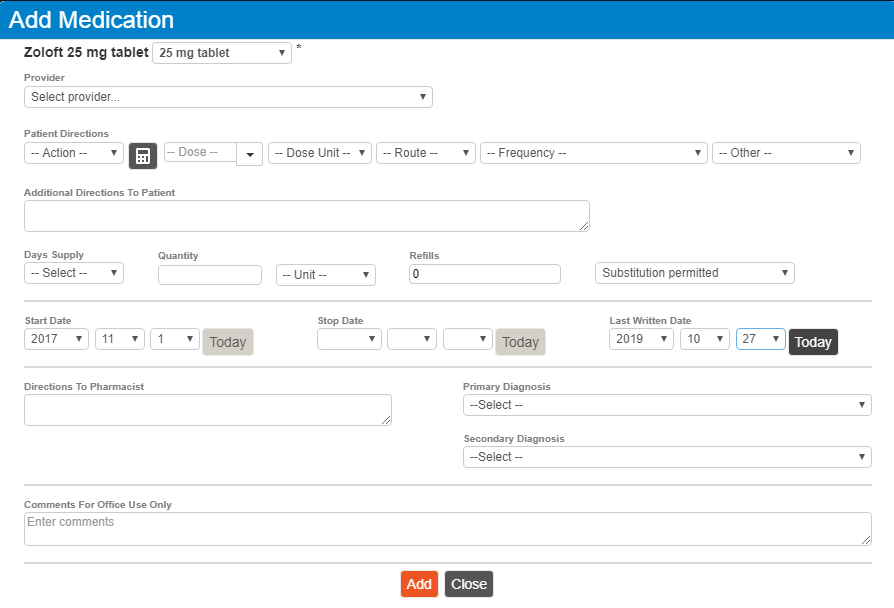
Click the correct dose for the medication
Optional: Populate additional information about the medication, such as dosage and start date
Click Add
Repeat the previous steps to add more medications
Click Return to Sevocity
Warning
If no matches are found for the medication name, an option displays to enter the medication as free text. Medications entered as free text are not detected for drug-allergy or drug-drug interaction alerts and could create a patient safety risk.
Document No Medications Taken for a Patient
From the Allergies/Meds Hx tab, select the Patient Takes No Medications checkbox.
If a patient has documented medications, the checkbox will be disabled.
Reconcile Allergies and Medications for an Established Patient
Review the patient’s drug allergies and current medications
After verifying there are no changes to allergies or medications, select the Allergies Reviewed and Medications Reviewed checkboxes
or
After verifying there are changes to a patient’s allergies or medications, click Manage Allergies/Med Hx and update the information in Rcopia. Return to Sevocity and select the Allergies Reviewed and Medications Reviewed checkboxes
Managing a Patient’s Pharmacy List
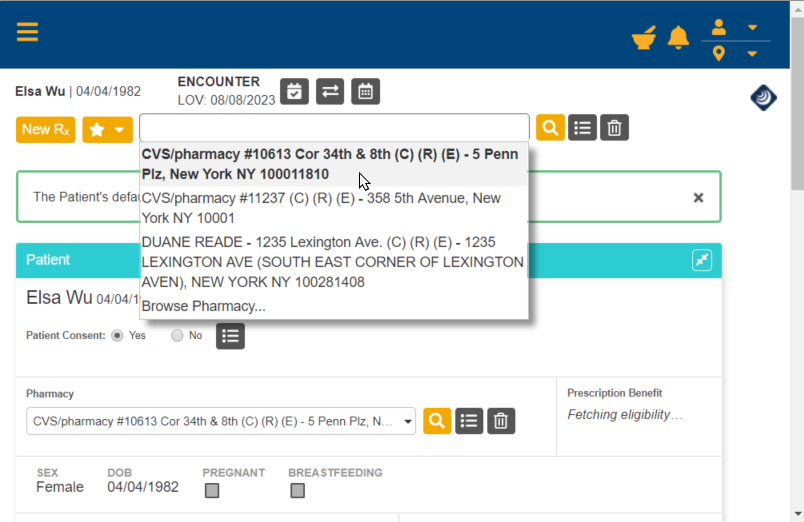
A patient can have up to four assigned pharmacies within the medication module.
Add a Pharmacy
Go to Encounter > Allergies/Meds Hx
Click Manage Allergies/Med Hx to launch Rcopia
Click the pharmacy Search icon ()
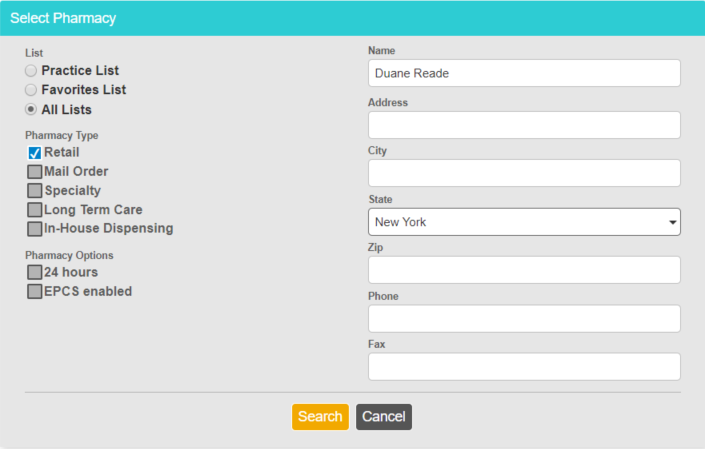
Type the pharmacy information into one or more of the search fields
The State field is pre-populated based on the clinic’s location
Optional: refine the search by selecting a filter for pharmacy List, Pharmacy Type, or Pharmacy Options
Click Search
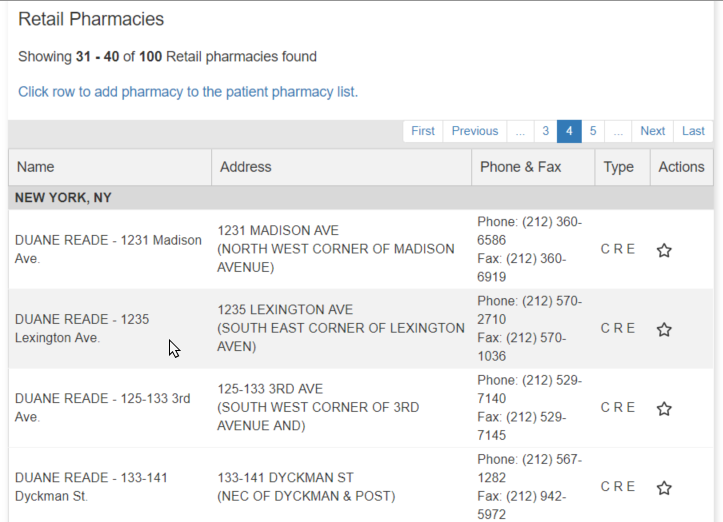
Click the pharmacy name from the results list to add the pharmacy to the patient’s list
Repeat the previous steps to add another pharmacy
Click Return to Sevocity
Delete a Pharmacy
Go to Encounter > Allergies/Meds Hx
Click Manage Allergies/Med Hx to launch Rcopia
From the Patient section, select the pharmacy to be deleted from the Pharmacy list
Click the Remove Patient Pharmacy icon ()
Click Confirm Delete to delete the pharmacy
Click Return to Sevocity
View Historic Medications
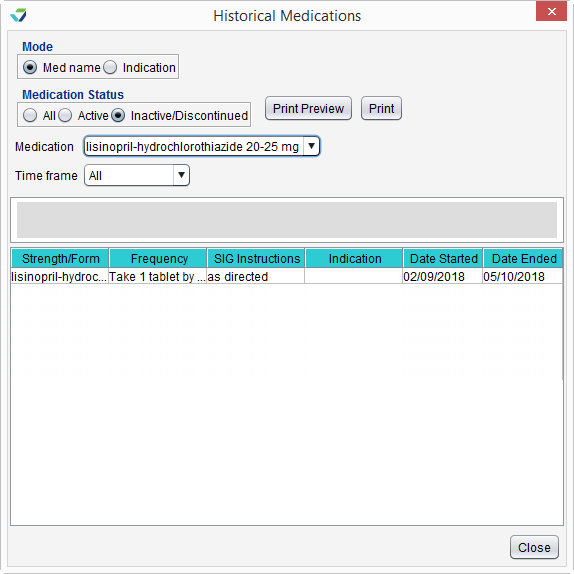
Click View Historic
Select a Mode: Med name or Indication
Select a Medication Status: All, Active, or Inactive/Discontinued
Select a Medication
Select a Time Frame for the history
Infobutton
To access patient education, click (Infobutton) next to the medication name. This launches MedlinePlus Connect website resources for the selected medication.

 )
)



 ). Then click the medication name from the results list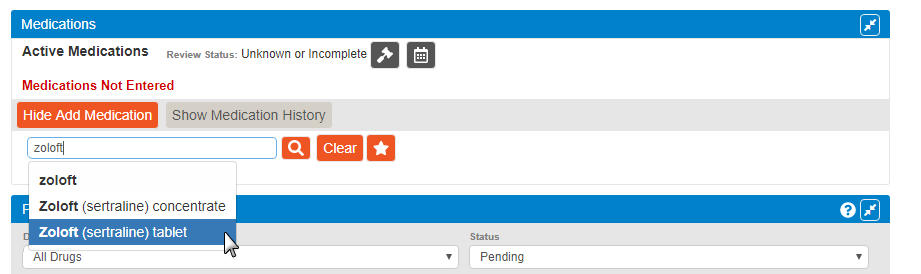

 )
)

 (Infobutton) next to the medication name. This launches MedlinePlus Connect website resources for the selected medication.