
The Move Encounter tool moves imported documents, e-Labs, or letters from one patient’s chart to another.
Sevocity Best Practice
The Move Encounter tool is designed to be used for corrective action only, in the special case of a user storing a document or image in the wrong patient chart. Move Encounter should not be used as part of a standard workflow.
Move an Imported Document, e-Lab, or Letter
- Go to Tools > Administration > Move Encounter
- Click Select Patient Records
- Search for the patient whose chart contains the item to be moved
- Select the patient from the results list and click Add To List
- Click Clear Fields from the search criteria section
- Search for the patient whose chart the item will be moved to
Select the patient from the results list and click Add To List
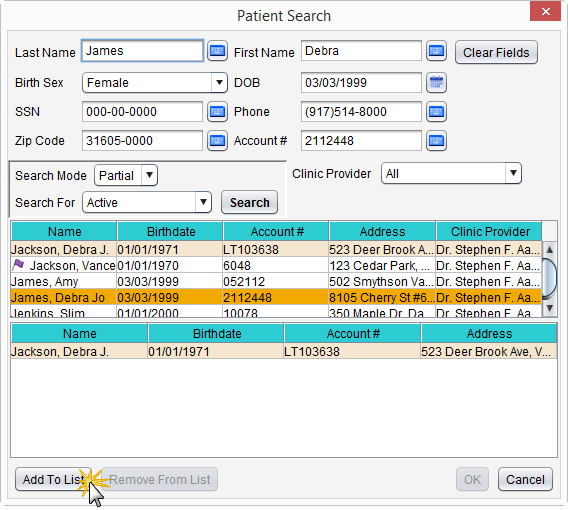
- Click OK
- Review the selected patients’ information to ensure the correct patients have been chosen
Click Next
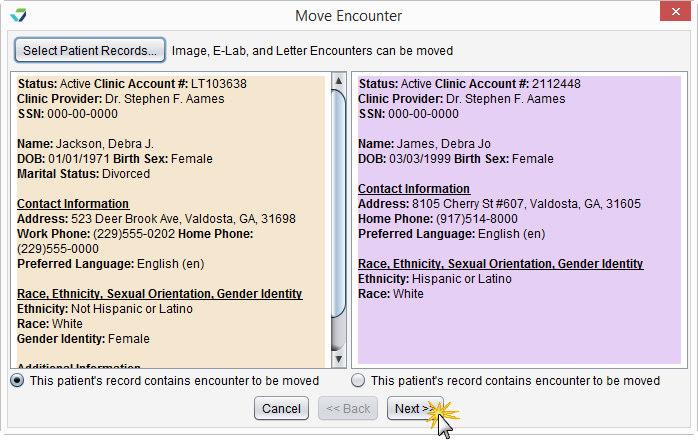
A list of imported documents, e-Labs, and letters for the patient whose chart contains the item to be moved will display.
- Select the item or items to be moved and click Next
- Optional: to select all the items listed, select the checkbox column header
Optional: Click View to review the item being moved
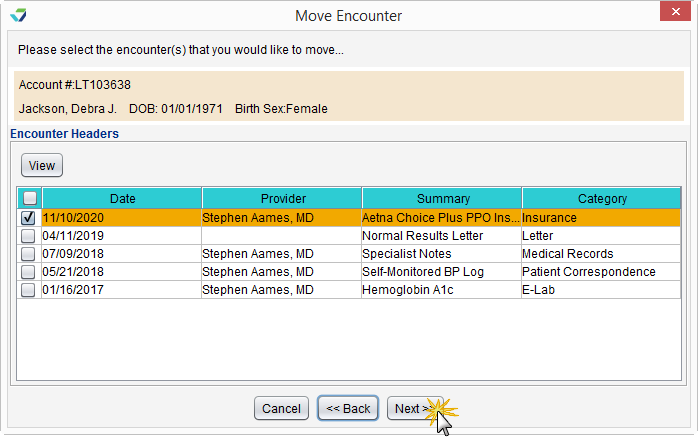
- Click Finish to move the item(s)
- Click Close to close the Move Encounter tool