
The Export tool exports individual patient records in a machine-readable format, as a C‑CDA file, or as PDFs.
Standard Export
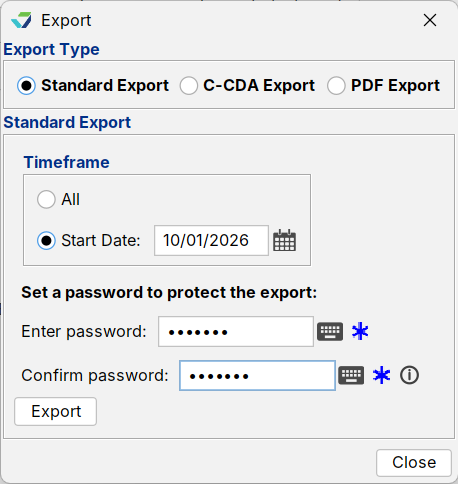
A Standard Export exports the patient chart in a computable and machine-readable format. Details of the export format can be viewed here: https://www.sevocity.com/ehi-export-technical-documentation
Create a Standard Export File
- Go to Chart > Chart Tools > Export
- Select Standard Export as the Export Type
- Select a Timeframe for the export
- All: exports all data included in the Standard Export format
- Start Date: exports data included in the Standard Export format from the specified date to the current date
- Create and verify a password by populating the Enter password and Confirm password fields
- Password must be alphanumeric with a minimum of 5 characters
- Password is used to encrypt the export and will be required to open the file
Click Export
- Select a location to save the file and click Open to save
- Click OK to acknowledge the export is complete
PDF Export
A PDF Export exports a patient’s finalized encounters, imported documents, and e-Lab results as PDFs.
Create a PDF Export File
Go to Chart > Chart Tools > Export
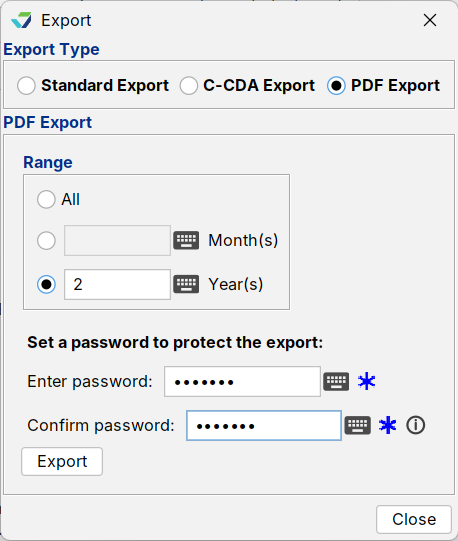
Select PDF Export as the Export Type
Select a Range for the patient record export
All: exports all finalized encounters, imported documents, and e-Lab results
Months: exports finalized encounters, imported documents, and e-Lab results from the current date through the previous month range specified
Years: exports finalized encounters, imported documents, and e-Lab results from the current date through the previous year range specified
Create and verify a password by populating the Enter password and Confirm password fields
Password must be alphanumeric with a minimum of 5 characters
Password is used to encrypt the data export and will be required to open the file
Click Export
Select a location to save the file and click Open to save
Click OK to acknowledge the export is complete