
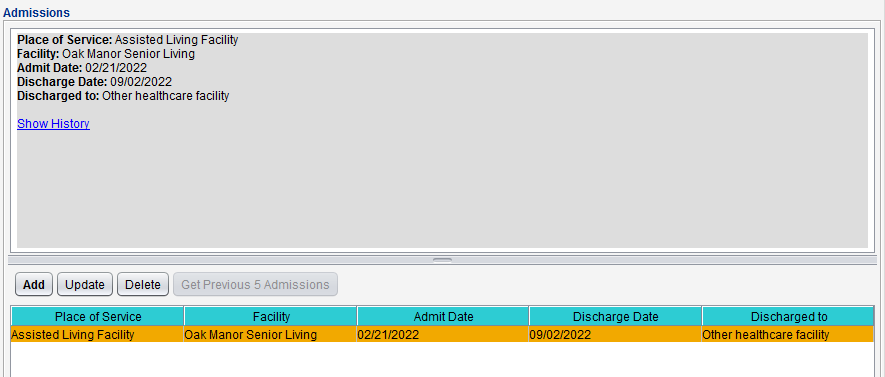
The Admissions tab is used to document a patient’s admission and discharge events for residential care or skilled nursing facilities.
Configuration
Clinic Administrators can enable this tab by going to Clinic Settings: General and selecting Enable Admissions Tab
Add an Admission Event
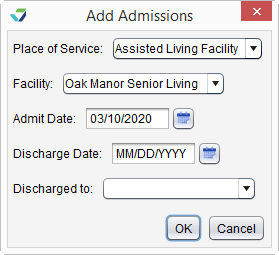
- Go to Chart > Admissions and click Add
- Select a Place of Service
- Optional: select a Facility
- The Facility selection list will become enabled only if the clinic has a location with a designated place of service of Assisted Living Facility, Long Term Care, or Skilled Nursing Facility
- Populate the Admit Date
- Admit Date cannot be a future date
- Optional: populate the Discharge Date
- Discharge Date can be a future date
- Optional: select a Discharged to location
- A Discharge Date is required when populating the Discharged to field
- Click OK
Note
A standalone Discharge event cannot be added to a patient’s chart.
Update an Admission Event
- Go to Chart > Admissions
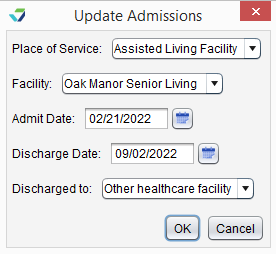
- Select the admission event and click Update
- Add or update the necessary information
- Click OK
View an Admission Event
Select an admission event to view its details.

- Click the Show History link in the detail display to view an audit trail of user activity for the event.
- Click Get Previous 5 Admissions to view more/older admission events.
Delete an Admission Event
To delete an admission event, select the event entry and click Delete. The event will not be removed from the Admissions tab but will display in red text to communicate its deleted status.
