
The Send Clinical Summary tool uses Direct Message to securely and electronically transmit a patient’s clinical information as a Continuity of Care Document (CCD) in a C‑CDA format, which can be viewed and incorporated into the patient’s record by the receiving provider.
Configuration
Send Clinical Summary message favorites can be customized by the Clinic Administrator by going to Tools > Preferences > CLINIC > Clinic Wide Form Data > Begin Edit and selecting Messaging from the Tab list
Send a Clinical Summary
A clinical summary can be sent as a summary of care record or as a clinical summary from one or more encounters. The summary of care record contains patient chart summary data and encounter data from the past year.
Send a Summary of Care
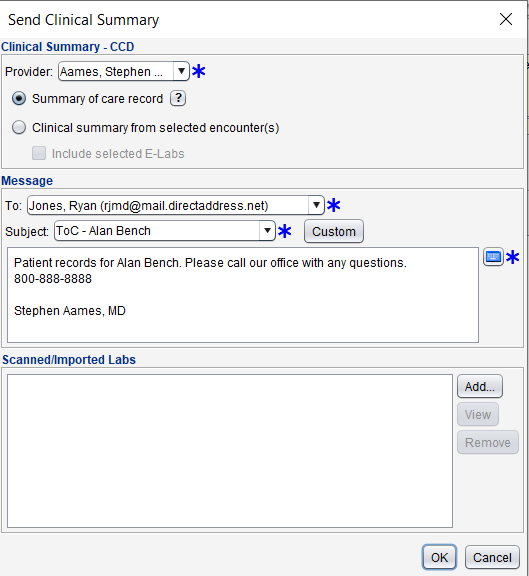
- Go to Chart > Chart Tools > Send Clinical Summary
- Select a Provider
- The provider selected is assigned as the author of the CCD
- Select Summary of care record
- Select a recipient from the To list
- Populate the Subject and Message body fields
- Select a message favorite from the Subject selection list or click Custom and type a subject and message
- Optional: Click Add in the Scanned/Imported Labs section to attach one or more scanned or imported lab results
- Click OK to send
Send a Clinical Summary From Selected Encounter(s)
- Go to Chart > Chart Tools > Send Clinical Summary
- Select a Provider
- The provider selected is assigned as the author of the CCD
- Select Clinical summary from selected encounter(s)
- Optional: select Include selected E-Labs
- Select a recipient from the To list
- Populate the Subject and Message body fields
- Select a favorite from the Subject selection list or click Custom and type a subject
- Optional: Click Add in the Scanned/Imported Labs section to attach one or more scanned or imported lab results
- Click OK
- Select an encounter from the top section of the Select Encounter(s) window. The location of the encounter selected is assigned as the location of the CCD
Optional: select an encounter and click View to view the encounter
Optional: click Get Previous 5 Encounters to view more encounters
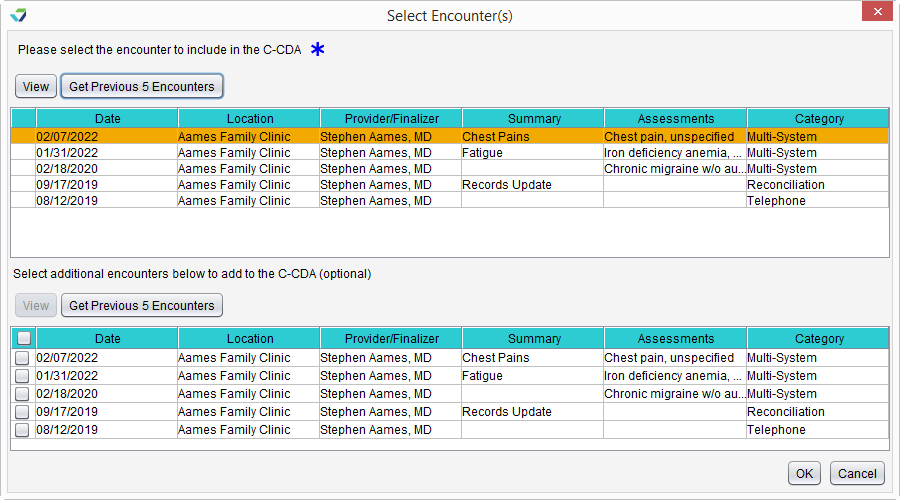
- Optional: Select one or more encounters from the bottom section of the Select Encounter(s) window
- Optional: select an encounter and click View to view the encounter
- Optional: click Get Previous 5 Encounters to view more encounters
- Click OK
- If including e-Lab results, select one or more labs from the Select Encounter(s) window
- Optional: select an e-Lab and click View to view the lab result
Optional: click Get Previous 5 Encounters to view more lab results
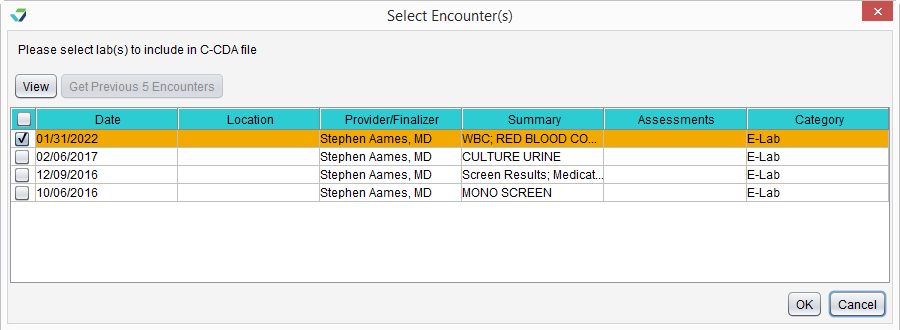
- Click OK to send
Why Don’t I See All of My Contacts in the “To” List?
Only providers or practices with a secure email address in their contact profile will display in the To selection list. See Contact List: About Secure Email Addresses
Why Don’t I See This Menu Item?
If Send Clinical Summary is not visible in the Chart Tools menu, the user does not have the required permission to send messages using Direct Message. See Direct Message Activation and Access
How Do I Know the Summary Was Sent?
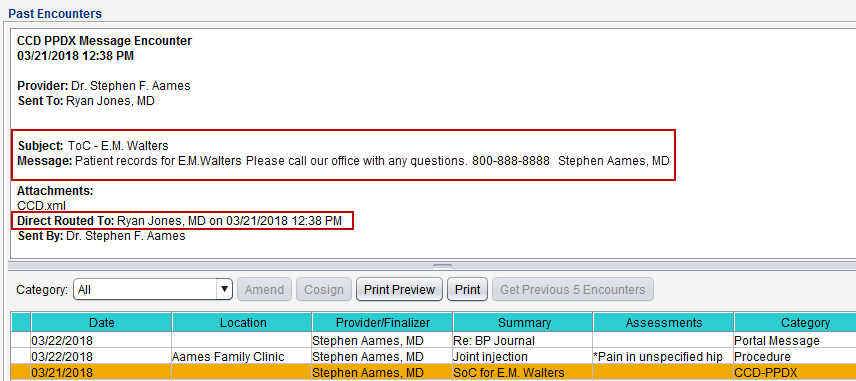
Sending a clinical summary from Chart Tools will store a record of the transaction as a CCD-PPDX encounter type and can be viewed in the Past Encounters tab of the patient chart. The message details and contact to whom the summary was sent will display in the encounter view.
Warning
Messages that are not successfully transmitted to the intended recipient will generate an Undeliverable message in the Direct Message Inbox