
Objective: The EP provides patients (or patient-authorized representative) with timely electronic access to their health information and patient-specific education.
| An EP must satisfy both measures for this objective through a combination of meeting the thresholds and exclusions. | |
Measure 1: For more than 80 percent of all unique patients seen by the EP: 1) The patient (or the patient-authorized representative) is provided timely access to view online, download, and transmit his or her health information; and 2) The provider ensures the patient’s health information is available for the patient (or patient-authorized representative) to access using any application of their choice that is configured to meet the technical specifications of the Application Programming Interface (API) in the provider’s CEHRT. | |
| Denominator | The number of unique patients seen by the EP during the EHR reporting period. |
| Numerator | The number of patients in the denominator (or patient authorized representative) who are provided timely access to health information to view online, download, and transmit to a third party and to access using an application of their choice that is configured to meet the technical specifications of the API in the EP’s CEHRT. |
| Measure 2: The EP must use clinically relevant information from CEHRT to identify patient-specific educational resources and provide electronic access to those materials to more than 35 percent of unique patients seen by the EP during the EHR reporting period. | |
| Denominator | The number of unique patients seen by the EP during the EHR reporting period. |
| Numerator | The number of patients in the denominator who were provided electronic access to patient-specific educational resources using clinically relevant information identified from CEHRT during the EHR reporting period. |
| Exclusions | Measure 1 and 2: An EP may take an exclusion for either measure, or both, if either of the following apply:
|
Measure 1 Denominator
To be included in the denominator:
- Patient must be seen by the EP during the reporting period
Measure 1 Numerator
To be included in the numerator:
- Patient or patient-authorized representative must be enrolled in the patient portal prior to the patient’s first visit during the reporting period
AND
- The patient or patient-authorized representative must be provided instructions to access the patient’s health information from the patient portal using a third-party application prior to the patient’s first visit during the reporting period
AND
- Encounter in which patient was seen must be finalized by the EP within 48 hours of the visit date
Patient Portal Enrollment
- To enroll a patient or patient-authorized representative in the patient portal, go to Tools > Patient Portal > Add Patient/Alternate
- Prior to creating a patient portal account for a patient-authorized representative, the representative must be added as an alternate contact in the patient’s chart. To add a patient-authorized representative as an alternate contact, go to Chart > Demographics > Contacts > Alternate > Update
- The Patient Portal Access checkbox must be selected to authorize portal access for the representative
For patients or patient-authorized representatives already enrolled in the patient portal, no additional action is required.
Provide Portal API Access Information
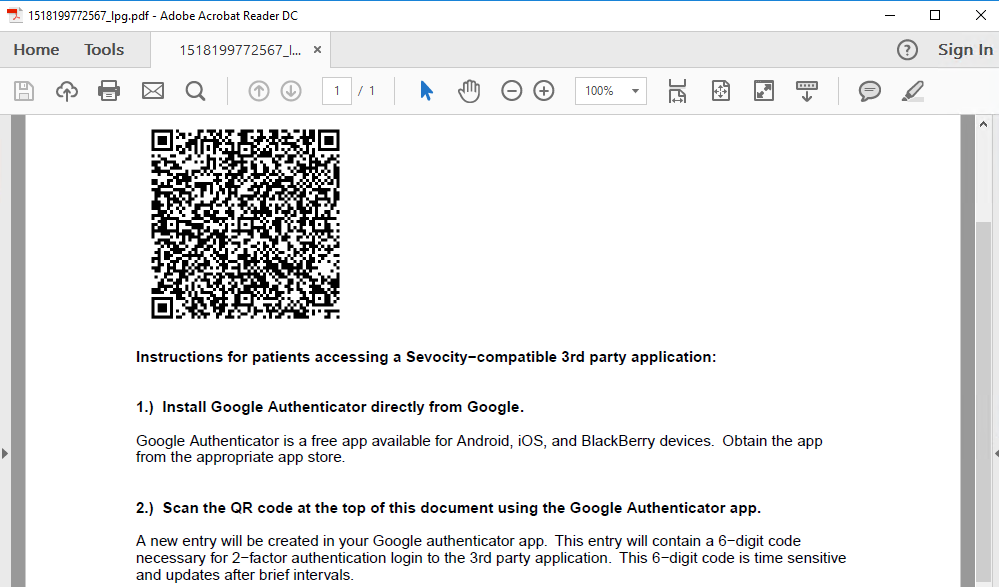
The API access information can be printed and given directly to the portal account holder or sent to a patient’s portal account.
Print Portal API Access Information
- Go to Tools > Patient Portal > Patient QR Code > Print
- Enter patient search criteria and click Search
- Select patient and click OK
- Instructions will be generated as a PDF
- Provide this document to the portal account holder
Send API Access Information to the Portal
- Go to Tools > Patient Portal > Patient QR Code > Send to Portal
- Enter patient search criteria and click Search
- Select patient and click OK
- Click OK to acknowledge the API access information was sent to the portal
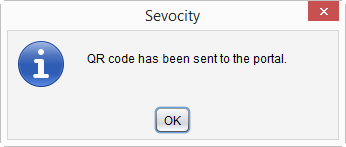
A record of the QR code transmission to the portal is stored as a Portal Message encounter type and can be viewed in the Past Encounters tab of the patient chart.
Warning
The QR code on the API access instruction sheet is unique per patient and cannot be duplicated or shared among different patient portal accounts
Measure 2 Denominator
To be included in the denominator:
- Patient must be seen by the EP during the reporting period
Measure 2 Numerator
To be included in the numerator:
- Patient-specific educational resources must be accessed from the encounter during the calendar year
AND
- Acknowledgment that education was provided electronically to the patient must be documented in the encounter during the calendar year
Patient-specific education resources can be accessed from an encounter using the following workflows:
- To access patient-specific education resources from the Allergies/Med Hx or Medications tab, click
 (Infobutton) next to the medication name OR click the medication name hyperlink
 - To access patient-specific education resources from the Flowsheets/Labs > Scanned/E-Labs tab, click
 in the Pt Ed column for the selected lab result
 To access patient-specific education resources from the Assessment tab, click
(Infobutton) next to the selected problem OR click in the Pt Ed column for the selected problem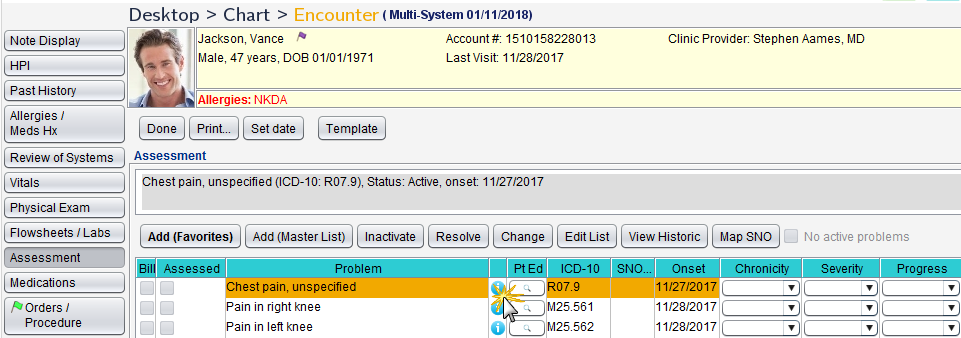
- To access patient-specific education resources from the Plan tab, click the Patient Education Resources button
Document Educational Resources Were Provided Electronically
- Go to Encounter > Plan
- Select the Education provided electronically checkbox
Tip
Use of the patient portal is recommended to send education or URLs to educational resources
Additional Information
- Patients seen more than once during the reporting period will only count once toward the measure.
- For Measure 1, CMS defines “timely access” as 48 hours. In Sevocity, 48 hours is calculated based on business days (Monday – Friday) and does not include weekend days (Saturday – Sunday).
- For Measure 1, patient portal account must be active prior to the finalization of the patient’s first encounter during the reporting period.
- For Measure 1, the steps to provide instructions to access the patient’s health information from the patient portal using a third party application must occur prior to the finalization of the patient’s first encounter during the reporting period.
- For Measure 1, if a patient is seen more than once during the reporting period, the patient must meet the numerator conditions during their first visit and all subsequent visits during the reporting period to remain in the numerator.
- Patients who meet the numerator during their first visit but fail to meet the numerator during their second or subsequent visits during the reporting period will be removed from the numerator.
- Patients who do not meet the numerator during their first visit are not eligible to meet the numerator during any subsequent visits during the reporting period.
Return to 2021 Medicaid Promoting Interoperability Objectives