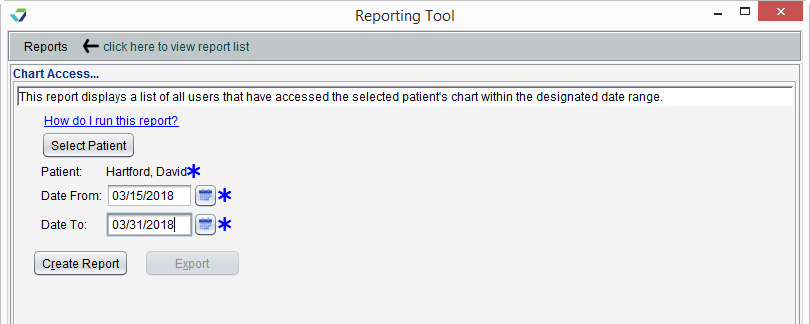
The Chart Access Report displays a list of users who have accessed a patient’s chart.
Run the Chart Access Report
- From the Reporting Tool, go to Reports > Access > Chart Access
- Click Select Patient
- Enter patient search criteria and click Search
- Select the patient and click OK
- Populate Date From and Date To fields to specify the date range for chart access
- Click Create Report
Note
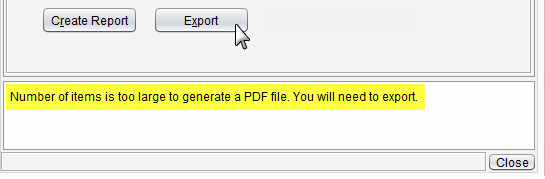
Reports with an extensive amount of data are unable to be generated as a PDF and will require the user to export the report to view the data.
Report Display
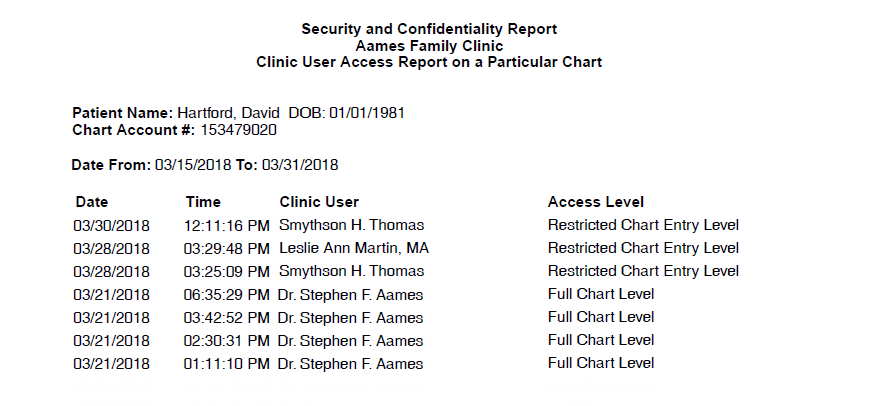
The Chart Access report will display the Date and Time the chart was accessed, the Clinic User who accessed the chart, and the Access Level of the user.
Export Report Data
Generated report data can be exported and saved outside of Sevocity to a destination selected by the user, such as a network drive or local machine.
- From the report, click Export
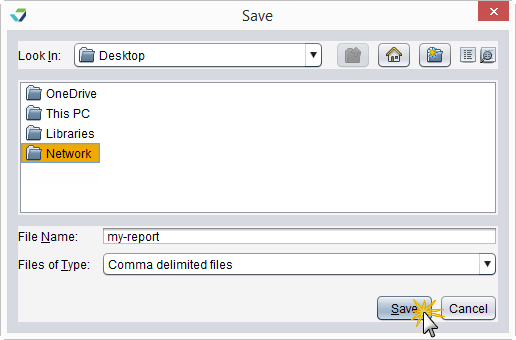
- Select a location to save the file and type a File Name
- Click Save
The data will be saved as a comma delimited file (.csv)
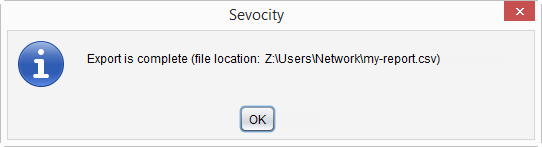
Click OK to acknowledge the export is complete
Why is the Export Button Disabled?
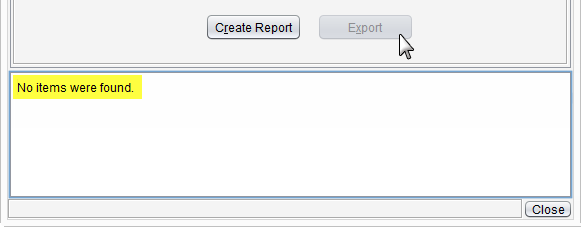
The Export button becomes enabled only if there is data in the generated report.