
Merge Duplicate Charts combines all the clinical data from both charts into one chart for the patient. If more than one chart exists for the same patient, it may be necessary to merge the charts.
Sevocity Best Practice
The Merge Duplicate Charts tool is designed to be used for corrective action only. Merge Duplicate Chart should not be used as part of a standard workflow.
Merging Guidelines
Prior to beginning the merge process, the following information should be reviewed to determine if the charts are eligible for merging.
Charts can only be merged if both charts contain any of the following clinical information:
Past Encounters
Flowsheets
Referrals
Implantable Devices
Charts cannot be merged if any of these conditions exist:
Patients have different dates of birth
One or both patients have an open encounter at the time of the merge
One or both patients are OB patients
One or both charts are empty
One or both charts contain only e-Labs or imported documents
Merge Duplicate Charts
The process of merging charts adds all of the Encounters, Imported Documents, Flowsheets, Referrals, Clinical Decision Supports, and Implantable Devices from the designated Merge Chart to the designated Keep Chart.
Warning
Merging charts is a permanent action. Once two charts are merged, the action cannot be undone.
Note
Patient Portal Accounts are removed upon merging charts. If one or both of the charts have a patient portal account, a new account will need to be created for the patient following the merge.
To merge two duplicate patient charts:
Go to Tools > Administration > Merge Duplicate Charts
Click Select Patient Charts to Merge
Search for the first patient chart to be merged
Select the patient from the results list and click Add To List
Click Clear Fields from the search criteria section
Search for the second patient chart to be merged
Select the patient from the results list and click Add To List
Click OK
Review the selected patients’ demographic information to ensure the correct patients have been chosen
Any differences in demographics will be highlighted
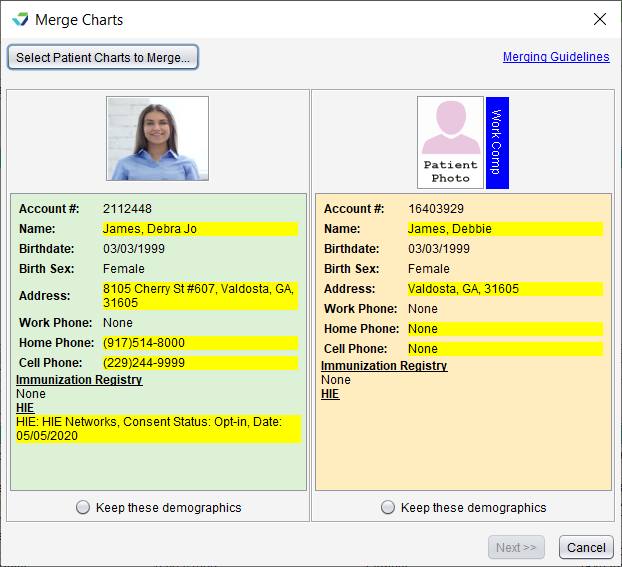
Select Keep these demographics for the chart demographics that will be retained
Click Next
Review the Encounters from the chart that will be kept and from the chart that will be merged
Optional: Select an encounter and click View to view the item
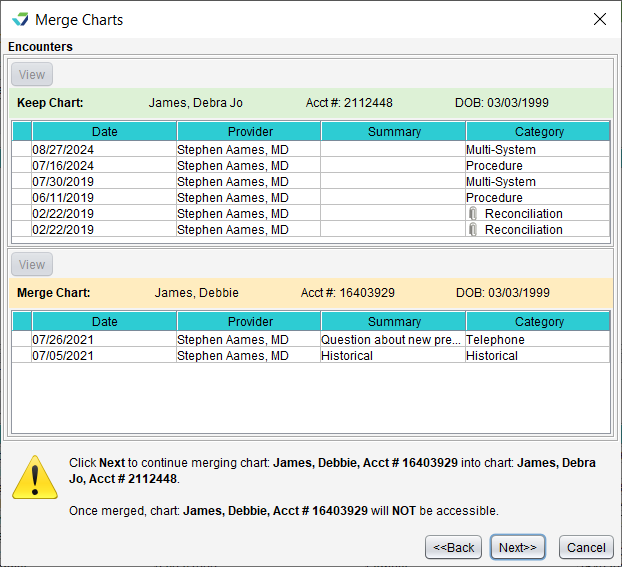
Click Next
Review the Imported Documents from the chart that will be kept and from the chart that will be merged
Optional: Select an imported document and click View to view the item
Click Next
Review the Flowsheets from the chart that will be kept and from the chart that will be merged
Optional: Select a flowsheet and click View to view the item
Click Next
Review the Referrals from the chart that will be kept and from the chart that will be merged
Optional: Select a referral and click View to view the item
Click Next
Review the Implantable Devices from the chart that will be kept and from the chart that will be merged
Optional: Select an implantable device and click View to view the item
Review the Chart Alerts from the chart that will be kept and from the chart that will be merged
Optional: Select a chart alert and click View to view the item
Review the CDS – Custom and Overridden from the chart that will be kept and from the chart that will be merged
Optional: Select a CDS and click View to view the item
Review the total number of Encounters, Imported Documents, Flowsheets, Referrals, Implantable Devices, Chart Alerts, and CDS that will result from the chart merge
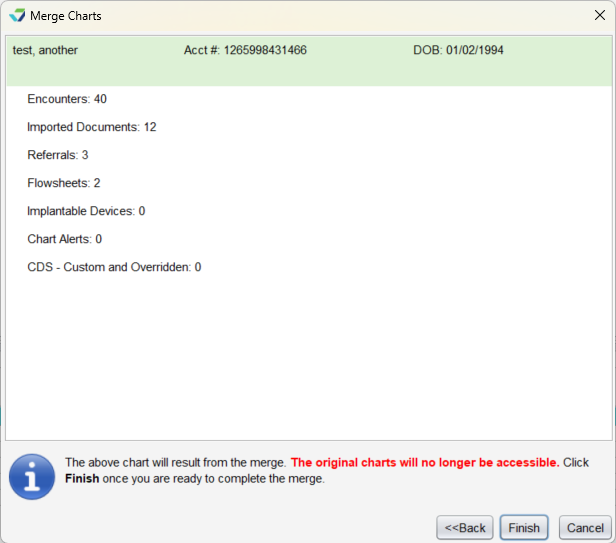
Once merged, the original charts will no longer be accessible, only the newly merged chart
Click Finish to merge the charts
To access the newly merged, chart, go to Active Charts on the Desktop and click Pull/Create Chart to search for the patient.
What’s Next?
Not all duplicate charts are eligible to be merged. For guidance on reconciling duplicate charts when the charts do not meet the merging requirements, see Duplicate Chart Resolution Guidelines