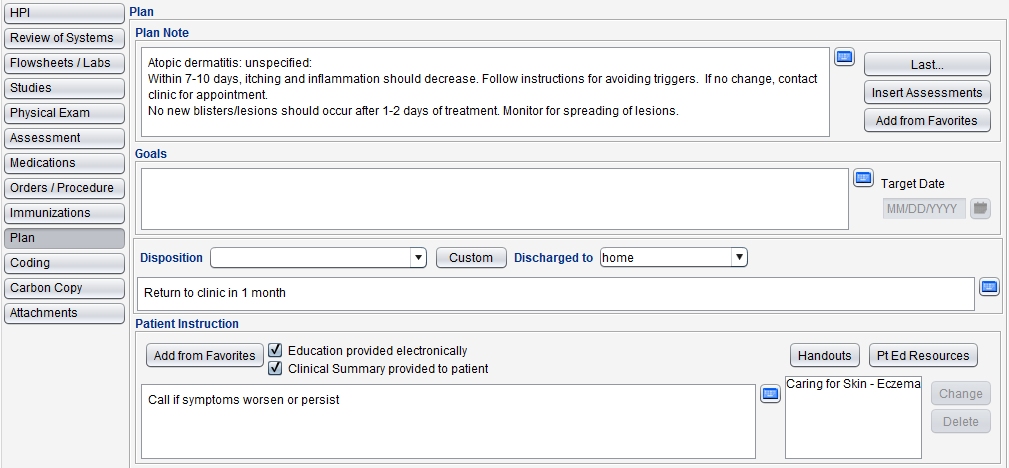
The Plan tab is used to document the patient plan, goals, disposition, and patient instruction or education.
Encounter Types
Plan is available in the following encounter types: Exam, Multi-System, Immunization, Reconciliation, Telephone, and Urgent Care.
Configuration
- The Plan Note Add from Favorites list, Disposition selection list, and Patient Instruction Add from Favorites list are customizable at the user and CLINIC level. Go to Tools > Preferences > CLINIC or [user] > Form Data > Begin Edit and select Disposition from the Tab list
- Clinic Administrators can disable and enable the Goals and Disposition sections of the Plan tab by going to Tools > Preferences > CLINIC > Encounter Types > Begin Edit
- Clinic Administrators can create and customize Handouts by going to Tools > Preferences > CLINIC > Handouts > Begin Edit
- Clinic Administrators can add a custom resource website link for the Pt Ed Resources button in Clinic Settings: Alerts/Reminders/CDS
Plan Note
- Go to Encounter > Plan
- Type the patient plan in the Plan Note field
- Optional: click Insert Assessments to add the problems assessed during the visit
- Optional: Click Add From Favorites to insert frequently used plan notes
- Select a Category
- Select one or more notes or type a note in the Custom field
- Click OK

Document a Plan Using the ‘Last’ Button
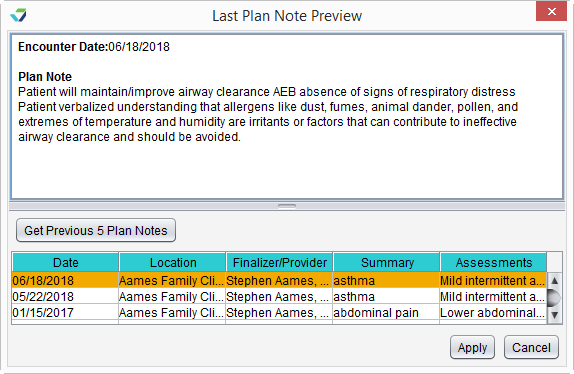
The Last button can be used to populate the current plan with information documented during any of the patient’s previous encounters.
- Go to Encounter > Plan
- From the Plan Note section, click Last
- Select the encounter with the plan to be used
- Only encounters that are the same Encounter Type as the current visit will display for selection
Optional: click Get Previous 5 Plan Notes to view more/older encounters
- After reviewing the previously documented plan, click Apply to apply the information to the current plan
Goals
Goals consists of a free text field for documenting patient health outcome goals and a Target Date field. The Goals field must be populated to add a goal Target Date.
Disposition
- Go to Encounter > Plan
- Type the disposition instructions in the Disposition field
- Optional: Select one or more items from the disposition selection list
- Optional: click Custom and type the disposition in the Add custom item to list field and click Save
- Optional: Select a location or status from the Discharged to selection list

Patient Instruction
Use the Patient Instruction section to document care instructions and patient education provided.
- Select Education provided electronically if educational resources are provided through electronic means, such as the patient portal
- Select Clinical Summary provided to patient if the patient is given a copy of the visit plan
- Click the Pt Ed Resources button to open an educational resource website selected by the clinic
Document Patient Instruction
- Go to Encounter > Plan
- Type the patient instruction in the free text field
- Optional: Click Add From Favorites to insert frequently used patient instructions
- Select a Category
- Select one or more instructions or type instructions in the Custom field
- Click OK

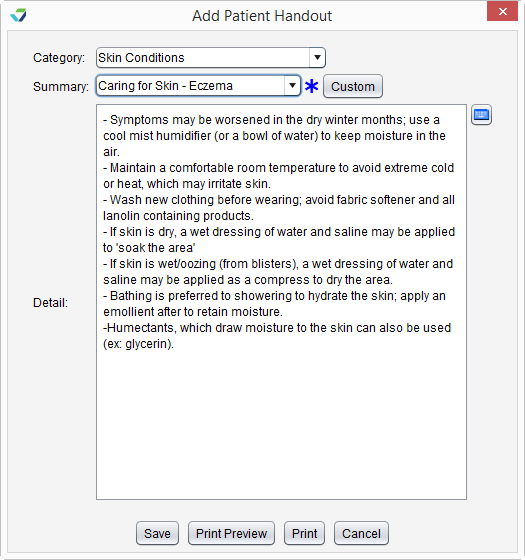
Add a Patient Handout
- Go to Encounter > Plan
- From the Patient Instruction section, click Handouts
- Select a Category
- Select a handout from the Summary list
- Optional: click Print to print the handout for the patient
- Click Save to add the handout summary to the instructions