The Consents tab records and displays patient preferences for contact methods, data exchange, and ambient listening AI (Add-On Feature) consent status. Options for data exchange consent status are dependent on a clinic’s interface setup.
Consents
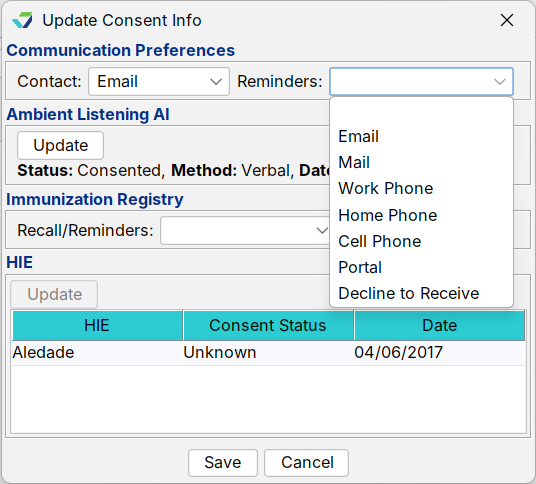
Add a Communication Preference
Go to Chart > Pt. Info > Consent
Click Update
Select a Contact preference, a Reminders preference, or both
Click Save
Update a Communication Preference
Go to Chart > Pt. Info > Consents
Click Update
Update the necessary preference information
Click Save
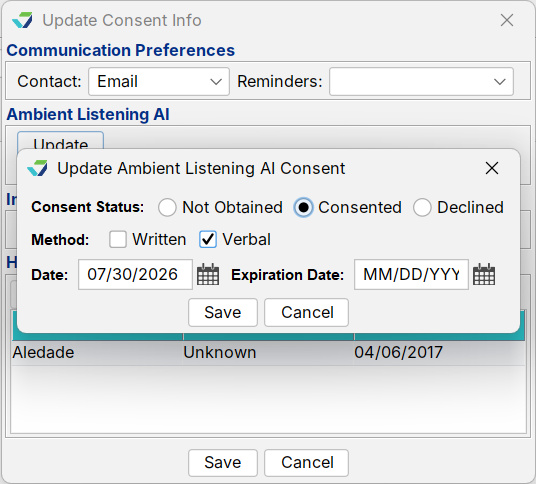
Ambient Listening AI
- Go to Chart > Pt. Info> Consents
- Under Ambient Listening click Update.
- Choose the Consent Status: Not Obtained, Consented or Denied
- Then choose the Method: Written or Verbal
- Enter consent the Date.
- Optional: Enter Expiration Date.
- Click Save
Immunization Registry
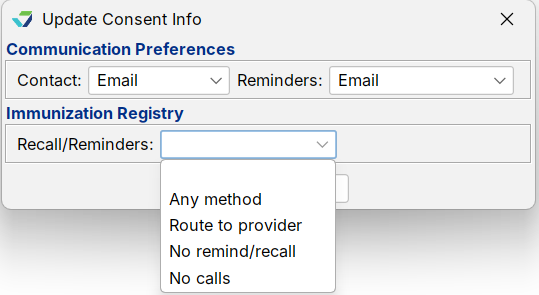
Add an Immunization Registry Recall/Reminders Preference
Go to Chart > Pt. Info > Consents
Click Update
Select a Recall/Reminders preference
Click Save
Update an Immunization Registry Recall/Reminders Preference
Go to Chart > Pt. Info > Consents
Click Update
Update the Recall/Reminders preference
Click Save
ImmTrac Texas Immunization Registry Interface
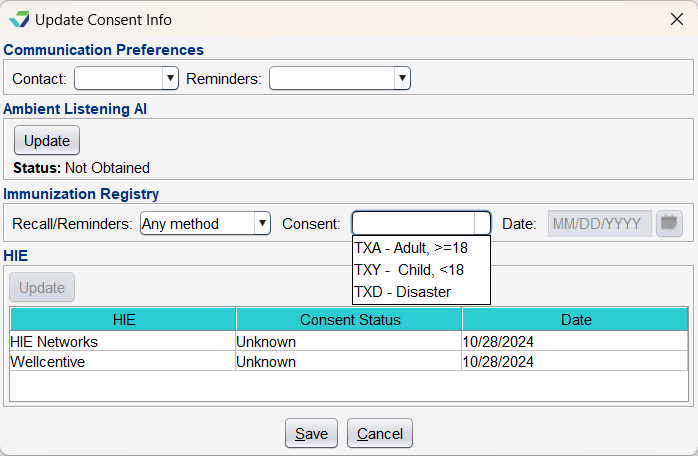
Clinics with an ImmTrac Texas Immunization Registry interface are able to document patient consent affirmations. To add a patient consent or update an existing one:
Go to Chart > Pt. Info > Consents
Click Update
Select a Consent type
Populate the consent Date
Date populated cannot be a future date
Click Save
HIE
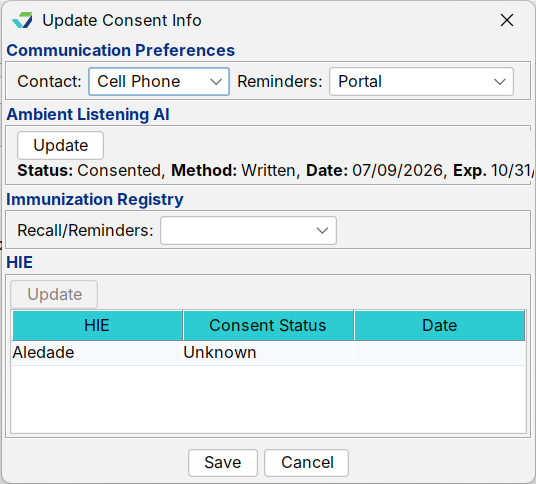
The Health Information Exchange (HIE) section displays for clinics with one or more HIE interfaces. From this section users are able to document patient consent per HIE.
For all patients, the default Consent Status is Unknown and the default consent Date is the date of chart creation until the information is updated by a user.
Update HIE Consent Status
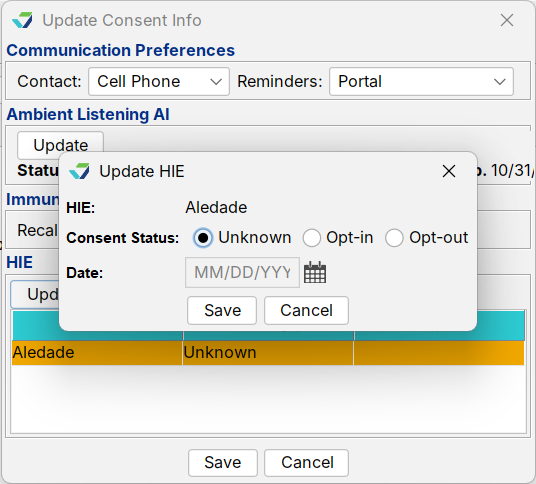
Go to Chart > Pt. Info > Consents
Click Update
Select an HIE from the list
Click Update
Select a Consent Status
Populate the consent Date
Date populated cannot be a future date
Click Save
Historic Button
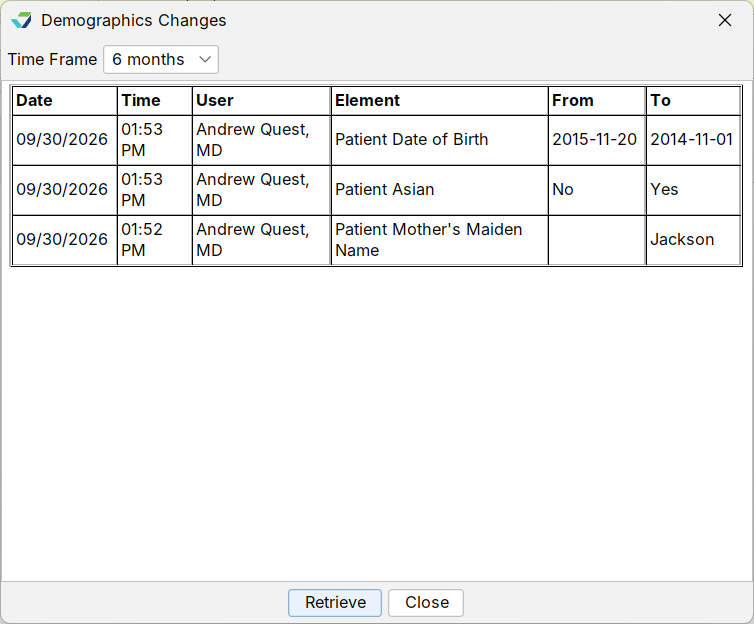
The Historic button displays an audit trail of user activity in the Pt. Info subtabs. To view changes made to patient demographics:
- Click Historic from the subtab
- Select a Time Frame for the changes
- Click Retrieve
The results display the Date and Time the change was made, the User who made the change, the data Element that was changed, the original value of the element (From), and what the element was changed To.