
Section
Chart
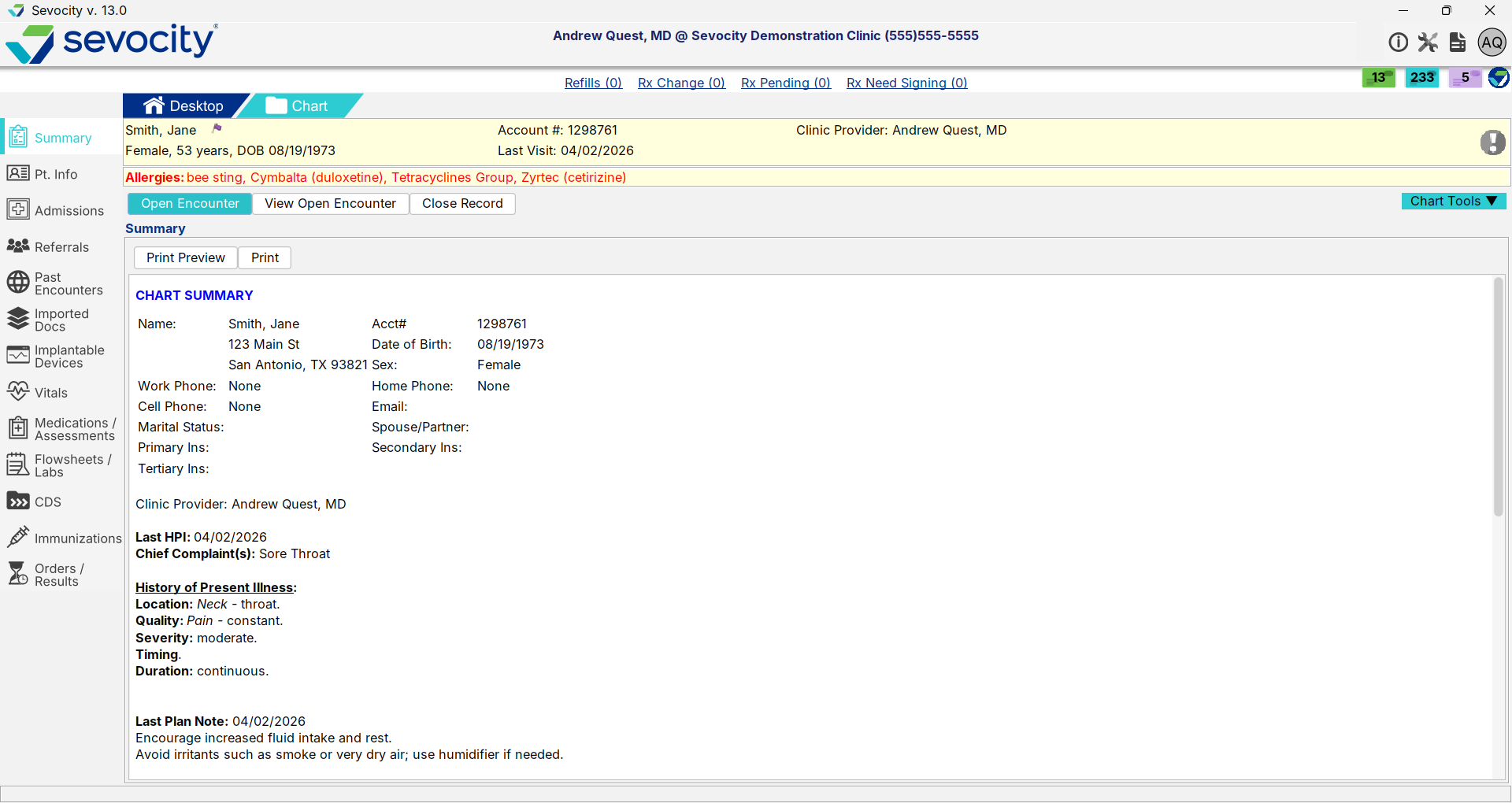
The Chart contains the patient’s demographic and clinical information. From the chart, a user can view a patient’s current and historical clinical information, start a new encounter, and perform a variety of patient-related tasks. Demographics and some clinical information, such as medications and vitals, can be added and updated from the chart.
Upon opening a chart, the chart Summary displays the patient’s demographic information and clinical information from the most recently finalized encounter.
Permissions
- Users with an Access Level of Summary and View-Only, Restricted Chart Entry, or Full Chart can view and add information in the chart. Users with an Access Level of Chart Folder can view the Summary tab and view and edit the Demographics tab only.
- Users must have an Access Level of Restricted Chart Entry or Full Chart to start a New Encounter. See Create a New Encounter from the Patient Chart
Configuration
Certain patient encounter information can be included or excluded from the chart Summary display at the user and CLINIC level by going to Tools > Preferences > CLINIC or [user] > Application Settings
The Clinic Administrator can customize Chart Alert Favorites in Clinic Settings: Alerts/Reminders/CDS
Chart Alerts
Chart Alerts are patient-specific alerts accessible from the patient header. These alerts can also be set to display on the patient header or upon opening a chart. The chart alert icon in the patient header indicates if the patient has an alert.
 (grey exclamation point): no patient alerts
 (red exclamation point): patient has one or more alerts
Chart Alerts is a communication tool. Alerts are not stored to the patient chart.
Add a Chart Alert
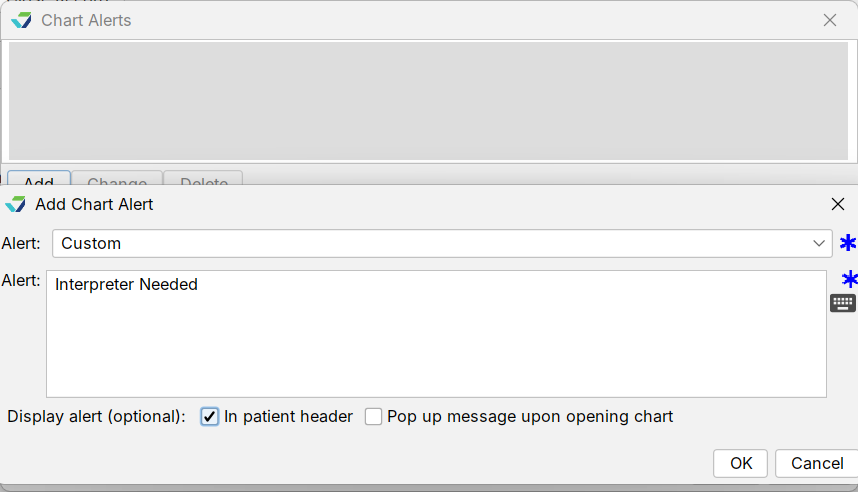
Click the chart alert icon in the patient header
Click Add
From the Alert list, select a chart alert favorite or select Custom
If creating a custom alert:
Populate the Alert field
Optional: select one or more Display alerts
Click OK
Note: custom alerts are not saved to the favorites list for future use
- Click Save
Update a Chart Alert
Click the chart alert icon in the patient header
Select an alert and click Change
Update the Alert text and Display alert options, as needed
Click OK
Click Save
View a Chart Alert
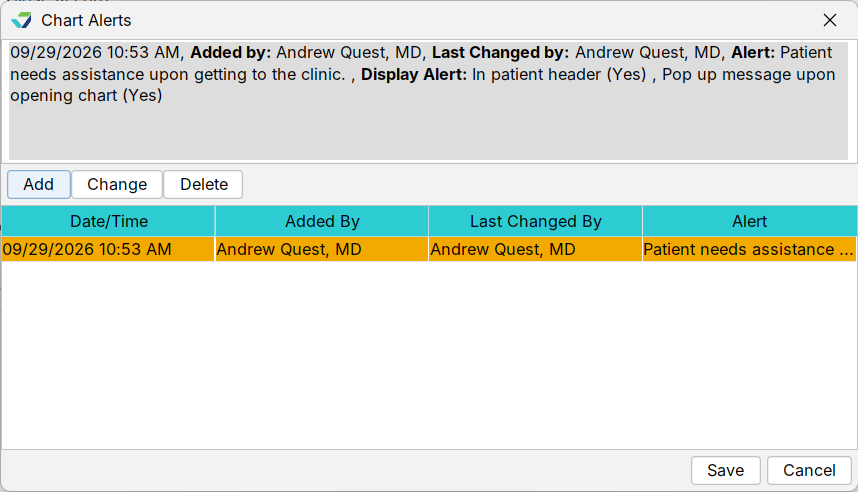
Clicking the chart alert icon displays all patient alerts. To view the alert detail, select the alert from the list.
Delete a Chart Alert
Click the chart alert icon in the patient header
Select an alert and click Delete
A message will display to verify the user would like to delete the alert. Click Yes
Click Save
Warning
Once deleted, an alert cannot be retrieved or restored
The following tabs are available in the patient chart:
Chart Tools menu: contains tools to complete a variety of patient-related tasks
Demographics: used to document and maintain patient demographics, insurance, and contacts
Admissions: used to document a patient’s admission and discharge events
Referrals: used to create and manage patient referrals
Past Encounters: contains all the patient’s finalized encounters
Imported Documents: used to add documents or images to the patient chart
Implantable Devices: used to document and maintain a patient’s implantable devices
Vitals/Growth Charts: used to view and document patient vital signs and generate growth charts for pediatric patients
Medications and Assessments: displays a patient’s active and historical medications and assessments and is used to modify a patient’s medications, allergies, and pharmacy information
Flowsheets and Labs: used to view and add custom flowsheets and view labs saved to the patient chart
CDS: displays a patient’s inclusion in a Clinical Decision Support and the status of the guideline
Immunizations: displays immunizations documented for a patient
Pending Orders and Results Review: displays a list of orders that have not been completed for a patient and patient e-Labs results that need to be reviewed
Articles
-
Patient Info
The Demographics tab is divided into six subtabs of patient information. Patient Information: records and displays patient demographic information Consents: records and displays patient preferences for contact methods, ambient listening AI, and data exchange consent status Insurance: records and displays responsible party and insurance policy information for a patient Contacts: records and displays Emergency and […]
-
Professional Contacts
The Professional Contacts tab records and displays healthcare professionals or healthcare organizations that are involved in the patient’s care. A patient’s professional contacts are also referred to as the patient’s care team. Professional contacts can be selected from a list of clinic users, existing contacts in the User and Clinic Contact List, or created from […]
-
Imported Documents
The Imported Documents tab is used to add documents and images to the patient chart. Documents can be imported from a user’s local computer or scanned and stored to the patient chart. DICOM links stored to the chart using the Link DICOM Image tool can also be viewed from the Imported Documents tab. Documents and […]
-
Export
The Export tool exports individual patient records in a machine-readable format, as a C‑CDA file, or as PDFs.
-
Immunizations
The Immunizations tab displays immunizations documented for a patient and consists of two subtabs: Child and Adult. Selecting Immunizations opens the appropriate subtab based on the patient’s age.