
What this release focuses on:
The September 2026 release focuses on practical workflow improvements, clearer navigation, stronger reporting, and more consistent tools across Sevocity. Along with explaining what changed, these notes explain why the change was made and what it means for day-to-day use.
Release Highlights
- More visibility into tasks, reporting, and audit history.
- A clearer Scan to Chart workflow and streamlined medication display.
- Expanded order, lab, and quality measure reporting.
- More consistent icons, tooltips, menus, and navigation throughout the application.
Tasks, Reporting & Audit
Task Report
What changed: A new Task Report consolidates task activity across the clinic, including status, assignments, due dates, and completion history, with reporting and export capabilities.
Why we made this change: Clinic Administrators need an easier way to review task activity without piecing information together from individual task lists. Bringing task information into a single report improves visibility, accountability, and follow-up across the clinic.
Learn More: Task Report
Competed Task Auto-Removal
What changed: Completed tasks are automatically removed from the active task list 30 days after the completion date, and the Task List now explains this behavior to users.
Why we made this change: This keeps the active task workspace focused on current work while making the automatic cleanup behavior clear, so users understand where older completed tasks went.
Learn More: Task List and Messages
Auto-Removed Tasks in the Auditable Events Report
What changed: Tasks that are automatically removed are included in the Auditable Events Report.
Why we made this change: Even when completed tasks are no longer shown in the active task list, organizations still need visibility into task activity for review and audit purposes. This preserves that history in the appropriate reporting workflow.
Learn More: Auditable Events Report
Orders Report Support for Bidirectional Orders
What changed: The Orders Report can include bidirectional/eLab orders, expanding the report beyond traditional orders.
Why we made this change: Customers using bidirectional lab ordering need a more complete view of order activity. Including these orders reduces the need to review separate workflows and gives users a more useful reporting picture.
Learn More: Orders Report
Scanning, Charting & Clinical Workflow
“Local Folder Scanning” Renamed to “Scan to Chart”
What changed: The Local Folder Scanning name and related labels have been updated to Scan to Chart in machine-specific settings and scanning workflows.
Why we made this change: “Scan to Chart” more clearly describes what the feature actually does: it moves scanned documents into the patient chart. The new terminology is intended to reduce confusion and make the workflow easier to recognize.
Learn More: Image and File Import
Scan to Chart: Automatic Cleanup When a Scan Is Cancelled
What changed: If a Scan to Chart session is cancelled or its documents are discarded, files created during that session are removed from the scan folder. Files that existed before the session remain untouched.
Why we made this change: This prevents unused scanned files from accumulating after a cancelled workflow while protecting files that were already present before the session began.
Learn More: Image and File Import
Expired Medications Display Removal
What changed: The standalone Expired Medications display has been removed. Historical and inactive medication information remains available through View Historic in Medications/Assessments and through inactive medications in the medication portal.
Why we made this change: The standalone list could grow over time and no longer reliably represent the most useful medication information in a workflow that now supports chart-level medications and multiple open encounters. Removing the duplicate display reduces clutter and directs users to the authoritative medication history sources.
Learn More: Medications
Return Charts with Open Encounters from Active Charts
What changed: Users can return charts from the Active Charts List even when those charts still contain open encounters.
Why we made this change: Multiple open encounters can leave more charts in the Active Charts List than some users need. Allowing charts to be returned gives staff more control over their workspace while open-encounter status remains visible elsewhere in the workflow.
Learn More: Desktop
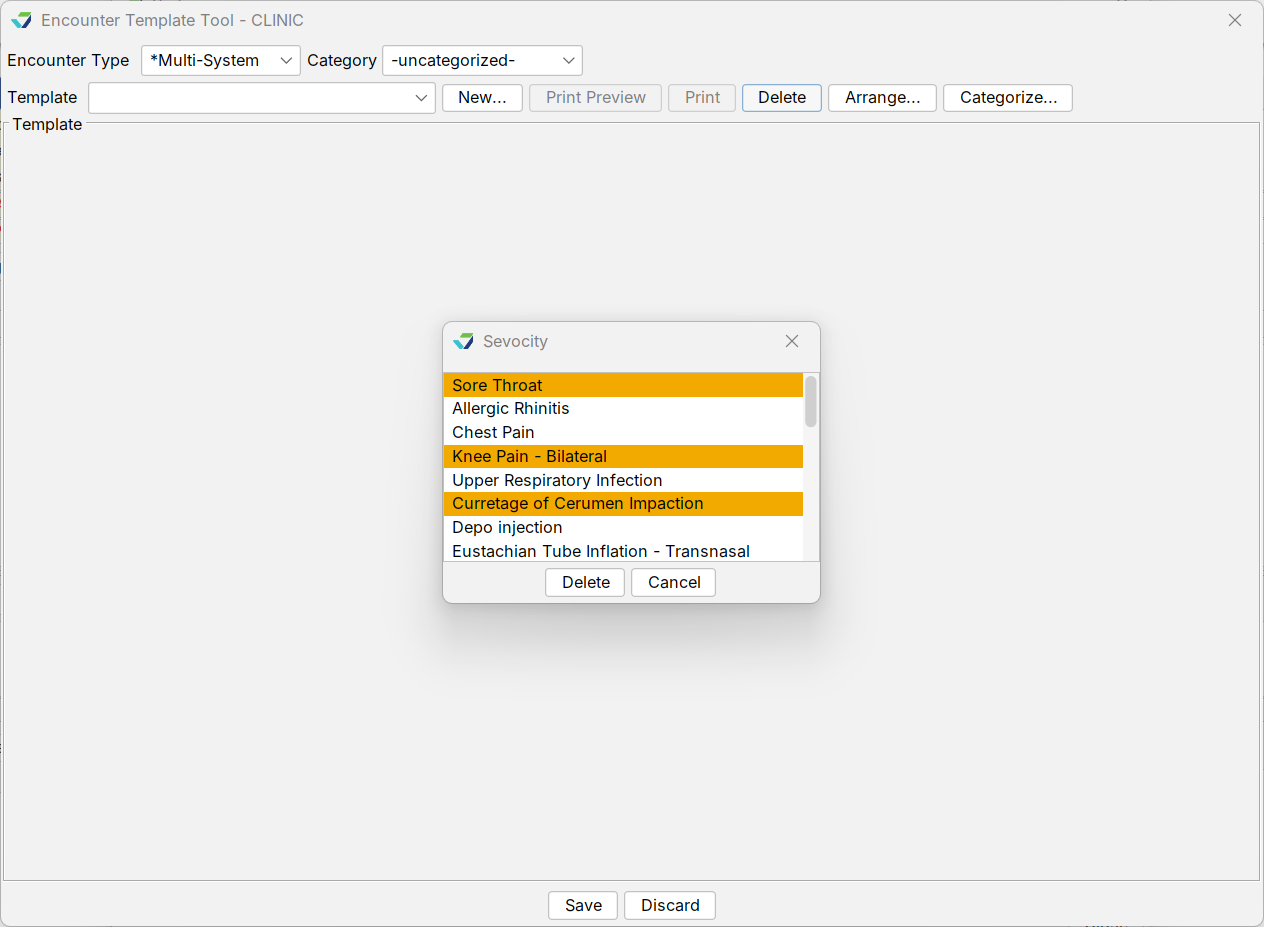
Delete Multiple Templates at one time
What changed: Users can select and delete multiple templates in a single action.
Why we made this change: Template maintenance can be time-consuming when items must be removed individually. This reduces repetitive steps and makes cleanup and maintenance more efficient.
Standard Flowsheets available in Letters
What changed: When creating letters from a selected encounter, users can include both standard and custom flowsheets associated with that encounter.
Why we made this change: This gives users more flexibility when building clinically useful letters and reduces the need to recreate or manually copy flowsheet information.
Learn More: Letters
Orders, Labs & Clinical Documentation
Up to 12 Indications on Orders and eLabs
What changed: Orders and eLab orders can support up to 12 indications, subject to the clinic-configured maximum. The indication workflow has also been updated from a fixed four-slot design to a more flexible selection model.
Why we made this change: Some services require multiple diagnosis codes to accurately document the clinical reason for an order. Expanding the number of indications helps users include the relevant diagnoses while supporting organizations with more complex ordering and billing needs.
Learn More: Orders and Referrals
Print In-House Lab Requisition with Labels
What changed: For applicable in-house bidirectional lab workflows, users can print the requisition form while printing specimen labels.
Why we made this change: Some lab workflows require a printed requisition to accompany the specimen. Combining these steps better matches the real-world collection process and reduces the chance that required paperwork is missed.
Learn More: Orders and Referrals
“Other” Option for Combination Vaccinations
What changed: An Other option is now available when documenting scheduled combination vaccines.
Why we made this change: This gives clinicians a way to document combination vaccines that do not fit the expected schedule without consuming a standard schedule position, making immunization documentation more flexible for patients who are off schedule.
Learn More: Immunizations
Elite Lab Bi-Directional Update
What changed: This release includes an Elite Lab bidirectional enhancement for a supported implementation.
Why we made this change: The change supports continued expansion and reliability of bidirectional lab workflows. This item is implementation-specific and may not affect every clinic.
Patient Portal & eForms
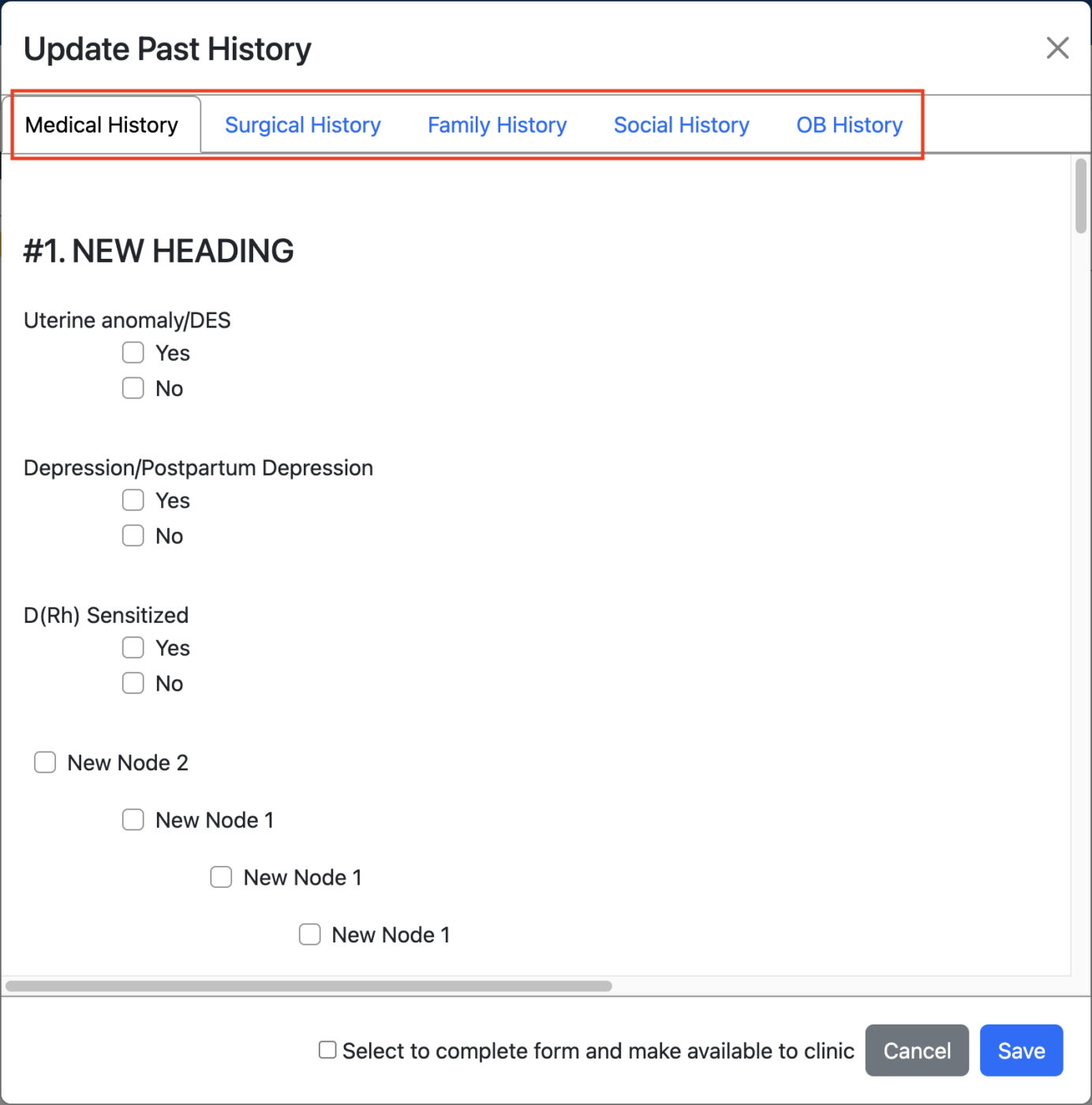
Patient Portal eForm Tab Order Aligned with Sevocity
What changed: The Patient Portal eForm tab order now follows Medical History, Surgical History, Family History, Social History, then OB History, matching the order used in Sevocity.
Why we made this change: Using the same sequence in both places creates a more consistent experience for staff and patients and reduces confusion when reviewing or customizing eForms across the application and portal.
Improved eForm Configuration for Safer Form Management
What changed: Related eForm nodes can be inserted together, reducing repetitive setup steps. eForm management also protects existing forms from permanent deletion while still allowing deactivation and reactivation as appropriate.
Why we made this change: These changes make eForm configuration faster and help preserve existing work, reducing the risk of accidental removal while still giving administrators control over which forms are active.
Quality Reporting
Medicare Beneficiary Identifier added to QRDA Category I
What changed: QRDA Category I exports can include the Medicare Beneficiary Identifier (MBI) from applicable Medicare coverage information.
Why we made this change: Some organizations need the MBI to correctly match patients during quality reporting and submission workflows. Including it makes the exported patient information more complete for those reporting requirements.
Learn More: 2026 Consolidated QRDA Export
Additional eCQM’s available to Clinic Administrators
What changed: CMS69v14, CMS125v14, and CMS130v14 are now available for Clinic Administrators to run directly. They are clearly identified as NOT eligible for Traditional MIPS Quality scoring.
Why we made this change: Some organizations use these measures for ACO or other quality programs even though they do not count toward Traditional MIPS Quality scoring. Direct access reduces manual requests while the labeling helps prevent reporting confusion.
Learn More: Quality (Traditional MIPS: Not Eligible)
Integrations & Interoperability
Simplicity / Estimation Interface
What changed: For configured customers, Sevocity can transmit patient, insurance, encounter, and order information to the Simplicity interface when an encounter is finalized.
Why we made this change: Automating this data transfer is intended to reduce duplicate entry and streamline prior authorization, eligibility, and cost-estimation workflows that depend on encounter and order information.
Opal-Rad Radiology Integration Support
What changed: Support for the Opal-Rad radiology integration is included in this release.
Why we made this change: This expands Sevocity interoperability options for organizations using supported radiology workflows. Configuration and availability depend on the individual integration setup.
Suki updated to v3.3.0
What changed: The Suki Web SDK has been upgraded to version 3.3.0.
Why we made this change: Keeping the integration on a current supported SDK helps maintain compatibility and provides the foundation for continued reliability of the Suki experience within Sevocity.
Learn More: Sevocity Ambient Listening Powered by Suki
Help, Navigation & User Experience
Latest Release Notes Link added to Help Menu
What changed: A Latest Release Notes option has been added to the Help area, and related Help resources have been reorganized.
Why we made this change: Users should not have to search outside the application to understand what has changed. A direct link to the latest notes makes product updates easier to find while the reorganized Help area groups related support resources more logically.
Learn More: Help Menu
Consistent Icons, Tooltips and Controls across Sevocity
This release also advances Sevocity’s design-system standards. Common actions now use more consistent visual metaphors and clearer tooltips where needed. The goal is to make controls easier to recognize across screens and reduce the learning curve when moving between workflows.
- Delete uses a trash can icon in Preferences
- Disable / Enable actions use updated icons and tooltips
- Change / Update uses a pencil icon
- Add / Create uses a green plus sign icon
- Settings uses a standard gear icon and tooltip
- Cut, Copy and Paste uses updated clipboard-action icons and tooltips
- Alphabetical Sort uses an A-Z icon and tooltip
- Scrollbars are wider and easier to use
- Move Up / Move Down arrows are standardized
- Question-mark buttons are replaced with clearer information icons and contextual tooltips
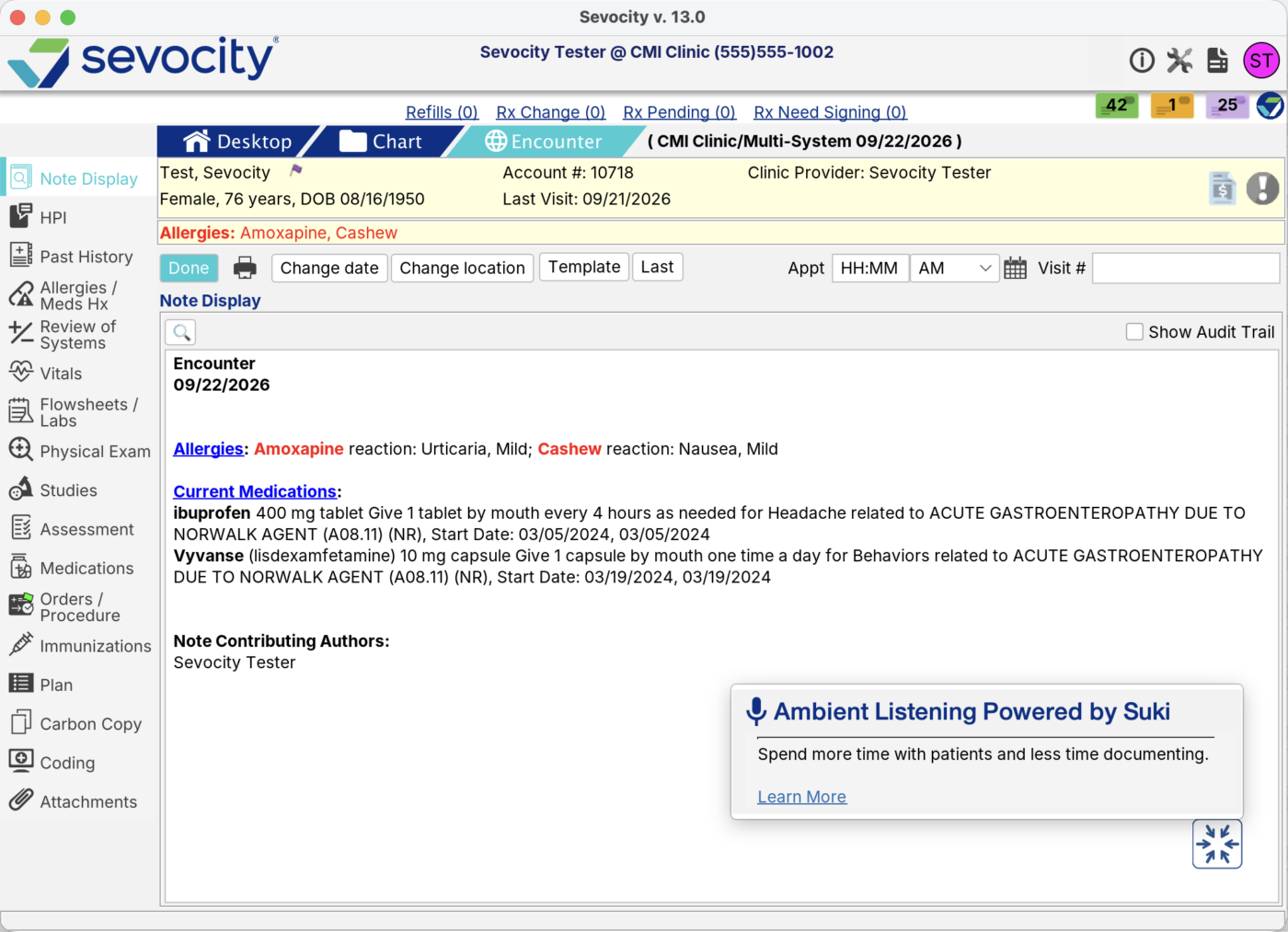
Information Panel
Periodically Sevocity will introduce new features to improve our user’s experience. In this release, users who currently are not registered and utilizing Suki Ambient Listening will be presented with an Information Panel. Pressing Learn More on this panel will launch our Online Help with more information on our Suki feature and how to register.
What Customers Should Know
Most updates in this release are designed to reduce repetitive work, improve clarity, and make information easier to find. Some integration and reporting capabilities apply only to customers with the related configuration, program, or workflow enabled. Your existing Sevocity permissions and clinic configuration continue to determine what each user can access.
Questions about our new features?
877-777-2298
[email protected]
Sevocity Support is U.S.-based and available 24/7.