
In This Release…
Finalized Encounter Report Display Update
A column for Bill Submitted Date has been added to the Finalized Encounters Report display. This column will display the date the encounter was submitted for billing.
Transition Note: The information for Bill Submitted Date will only display for encounters submitted for billing on or after January 15, 2020.
ICD-10 Updates
The ICD-10 Master List has been updated with the CDC’s April 1, 2020 Addenda, which includes the new code COVID-19 (U07.1).
Immunization Schedule Display Changes
In alignment with CDC guidelines, the following description changes have been made to the child and adolescent immunization schedules in the Immunizations tab:
Immunizations 0 to 2:
| Old Description | New Description |
|---|---|
| Hib #4 | Hib #3 or #4 |
| Varicella | Varicella #1 |
Immunizations 2 to 18:
| Old Description | New Description |
|---|---|
| Var #2 | Varicella #2 |
| MCV4 | Meningococcal #1 |
| MCV4 #2 | Meningococcal #2 |
Immunization Serum Updates
The field NDC ID has been added to the immunization Serum setup tool in Clinic Wide Form Data. Immunization serums can be added and updated by the Clinic Administrator by going to Tools > Preferences > CLINIC > Clinic Wide Form Data > Begin Edit > Immunizations > Serum.
The Manufacturer field will now populate based on the Tradename selected. This functionality is available in both the Serum setup tool and in the Add/Change Immunization window in the Immunizations tab.
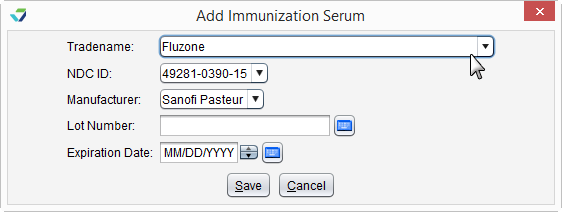
To assist with the maintenance of the items in the Serum list, all serums with past Expiration Dates will be removed from the list upon accessing the Serum setup tool in Clinic Wide Form Data. Once removed, the serums will no longer be visible in the Serum setup tool or accessible from the Add/Change Immunization window in the Immunizations tab.
Plan Tab Improvements
The Plan/Disposition tab has been renamed to Plan and now features a customizable layout to maximize the Plan Note section. Clinic Administrators can disable and enable the Goals and Disposition sections for each encounter type that includes the Plan tab.

To change the Plan tab layout, go to Tools > Preferences > CLINIC > Encounter Types > Begin Edit and select an eligible encounter type. Click Edit for the Plan tab to display the Tab Options.
Goals and Disposition are enabled by default but one or both can be disabled.

Problem List Note Display Improvements
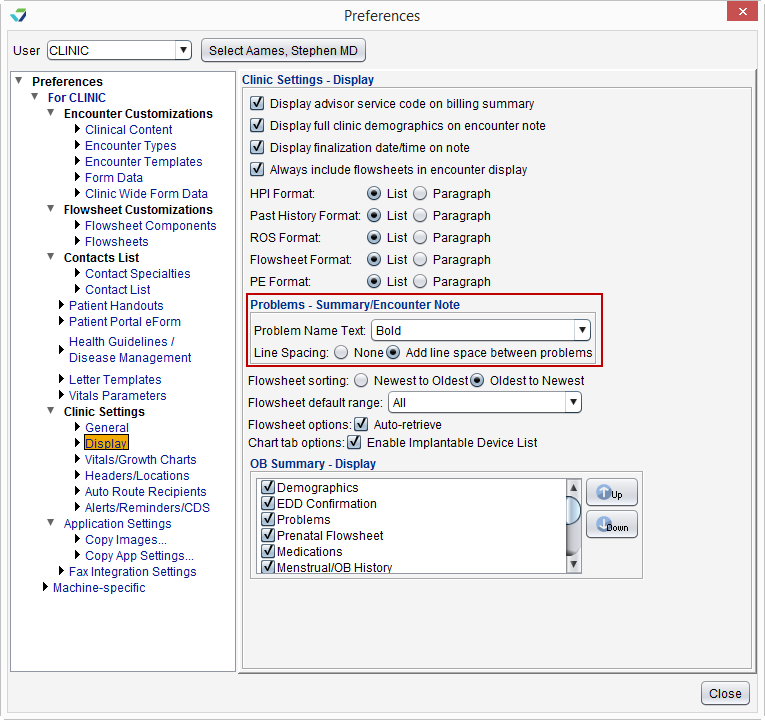
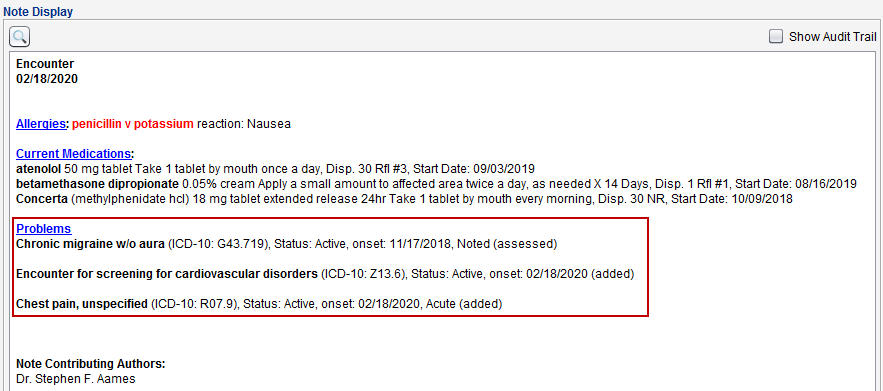
Text formatting options for the Assessment are now available and can be set by the Clinic Administrator by going to Tools > Preferences > CLINIC > Clinic Settings: Display. The problem name text can be set to Normal, Bold, or Capitalized, and a line space can be added between each problem.
The selected formatting options will display on the encounter Note Display and on finalized encounters in the Past Encounters tab.
Tier 1 Storage Level Increase
The per-file size limit for Tier 1 storage has been increased from 2 MB to 4 MB. This change will apply automatically to all customers contracted for the Tier 1 storage level. Customers with a higher storage tier will not be affected.
Questions about our new features?