
In This Release…
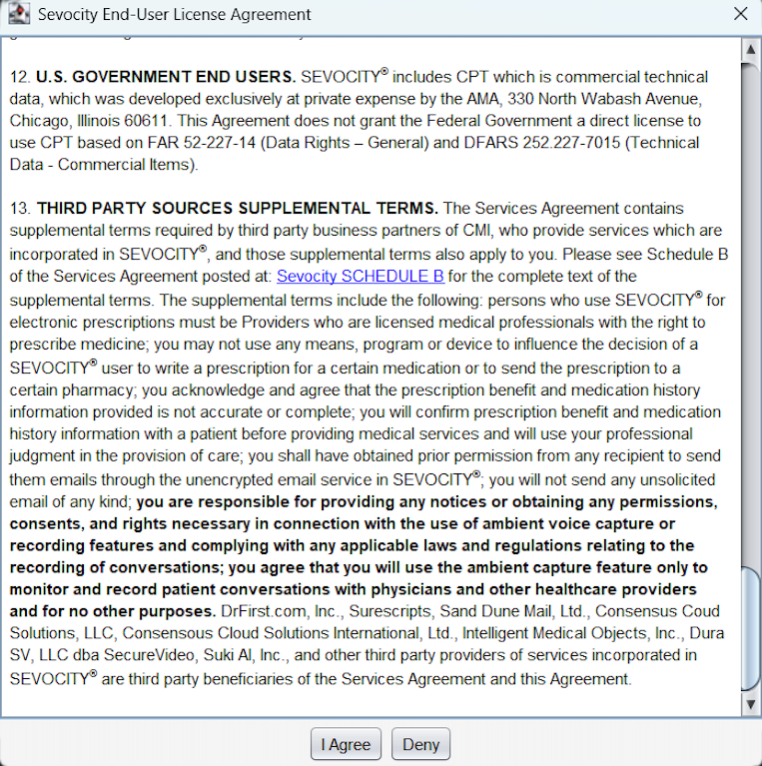
Updated EULA (End-User License Agreement)
All users must scroll through the EULA and accept to proceed with login.
Improvement to Patient Search
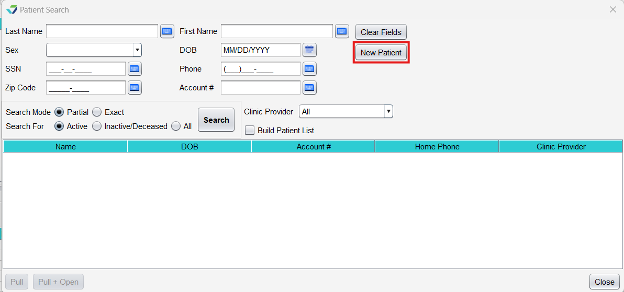
We’ve made improvements to Patient Search. The Create Chart button has been changed to New Patient.
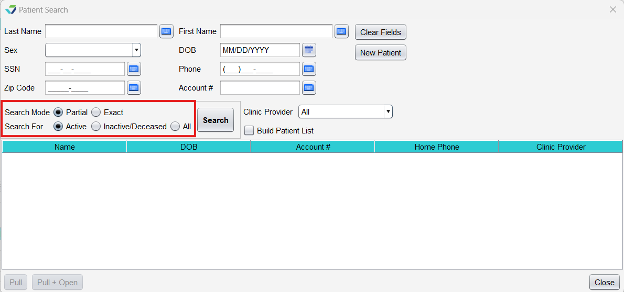
Search options have been modified from Drop Down selections to Radio Buttons.
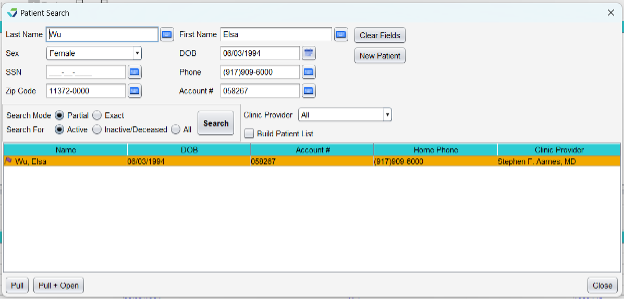
Home Phone is now displayed in the search results.
Improvements to Patient Demographics
Preferred Name has been added to Patient Demographics.

If a patient has a Preferred Name entered, it will display in parentheses after the patient’s First and Last name in the Patient Header.

Patients in which Patient Portal Access has been Revoked will now display a Red Flag in the Patient Header.

Updates to Health Guidelines/Disease Management
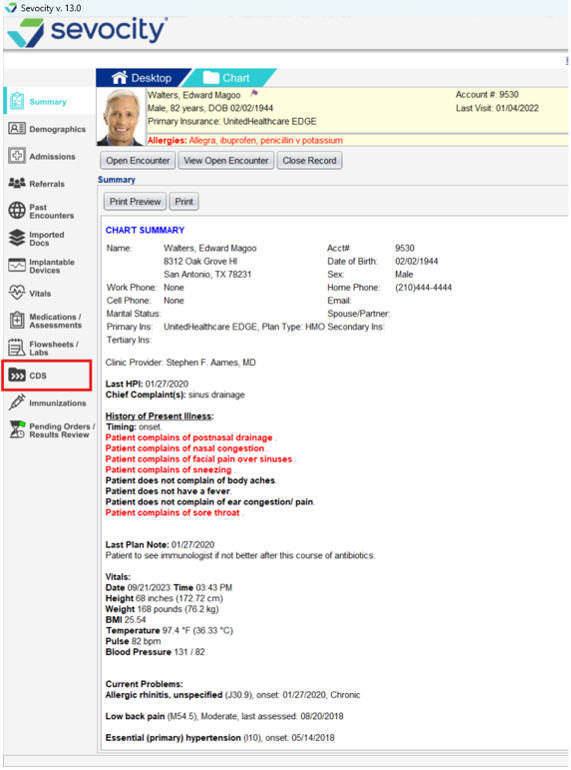
Health Guidelines/Disease Management has been renamed to “Clinical Decision Support (CDS)” to align with ONC standards.
Improvements to the Assessments Tab
The Assessments tab has been updated to remove the drop-down fields Chronicity and Severity.

For Historical Assessments: If Chronicity or Severity existed when the assessment was “assessed” in the past, Chronicity and/or Severity will display in the details of the historical assessment.

Sevocity now presents the clinician with a warning when the user attempts to add an assessment that is already present in the Patient’s problem list.
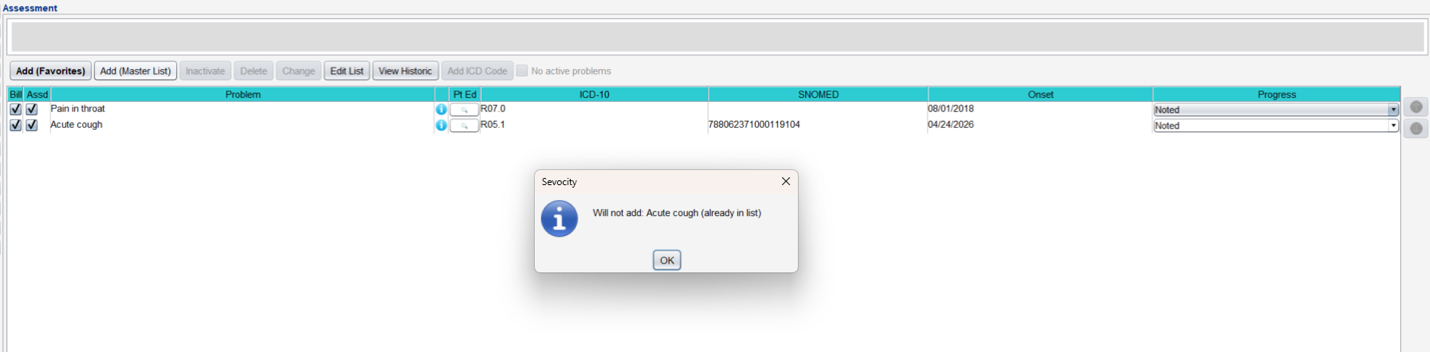
Sevocity now presents the clinician with a warning when the user attempts to assess/bill an existing assessment that is presently invalid or expired.

Improvement to Review of Systems
Added a User Preference to allow for the ability to open Review of Systems as Notes instead of Structured. This is a user-level setting and is located in Tools > Preferences > CLINIC or User > Application Settings > General tab.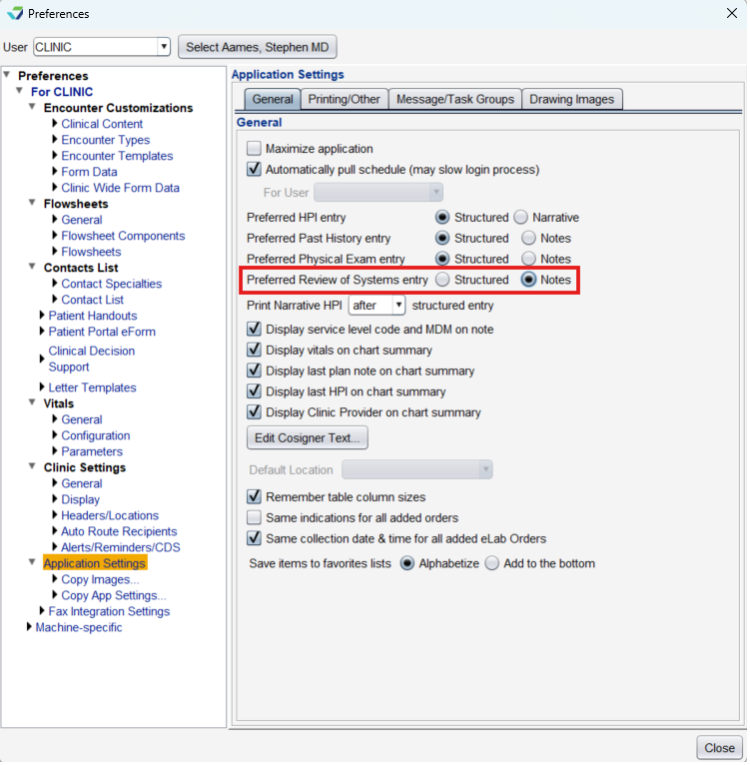
Improvement to Insurance Details on the Billing Summary
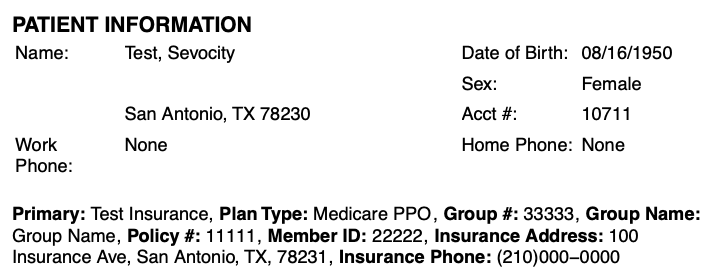
Patient Member ID and Group Name have been added to the Insurance Details on the Billing Summary.
Improvements to Custom Flowsheets
The ability to add a Header Component has been added to Custom Flowsheets.
To add a header component:
Tools > Preferences > CLINIC > Flowsheets > Begin Edit > Select flowsheet > Change > Add
Select Add Header at the bottom
Enter the name of the Header
Click Save
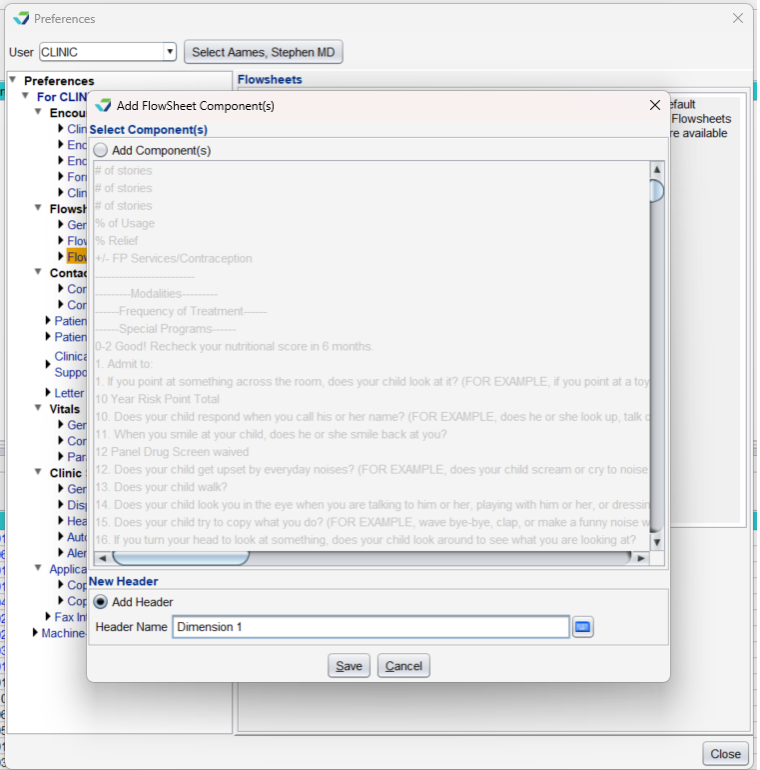
*Note: Custom Flowsheet Headers do not display in the Encounter Note.
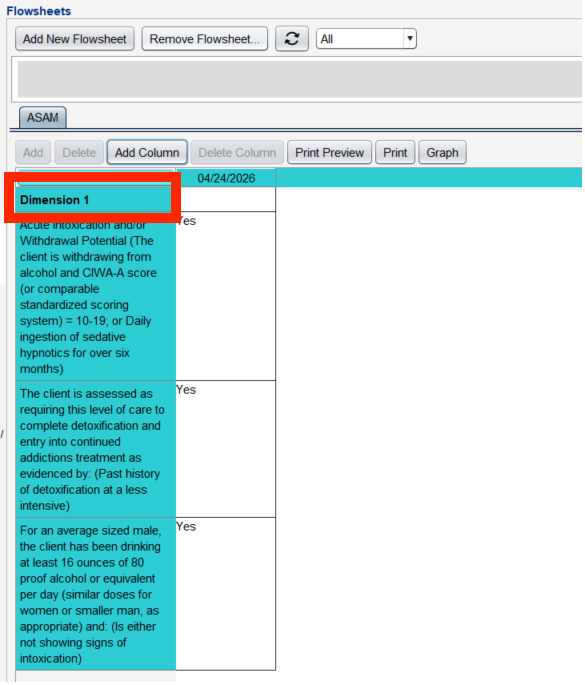
The ability to edit an existing component name has been added.
To edit a component name:
Tool > Preferences > CLINIC > Flowsheet Components > Begin Edit > Select component > Change
Make needed changes
Click Save
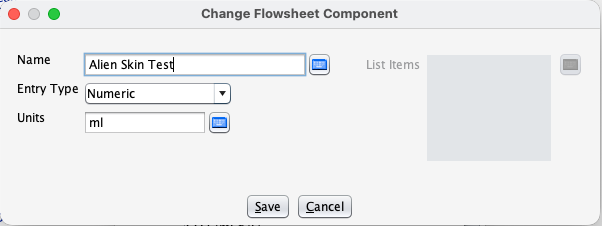
*Note: Component names will be updated on all existing instances of the flowsheet in the patient’s chart and Past Encounters.
Improvements to Business Contact creation in Contact List
Users now have the ability to create/add Business Contacts to their contact list with the following characters in the business name: numbers, /, and &.
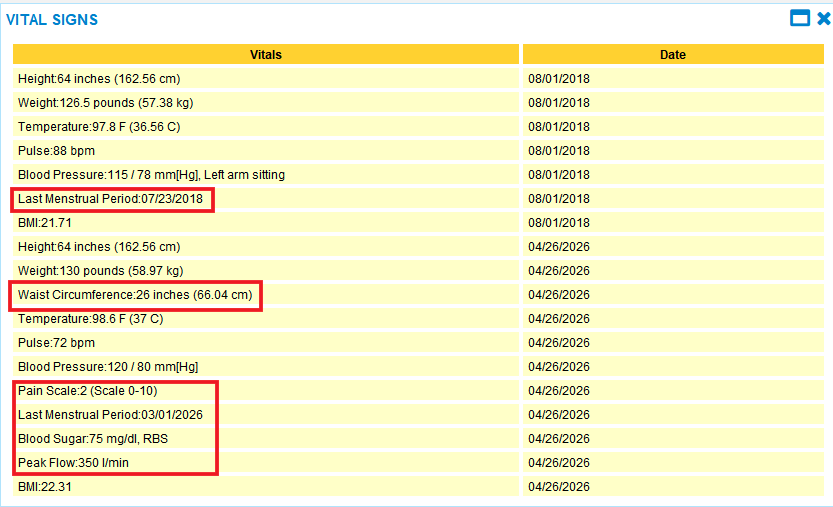
Vital Sign additions to CCD-As
The following Vital Signs have been added to CCD-As: Waist Circumference, Pain Severity, Last Menstrual Period (date and status), Blood Sugar, and Peak Flow.
Health Insurance Changes
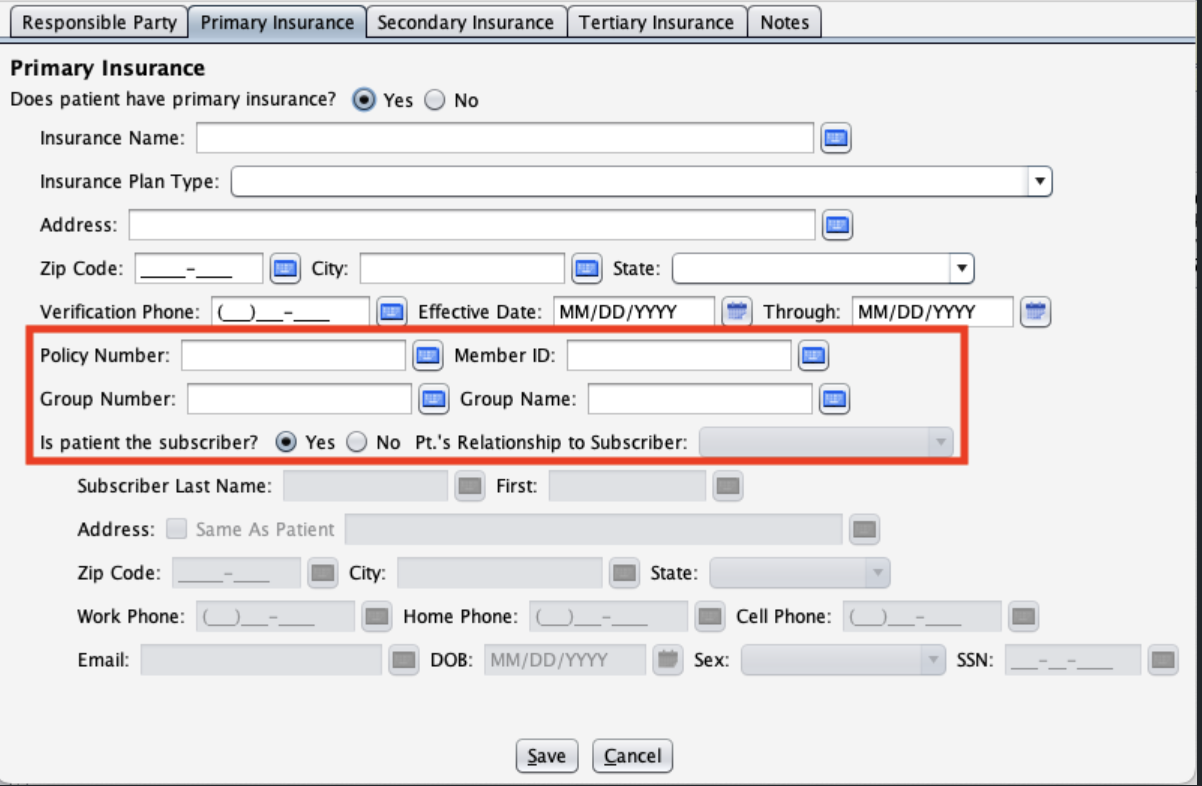
We’ve made improvements to the Insurance section in patient demographics.
- Added Member ID and Group Name fields to Primary, Secondary, and Tertiary insurance.

Questions about our new features?