Release Notes September 12, 2025
In This Release....
 Patient Portal Changes
New Link: mysevocityhealthlink.com
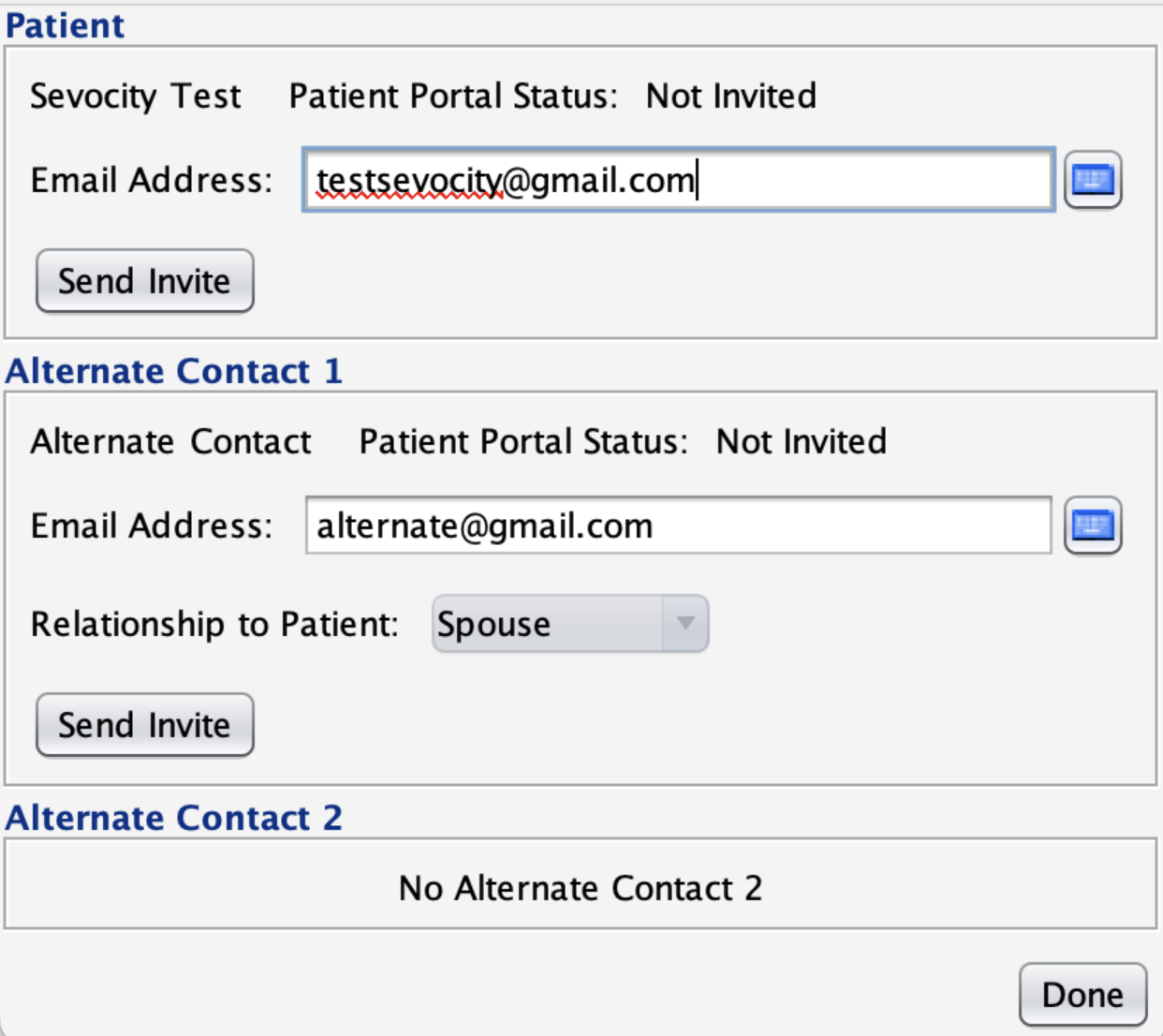
We’ve redesigned the Patient Portal Registration process to make inviting patients faster and simpler.
-
You will invite patients using their email on file, and then the patient will complete the registration.
-
You will see clear status updates: Invited, Not Invited, Pending, Enrolled, Revoked.
-
You can quickly send, resend, or cancel invites, and print basic instructions.
-
The Portal Invite can now be found under the Chart Tools in the patient’s chart, as well as under the Tools, as it was previously.
Note: If the patient is currently registered with the portal, they can simply log in to the updated portal. If the patient no longer remembers their password, and they have an email address in the demographics, the forgot password feature can be used.
Updates to the Birth Sex Field
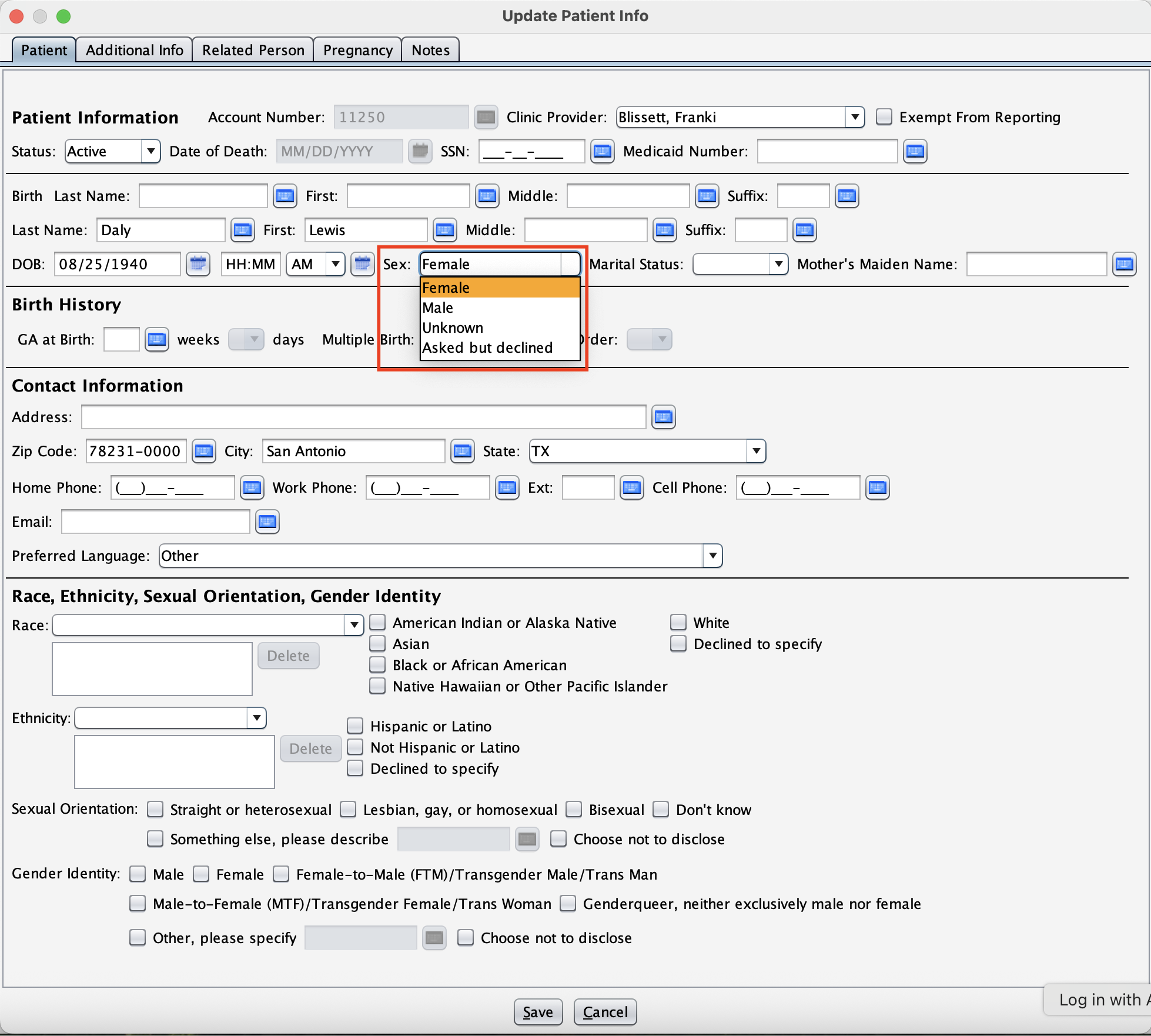
We’ve made improvements to how patient sex is represented in demographics and throughout Sevocity. The field labeled “Birth Sex” is now displayed as “Sex” throughout the system. Also, we added “Asked but declined” to the list. This change ensures consistency in terminology and meets updated federal data reporting requirements.
UI Changes of Desktop Tab Sections for New Theme
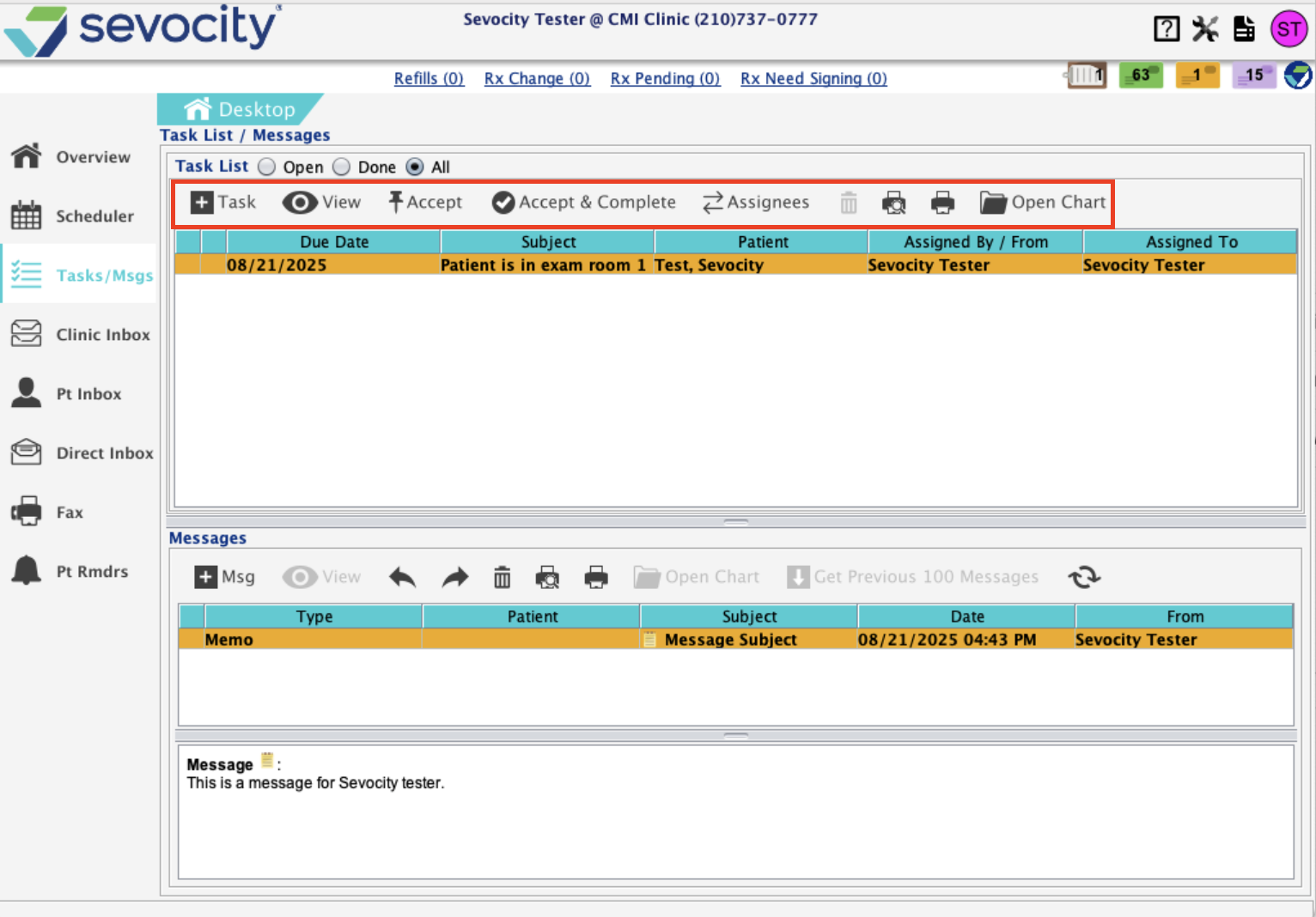
Additional Icons have been added within the side tabs to improve the overall user interface for the New Theme.
Immunization Schedule for IPV Doses
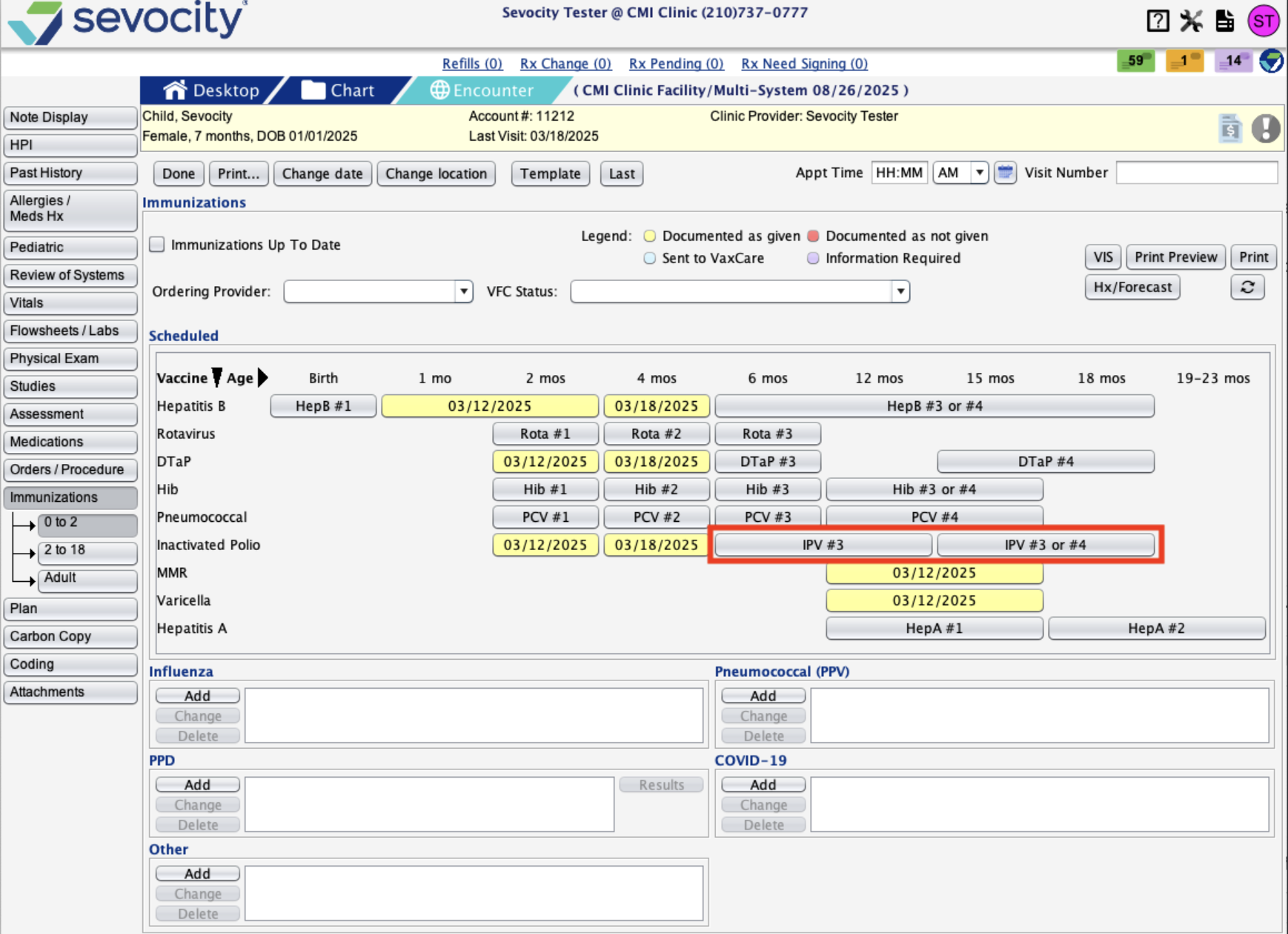
We’ve updated the immunization schedule to reflect 4 doses of IPV before age 2 when patients receive Pentacel or Quadracel (combination vaccines).
What Changed:
- Previously, Sevocity had 3 doses of IPV before age 2.
- An IPV dose has been added after 12 months to capture a dose given after 12 months, prior to 2 years.
This update provides more flexibility to document 3 IPV doses in the schedule and aligns the 4 dose combo vaccine schedule prior to age 2.
Ability to Date Encounters up to 30 Days in the Future
We’ve expanded the Future Dating option for encounters from 7 days to 30 days:
- You can now set an encounter date up to 30 days in advance (previously limited to 7 days).
- The scope of encounters remains the same—only the future date limit has been extended.
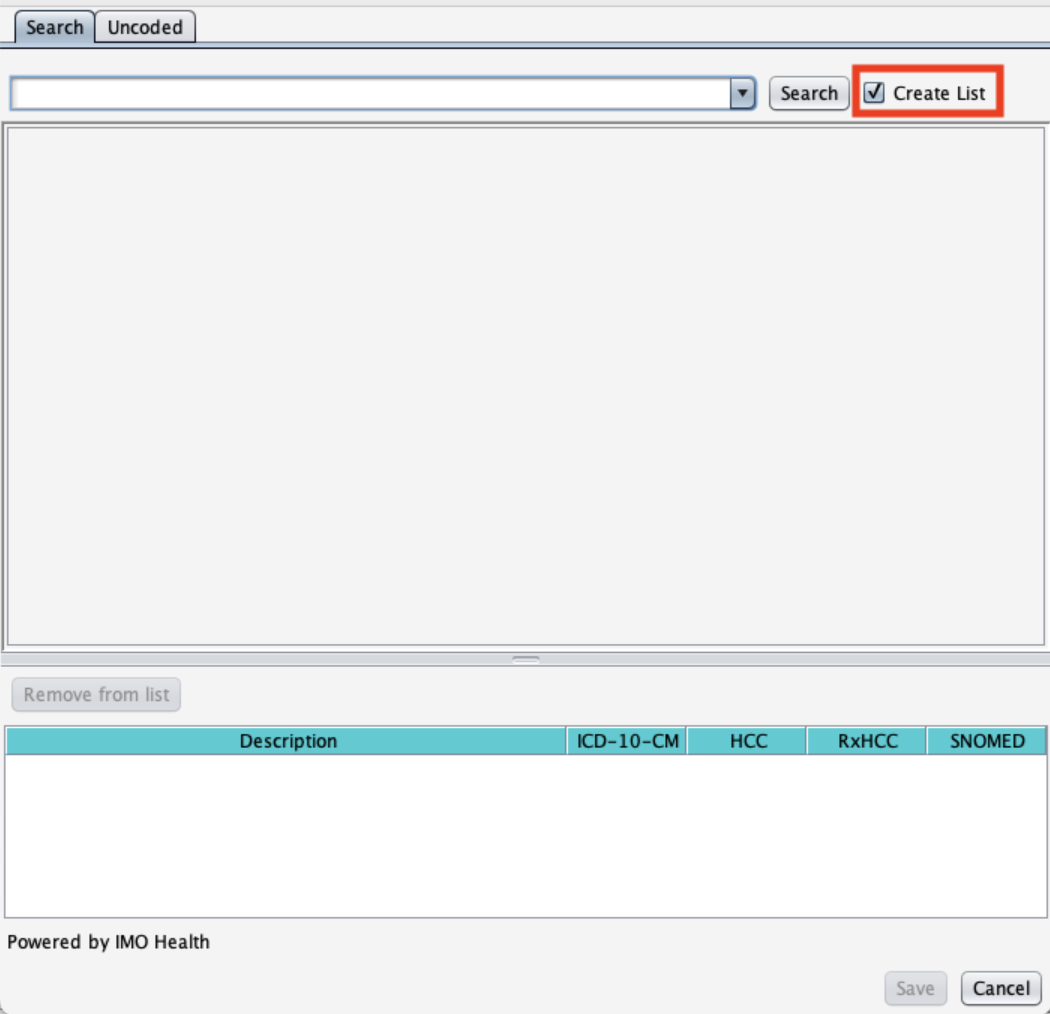
Added “Create List” to Preferences for Favorite Assessments
We’ve added the ability to create a list of assessments, rather than adding one at a time in Form Data>Assessments
What’s New:
- Instead of adding assessments one at a time, you can now create a list of assessments by utilizing the “Create List” checkbox in preferences.
- The “Create List” feature streamlines creating favorites lists and saves time when multiple assessments need to be added.
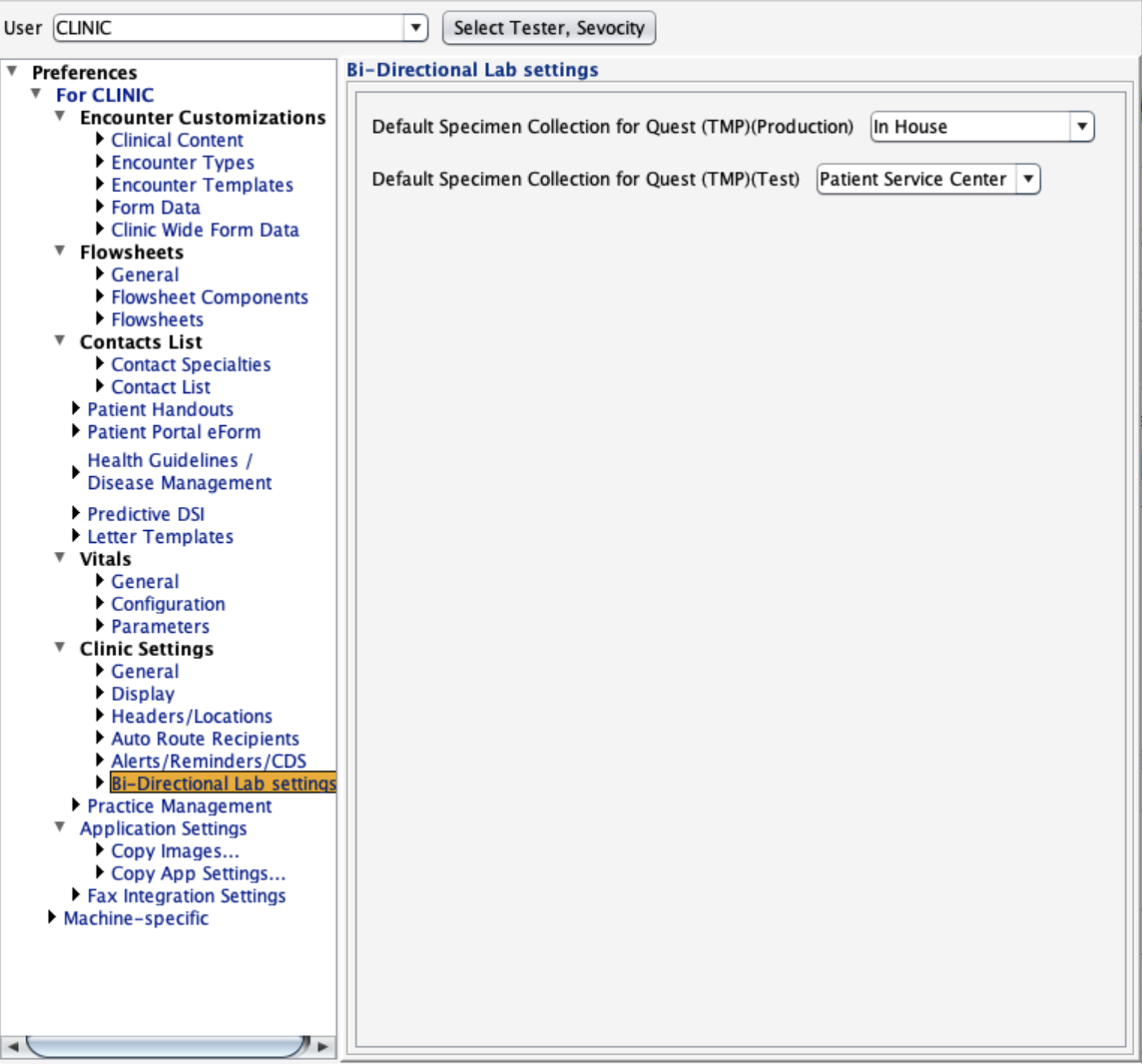
Added a Preference for Default Specimen Collection for the Quest Bidirectional Interface
If you are set up to do in-house Quest labs and PSC, you will see a new option in clinic preferences to set the default for your specimen collection. This is to make ordering labs even easier.
What’s New:
- When ordering with Quest, you will currently choose between:
- PSC (Patient Service Center)
- In-House Collection
- For most clinics, if you use in-house collection, you use it consistently. To save time, you can now set a default option.
- You’ll still have the flexibility to send individual patients to a PSC, when needed—this just eliminates extra clicks for your most common workflow.
Copy Entire Previous Encounter
We’ve added a faster way to bring forward information from the last encounter into a new one. Now you will have the option to copy an entire previous note into a new encounter for those areas that currently have a “Last” button and others.
- Start the encounter, and next to the ‘Template’ button will be a ‘Last’ button to perform this function.
- This works for the following encounter types: Multi-System, Exam, Telephone, Immunization, Procedure, Urgent Care, and OB Follow-Up Visit.
This update is designed to make your encounter documentation more efficient while keeping flexibility in your hands.
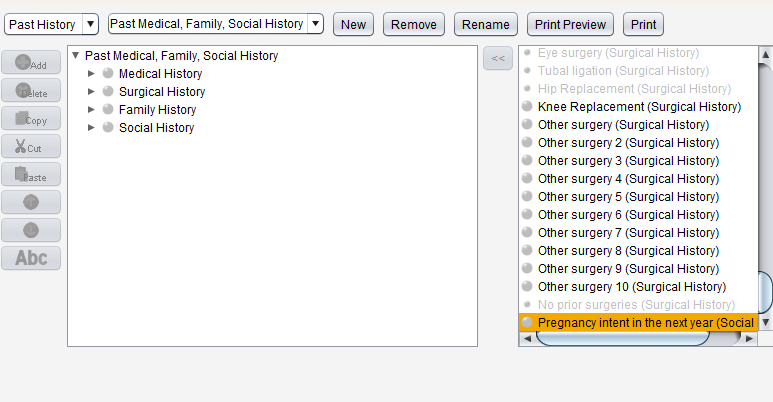
 Coded Node to Support Pregnancy Intent
We’ve added a new coded node called “Pregnancy Intent” in the Social History section. You can now easily document a patient’s pregnancy intentions with clear response options (Yes, No, Unsure, OK either way) and track this information in both notes and the audit trail.
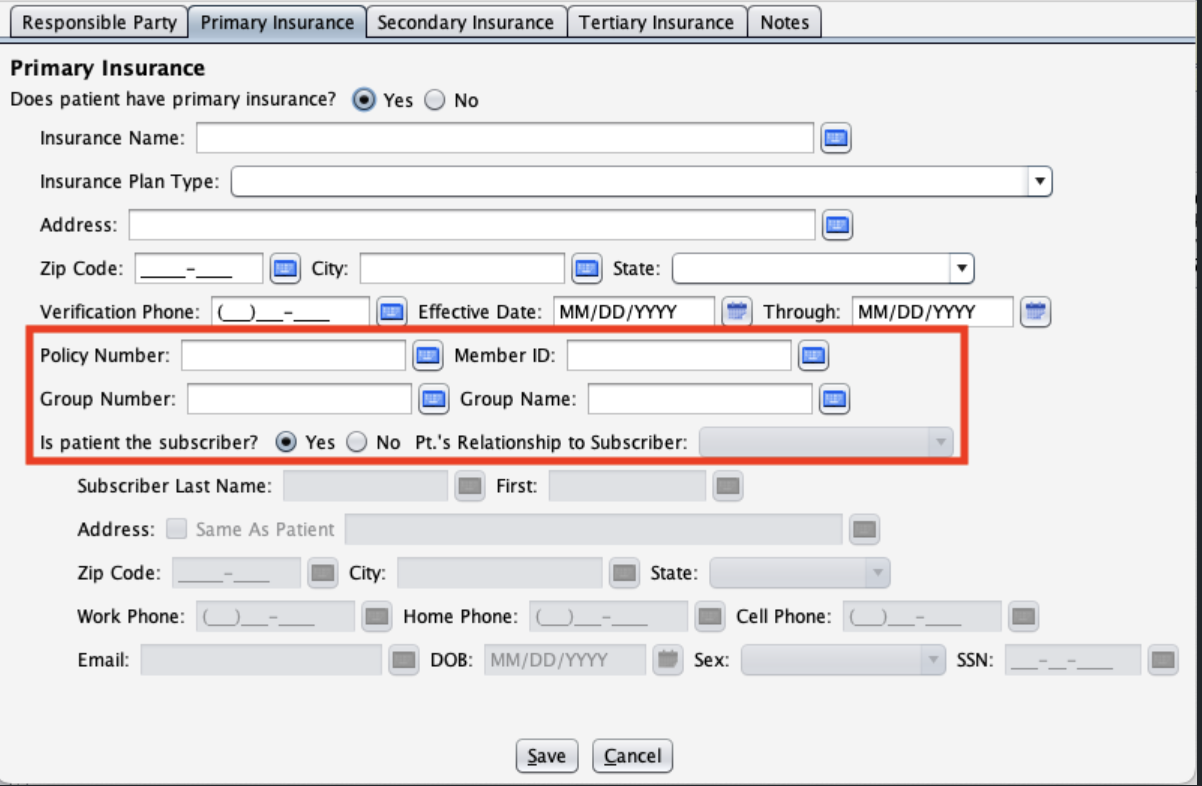
Health Insurance Changes
We’ve made improvements to the Insurance section in patient demographics:
- Added Member ID and Group Name fields to Primary, Secondary, and Tertiary insurance
Questions about our new features?
Contact Sevocity Support 24/7 at 877‑777‑2298 or support@sevocity.com